The Difference Between Figma Licenses: Plans and Seats
Figma billing has two layers: the team plan sets its features and administration scope, while each person’s seat controls which products they can use.
Figma licenses combine a plan and a seat. Plans are Starter, Professional, Organization, or Enterprise; seats are Full, Dev, Collab, or free View. Choose the combination according to each teammate’s work and your organization’s controls.
The difference between figma licenses is easiest to understand as two decisions, not one: choose a plan for the team, then choose a seat for each person. The plan sets the feature set and administrative scope available to the team. The seat controls which Figma products an individual can use. That distinction explains why two people in one organization may have different access, and why a higher tier is not automatically necessary for every collaborator. This guide separates those choices, compares published prices, and gives administrators a practical way to assign access with confidence.
How Figma plans and seats differ
Figma describes billing as a combination of plan type and the number of Full, Dev, and Collab seats. The plans are Starter, Professional, Organization, and Enterprise. A plan determines the available features and management scope; a seat is assigned to one person and determines their product access. A free View seat provides viewing and commenting. See Figma’s billing guide and seat management guide for current definitions.
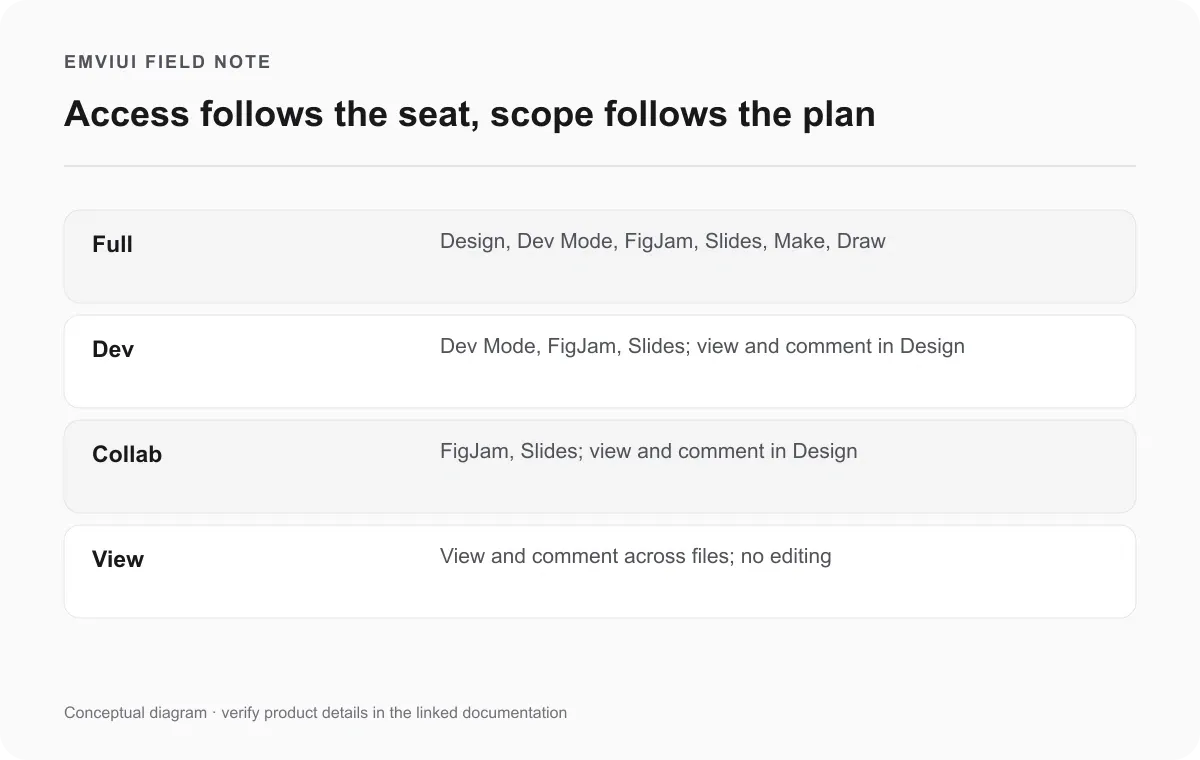
Think of the plan as the workspace’s operating framework and the seat as an individual permission bundle. A Professional team could assign Full to a designer, Dev to an engineer, Collab to a workshop facilitator, and View access to a stakeholder. The team keeps one plan while each person gets access suited to their work. Moving to Organization or Enterprise changes broader capabilities and controls; it does not mean every member needs Full.
Seat names describe access, not seniority or job title. A designer who only reviews files may not need Full. A developer who inspects handoff details may need Dev. A product manager running workshops may need Collab. An external stakeholder who comments on a prototype may only need View. These are starting points for an access review. Verify the live product list because features can change, and test permissions against the files people actually use.
One nuance matters: Figma says people on a paid plan can view and comment on files without purchasing extra seats. The View seat is a named access category, but view and comment permission can also be granted to others on a paid team. Figma describes basic Dev Mode inspection for this access; do not assume viewers have every capability of a Dev seat. Check the current sharing settings and actual workflow before promising a specific permission.
What Figma licenses cost today
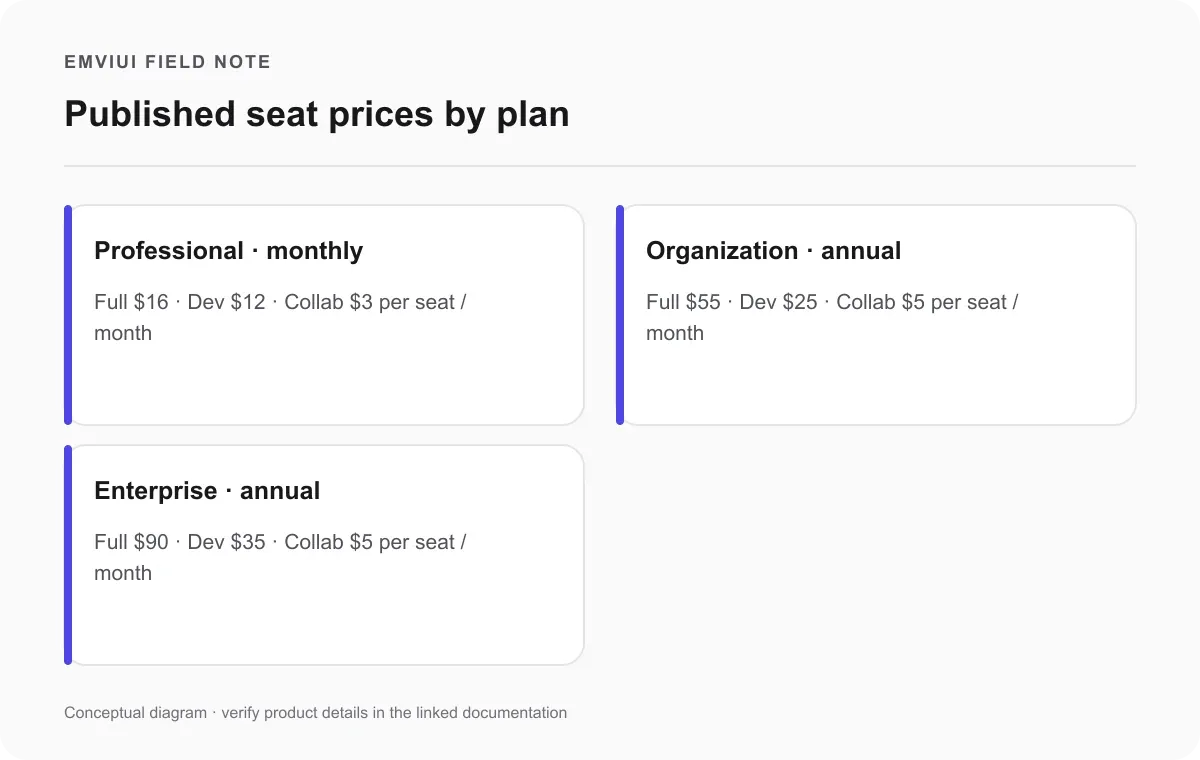
Figma’s pricing page lists amounts in US dollars and different billing periods by plan. On September 24, 2026, its monthly view showed Professional at $16 per Full seat, $12 per Dev seat, and $3 per Collab seat per month. Organization is marked billed annually and lists $55 for Full, $25 for Dev, and $5 for Collab per seat per month. Enterprise is also billed annually and lists $90 for Full, $35 for Dev, and $5 for Collab. These are published list prices, not a quote for every region, tax treatment, contract, or discount.
| Plan | Full | Dev | Collab | Billing |
|---|---|---|---|---|
| Professional | $16 / seat / month | $12 / seat / month | $3 / seat / month | Monthly prices shown |
| Organization | $55 / seat / month | $25 / seat / month | $5 / seat / month | Billed annually |
| Enterprise | $90 / seat / month | $35 / seat / month | $5 / seat / month | Billed annually |
Starter is Figma’s free plan with limited product access; it is not simply a paid plan with cheaper seats. The table focuses on paid seat prices because those figures help estimate team spend. A monthly equivalent on an annual plan does not mean you can cancel month by month. Read the billing cadence alongside the per-seat amount and confirm the checkout screen before committing. Figma’s pricing page is the source of truth for the live amount and included products.
For a quick estimate, multiply the number of each seat type by its listed price, then include taxes and other subscription items shown at checkout. For example, two Full seats, one Dev seat, and one Collab seat on Professional have a listed monthly subtotal of $47 before tax or other charges: 2 × $16 + $12 + $3. This is an illustration, not an invoice. A team may also have unassigned purchased seats, and annual plans use a different renewal rhythm.
Plan choice and seat choice solve separate cost questions. First decide whether Starter’s limits, Professional’s team features, Organization’s cross-team tools, or Enterprise’s wider administration and security scope fits the organization. Then allocate seat types based on work. If your team wants one administrative capability, do not assume it can be bought on its own: Figma says products are not sold individually, although plan and seat choices let teams match access to the products they need.
Which Figma seat should each teammate get
Figma currently describes a Full seat as access to Figma Design, Make, Draw, Sites, Dev Mode, FigJam, Slides, and Buzz. Dev covers Dev Mode, FigJam, Slides, and Buzz, plus view and comment access in Design. Collab covers FigJam, Slides, and Buzz, along with viewing and commenting in Design and basic Dev Mode inspection. View supports viewing and commenting rather than editing. Product availability may differ by plan, and some products are marked beta, so check Figma’s live comparison before assigning a seat.
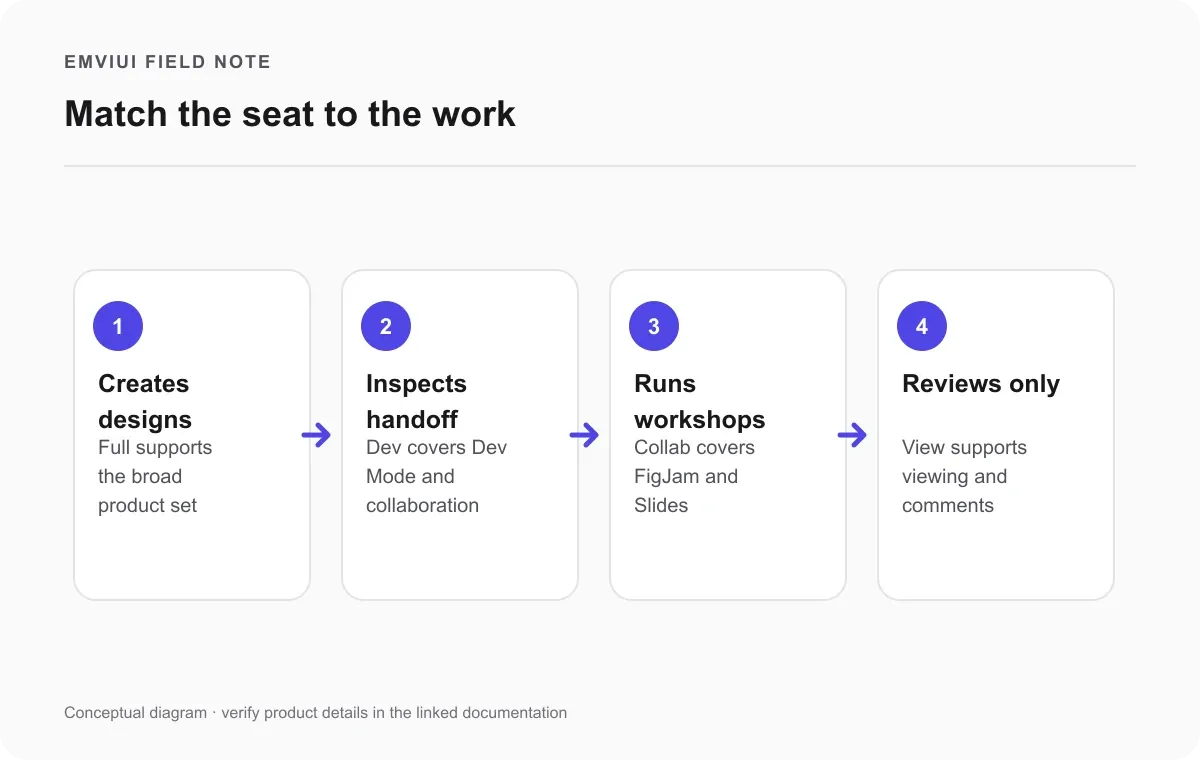
Use recurring tasks as the test. If a person creates or edits design files, builds Make experiences, or needs the broad product set, Full is the clearest candidate. If an engineer inspects measurements, assets, and handoff information but does not create designs, compare Dev with free view-and-comment access. If someone facilitates planning sessions or presentations in FigJam and Slides, Collab may be enough. If a teammate only reads, reviews, and comments, begin with View or the relevant sharing permission.
Do not reduce access based on a job title alone. Ask what the person must deliver. A developer may need to edit a shared FigJam board, a designer may only review one project, and an outside stakeholder may need to comment on a prototype. The right seat follows the tasks and files involved. Consider file ownership too: Figma warns that drafts owned by someone can become inaccessible to collaborators when that person is downgraded unless the files are moved to a shared folder or transferred first.
A useful policy is to assign the least expensive seat that fully supports the work, then make upgrades easy to request and approve. This is a cost-control recommendation, not a claim that every feature is interchangeable. Keep a short record of the capability that justified each paid seat. When a role changes, review access again rather than keeping the old level indefinitely.
For context on how shared work affects roles, read our guides to Figma design systems and building a design system in Figma. They explain how teams create reusable assets, review them, and consume a published system.
How to avoid unexpected license costs
Seat management can affect the bill even when nobody actively uses a seat. Figma says paid plans bill for purchased seats whether assigned or unassigned. An available seat is one that has been purchased but is not assigned. On monthly Professional subscriptions, unassigned seats are automatically removed from the next monthly invoice. Annual Organization and Enterprise plans use renewal reviews, and order-form customers may have different steps. Check Figma’s seat management instructions for the current process.
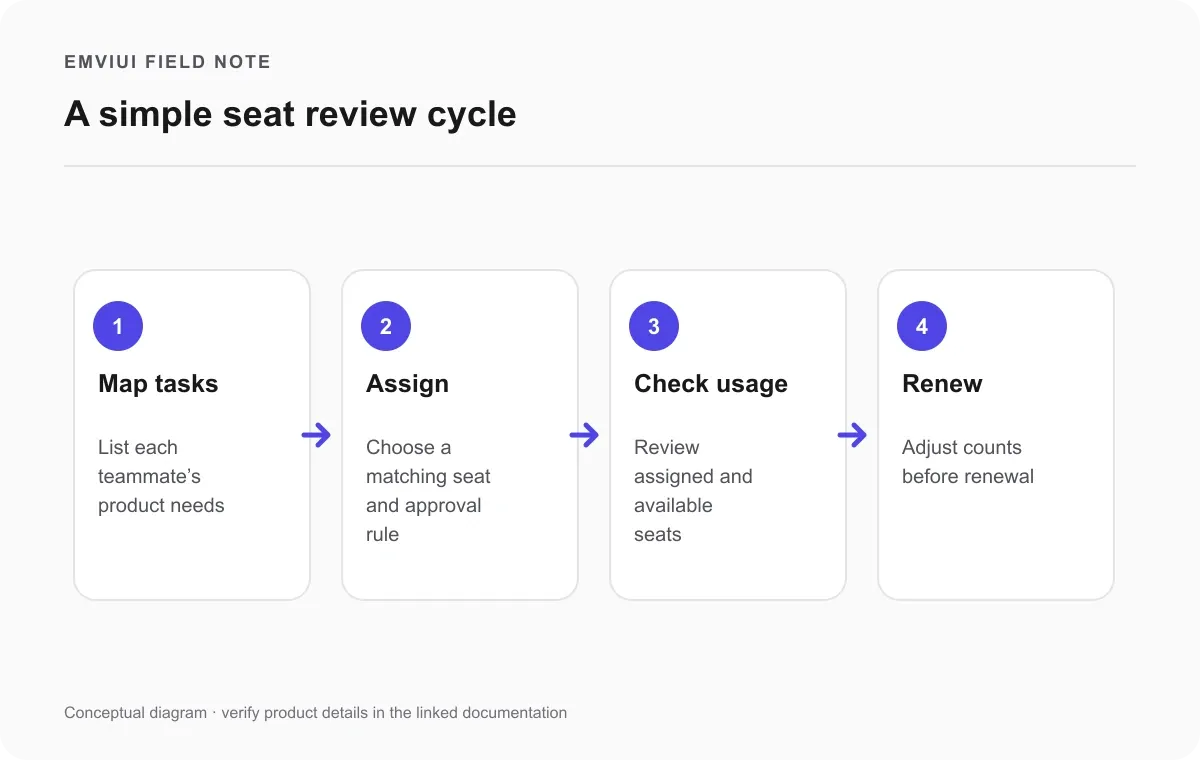
- List each teammate’s actual tasks and the Figma products they need.
- Assign Full, Dev, Collab, or View to match those tasks, and set rules for approving new seats.
- Review assigned and available seats in the Admin Dashboard before renewal.
- Move or transfer draft files before downgrading their owner.
- Confirm the seat count and billing cadence in the renewal flow.
When somebody requests a higher seat, an administrator can check whether that type is already available. If it is, assigning it can avoid buying another seat; the person’s previous seat becomes available for somebody else. If not, Figma says an additional seat may be added to the subscription. The same logic applies when moving a user to a lower-cost seat: if none is available, the team may need to purchase one while the old seat becomes unassigned. A seat change therefore does not always reduce the bill immediately.
Before renewal, compare paid seats with current needs. Annual plans have a renewal review window, and order forms can require coordination with an account team. For monthly Professional, check the next invoice and seat changes in the admin interface. Do not rely on a remembered price alone; plan details, seat counts, and billing options can change. Confirm the count directly in Figma before approving renewal.
Set request approvals to the level of control your team needs. Figma describes manual approval, approval when a matching seat is available, and automatic approval. A small team may want one owner to review requests. A larger organization may need role-based administration and central visibility. Either way, make the path clear: explain who approves, what information to include, and how a requester can keep working while waiting.
A practical way to choose a Figma license
To answer the difference between figma licenses for your team, start with the shared need and then consider people one by one. Choose Starter if its current limits cover the work. Consider Professional for one team that needs paid collaboration and advanced design workflows. Consider Organization when resources and administration must span teams. Consider Enterprise when the organization needs broader controls, multiple workspaces, or enterprise security. These cues summarize Figma’s plan descriptions; they do not replace a security or procurement review.
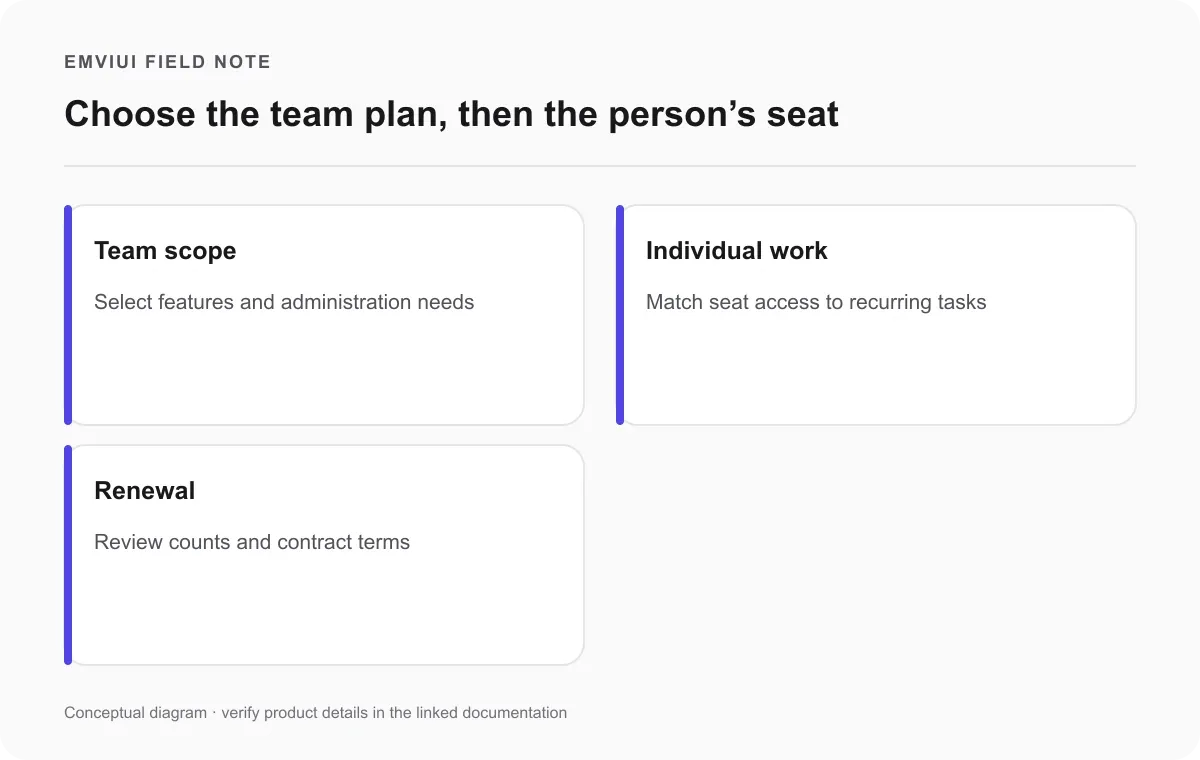
Next, write down which products each teammate needs rather than choosing the most capable seat for everyone. Full supports creation across the product set; Dev supports engineering inspection and specified collaboration products; Collab supports workshops and presentations; View supports review. If one feature could affect a deadline, test access with a representative user. Check Figma’s feature comparison when a library, branching, or admin control drives the decision.
Finally, record the plan, seat count, renewal date, approval owner, and reason for exceptions. Revisit the list when people join, change roles, or leave. Keep important files in shared locations and make ownership transferable before changing access. This process prevents both overbuying and disruption: pay for capabilities the team uses and make sure each person can complete their work.
In short, plans describe what the team can manage and which feature set is available; seats describe what each person can do. Compare the current terms, map access to real tasks, and audit unused seats before renewal. That is the practical difference between Figma licenses and the most reliable way to choose a setup that fits workflow and budget.

Pablo Mayoral
Senior UX/UI & Web Designer with 10+ years of experience. Creator of EmviUI (10k+ components Figma design system), UImand, and Vitamin Bootstrap. Currently designing digital products at CQMRewards.