How to Fix a Component in Figma: Sources, Resets and Updates
To fix a component in Figma, first identify whether you selected its main component, a linked instance or a detached frame. Compare the affected object with a fresh instance from the intended source. Then correct the source, reset only the unwanted change, review t
To fix a component in Figma, first identify whether you selected its main component, a linked instance or a detached frame. Compare the affected object with a fresh instance from the intended source. Then correct the source, reset only the unwanted change, review the library update or replace the detached object according to what the comparison proves.
To fix a component in Figma, first identify whether you selected its main component, a linked instance or a detached frame. Compare the affected object with a fresh instance from the intended source. Then correct the source, reset only the unwanted change, review the library update or replace the detached object according to what the comparison proves.
This guide follows a fictional alert whose dismiss control does not match the expected design. The comparison samples, repair record and acceptance checks are recommendations. They help isolate source identity and update delivery; they do not assume that every inconsistent appearance is a Figma defect.
Identify the object and its source
Select the outer object that appears wrong and write one observable failure: “The dismiss control in this alert still has the old border.” Avoid starting with “the component is broken.” That description could mean an unexpected local edit, a different source, a pending library release or a frame that no longer has a component connection.
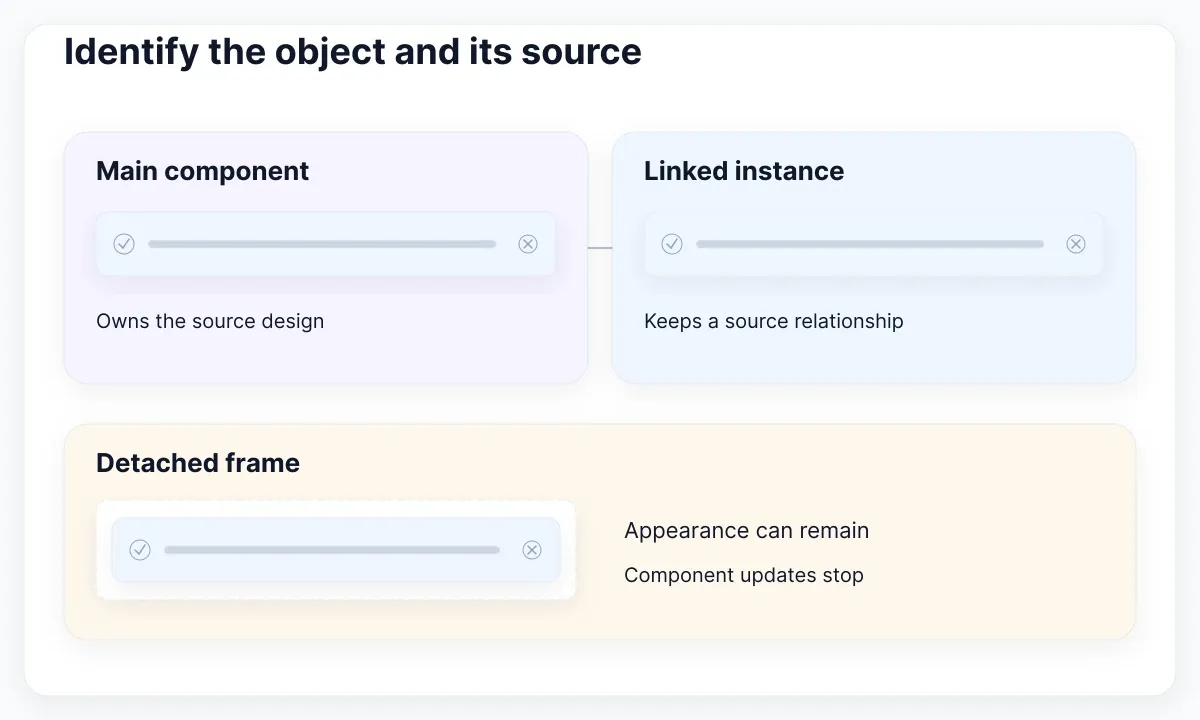
Record the selected object's type, component name and source file. Follow the main-component navigation rather than searching only by its visible label. Two controls can share the name Alert while belonging to different libraries. The purpose of this first pass is to prove which source you are actually inspecting before changing a shared asset.
Figma documents how to find and edit a main component. Local instances and consumers in other files follow different update routes. Put that distinction in your notes. If the main component is in the same file, investigate the relationship there; if it lives elsewhere, include that library file in the reproduction.
Inspect a nested control separately from its parent. An alert might contain a dismiss-button instance, which in turn contains an icon. Selecting the alert does not tell you which of those sources owns the icon drawing. Name the specific layer and the property you expect to change, then navigate from that selection.
For the proposed exercise, keep three objects side by side: the affected instance, a newly inserted instance from the intended source, and a screenshot of the original result. Label them clearly. Work on a duplicate test area so the evidence remains understandable when another designer opens the file later.
Compare a fresh instance before resetting
A fresh instance is a useful control sample. Insert it from the source you just verified, apply the same intended public properties, and compare the failing detail. If the fresh sample behaves correctly while the older one differs, focus on the older instance's changes before redesigning the main component.
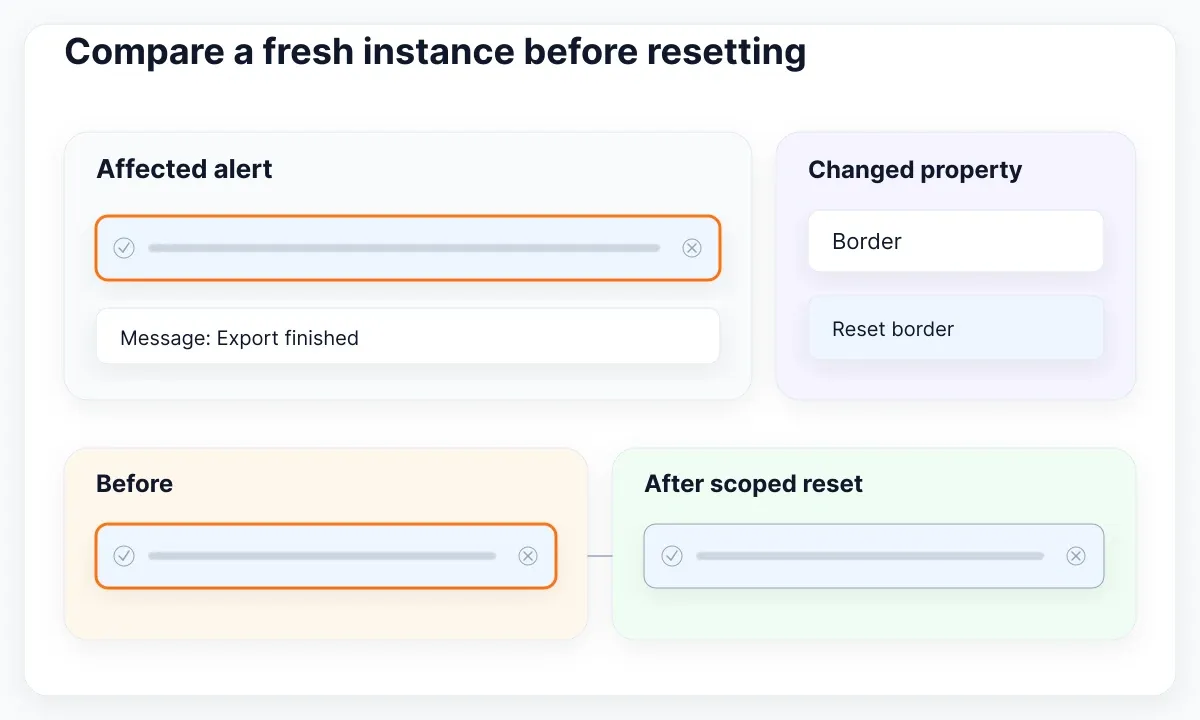
Figma supports resetting a specific changed property or the selected instance’s changes. Use that scope deliberately. If the border is wrong but the alert contains carefully written product copy, test a border reset on a duplicate first. A broad reset can remove legitimate customization as well as the unwanted difference.
Write an expectation before resetting anything: the border should match the fresh sample, the custom message should remain, and the dismiss control should keep its intended visibility. Compare the result against all three conditions. A visual match created by erasing the user's content would fail this exercise even if the color now looks correct.
Keep the main component unchanged during this comparison. Otherwise the experiment has two moving parts and you cannot tell whether the reset or the source edit fixed the result. If the fresh sample is wrong too, return to the main component and inspect its actual design rather than repeatedly clearing the consumer.
If the failure concerns selected variants, exposed properties or preserved content after a variant change, continue with the variant and override troubleshooting guide. This article focuses on object identity and update delivery. Treat a wrong variant selection as a separate hypothesis rather than assuming every inconsistent instance needs the same repair.
Trace the library update route
A correct source file does not prove that another file has received the intended revision. Trace a small route: source edit, published change, consumer review and the affected instance. Write the expected visible difference beside each step. That makes an absent release distinguishable from a local customization that survives an update.
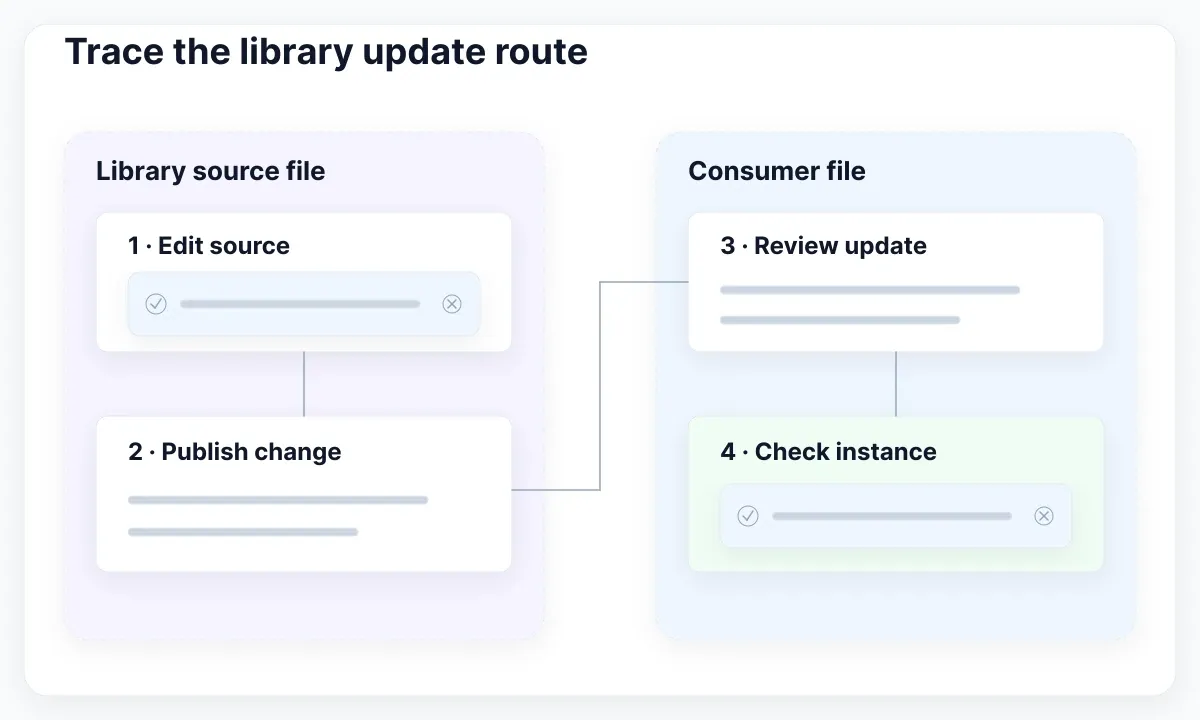
Publishing a library makes its changes available to other files; the receiving file can review and accept those updates. Check the actual component in the change list. Do not infer that an alert was released because a library with the same name was recently published or another component changed successfully.
Use a proposed release note such as “Alert: refine the dismiss-control border; retain message and icon choices.” This is more useful for diagnosis than “UI cleanup.” It names the changed asset and the expected effect. Ask the library owner which release includes it when you cannot edit or inspect the source yourself.
In the consumer file, compare the affected object and the fresh sample again after reviewing the relevant update. Record what changed, what stayed local and whether the result is now expected. Review hidden content separately when it matters; Figma’s update comparison does not visually expose changes to hidden layers.
If the source is correct and delivery is confirmed, stop treating the issue as a publishing delay. Revisit the selected layer, source identity and local edits. If only width or wrapping fails, move to the Auto Layout sizing walkthrough. Repeatedly publishing the same asset cannot explain a layout rule you have not inspected.
Recover deleted or detached components
A deleted source and a detached instance require different recovery paths. First inspect whether the object is still an instance. Preserve a copy of the current content and identify which source should own it. This prevents a quick visual rebuild from disguising the missing relationship you were trying to repair.
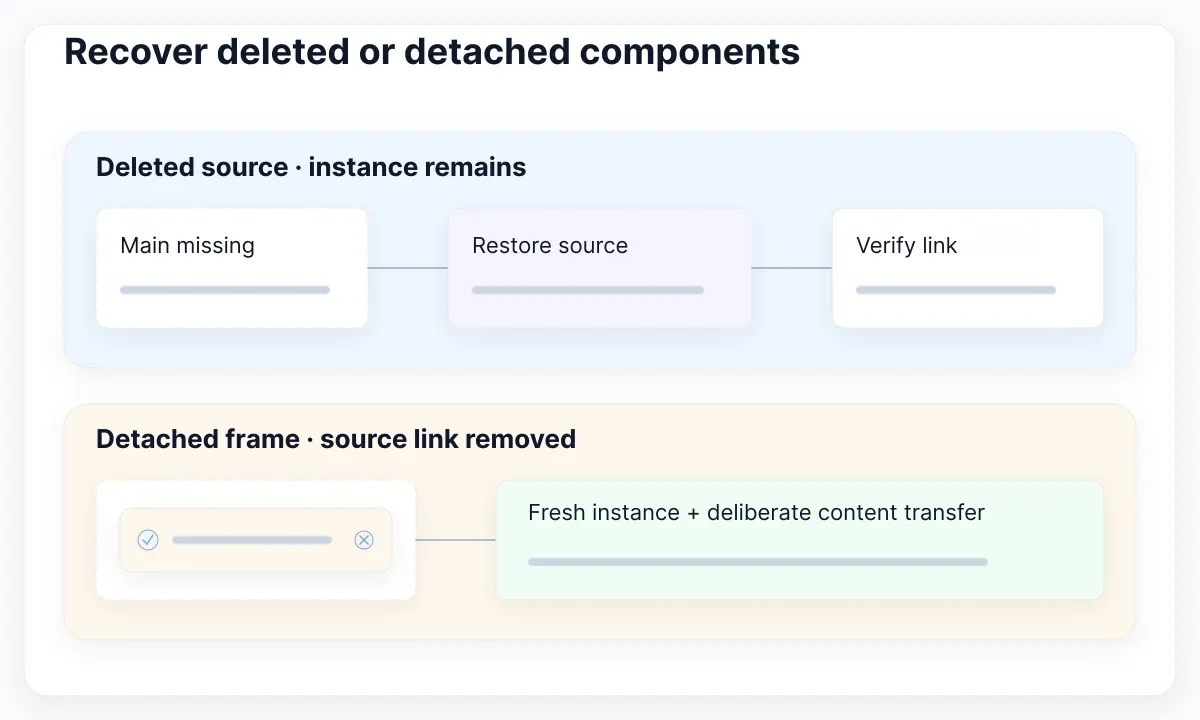
Figma can restore a deleted main component from an existing instance. Use the documented restore route when the original source was deleted. Check the original file and what was removed before creating a second component with a similar name. A new lookalike is not evidence that the original consumers are repaired.
Detaching makes an instance a regular frame and removes its source link. If that was the last accidental action, undo it. Otherwise, a practical recovery is to insert a fresh instance and transfer the required content and supported choices deliberately. Compare the replacement with the preserved frame before removing the old version from the working screen.
Make that transfer an explicit checklist: message text, icon choice, dismiss-control visibility, size and placement. Also record any unique content that the intended component cannot represent. That last item is a design decision for the component owner, not a reason to silently add unrelated layers and declare the relationship restored.
If components were deliberately moved between libraries, follow Figma’s published-component move procedure. Do not apply the deleted-source recipe to a completed migration. Ask which library should now supply the object, and verify the consumer points there. Recovery should establish the intended ownership, not merely make the old source visible again.
Inspect a real alert specimen
Use the real EmviUI alert and toast specimen below to plan a controlled comparison. It shows repeated message rows, leading status icons, trailing dismiss controls and several color treatments. Those visible parts give you concrete inspection targets without pretending that the image reveals the underlying Figma connections or current release state.
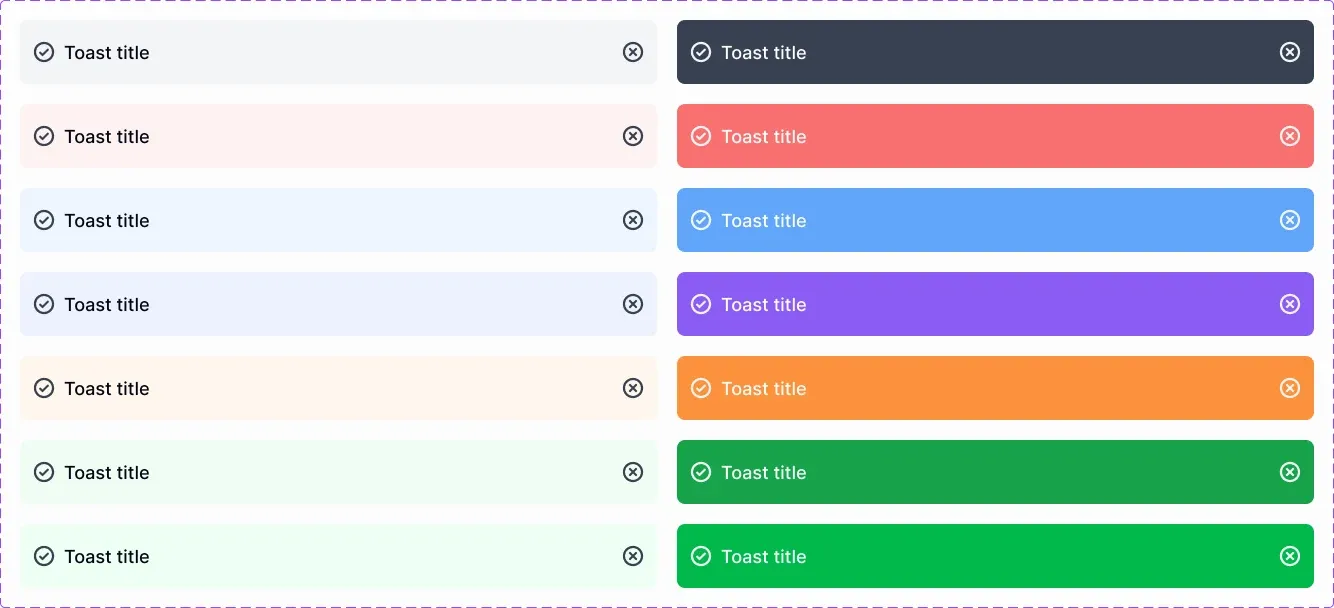
The EmviUI component catalogue provides Figma interface building blocks, including alerts and controls. For this exercise, choose one alert treatment as the visual starting point and customize a message in your working design. Then record which aspects are product content and which should remain governed by the reusable component.
For example, write “Export finished” as the local message and keep the icon and trailing action consistent with your intended alert. If a later library change updates a border, your comparison should examine both that border and the retained message. Do not use different alert treatments as evidence of a broken component: variation may be intentional.
The screenshot cannot tell you whether an element is detached, whether an update was accepted, or whether a control works with a keyboard in an application. Inspect the live design object for the first two questions. Review the implemented product for behavior. EmviUI supplies a design reference; it does not inspect your file or repair source links automatically.
When deciding whether a one-off appearance should become a reusable capability, use the UI kit and design system scope guide. Keep this repair small: restore a known relationship first. Discuss broader component changes separately so an urgent correction does not become an undocumented library redesign.
Repair one cause and keep the evidence
Choose the smallest action supported by your observations. A stale consumer needs an update review; an unwanted local change needs a scoped reset; an incorrectly edited source needs a source correction. A detached frame needs a replacement strategy. Write the action and expected result before applying it to the working screen.
Use the following proposed diagnosis table as a record, not as an automatic rule engine. A fresh sample is evidence within the file and revision you tested. It does not establish that every consumer has the same problem. If the observation is ambiguous, add a smaller reproduction before changing the shared library.
| Observation | Next check | Acceptance evidence |
|---|---|---|
| Fresh instance correct; older one differs | Inspect a changed property on a duplicate | Correct border and retained message |
| Source correct; consumer stale | Review the released asset and consumer update | Expected revision visible in the receiving file |
| Object is a regular frame | Confirm detachment and prepare a replacement | Fresh linked instance with required content |
| Source was deleted | Check the documented restore route | Original relationship verified again |
Keep the before state available until the repair is checked. Place the original message beside its replacement and compare the content line by line. Review the nested control independently. An alert can regain the correct outer appearance while its icon still comes from an unintended source. One successful outer comparison does not close every dependency.
Write a short handoff note with the source link, affected property, action taken and result. Figma supports component descriptions and links to external documentation. Add durable usage guidance there when appropriate, and keep incident-specific observations in your team's repair record. Someone revisiting the component should understand which customizations remain intentional.
If the same evidence produces inconsistent results, collect a minimal file and a short reproduction sequence for support or the library owner. Include the affected instance and fresh control, account access constraints and the last update reviewed. Remove unrelated material. A precise reproduction gives the next reviewer something observable to investigate.
Verify the next update, not just the screenshot
Finish by testing future maintainability. In a controlled test area, make one small, reversible source change with the library owner and observe the route to a consumer. Confirm the intended property updates while local content remains appropriate. Restore the test change afterwards. This is a proposed verification exercise, not a requirement to alter a production library.
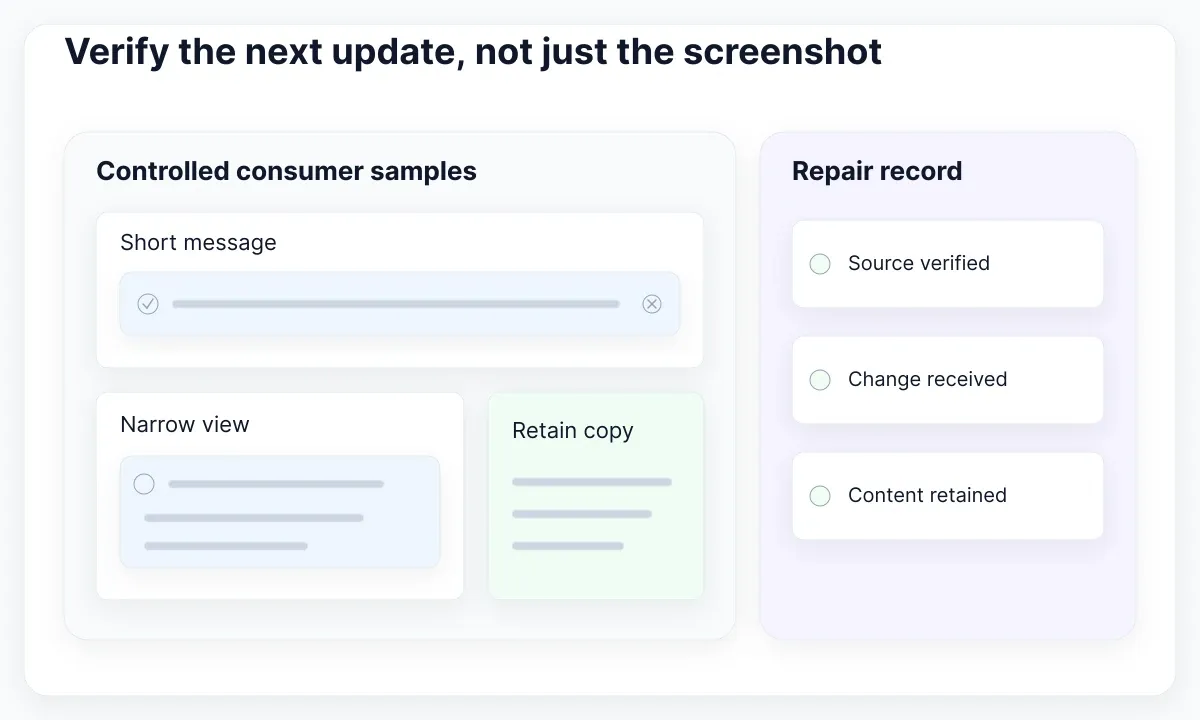
Use two message lengths and inspect the surrounding screen. A repaired relationship can reveal an existing spacing problem when the correct design arrives. Check the long message, the trailing control and the narrow layout together. If wrapping fails, log it separately from the source-link repair so the team can distinguish the two outcomes.
Retest every object you replaced, rather than sampling only the first repaired alert. Verify the intended source name and file, custom copy, visible controls and update result. Keep exceptions explicit. A frame intentionally preserved for an illustration has different maintenance needs from an alert that must continue receiving shared changes.
A useful completion record says “The alert instance uses the intended source, the border matches the released design, and the custom export message remains.” It also lists any remaining layout or implementation work. That statement is reviewable and much more informative than “Fixed Figma.” Keep the source links with the record so the next update starts from known evidence.

Pablo Mayoral
Senior UX/UI & Web Designer with 10+ years of experience. Creator of EmviUI (10k+ components Figma design system), UImand, and Vitamin Bootstrap. Currently designing digital products at CQMRewards.