How to Fix Figma Joints: Paths, Corners and Strokes
A repeatable vector-repair workflow for the corner, endpoint and overlap problems that make Figma artwork look broken.
To fix Figma joints, enter vector edit mode and first identify whether you have an open endpoint, a misplaced point, overlapping paths, or a stroke-corner problem. Repair the geometry when the path is wrong, use a join setting only when the corner is correct but its stroke looks wrong, then test the asset at its real size and after export.
To fix Figma joints, first decide whether the mark is an open endpoint, a bad vector point, overlapping geometry, or a stroke corner that needs a different join. Select the vector, press Enter for vector edit mode, inspect the points and paths, and make the smallest change that explains the defect. A round join cannot reconnect two separate paths; moving points will not solve a miter that is simply too sharp.
This guide uses a small icon-repair exercise. It is not a claim that every visible seam is a Figma bug. Start with a duplicate of the asset, record where the defect is visible, and keep the original until the repaired version has passed its intended export test. Figma documents vector editing, point manipulation and path tools in its vector-editing guide.
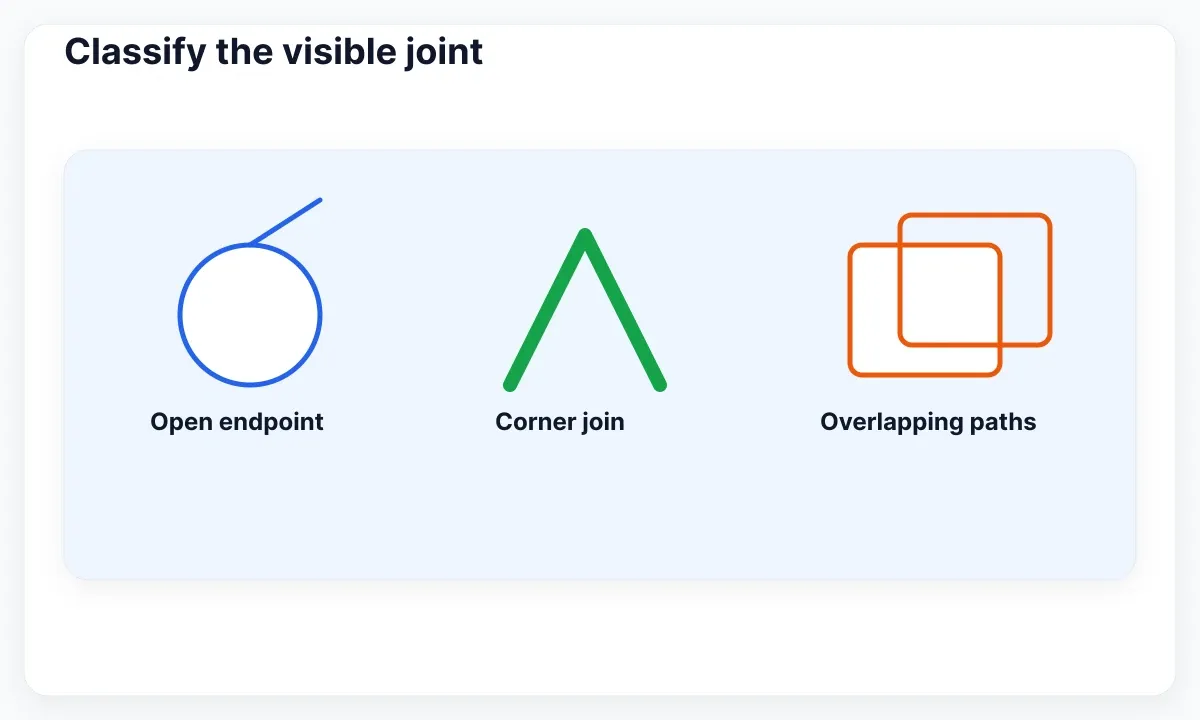
Classify the visible joint
Zoom in only long enough to identify the geometry, then look again at normal use size. An open endpoint is a path that never closes; a corner join is where two segments of one path meet; overlapping paths are separate shapes sitting on each other. Those need different repairs. Figma vector networks can branch, so do not assume the layer behaves like one simple closed outline.
Write a one-sentence symptom: “the arrow tip has a spike at 16 px” is actionable; “the icon looks wrong” is not. If the defect disappears at the delivery size, consider whether extra editing adds risk without user benefit. Figma’s vector-network reference explains that paths and points determine how a vector layer renders.
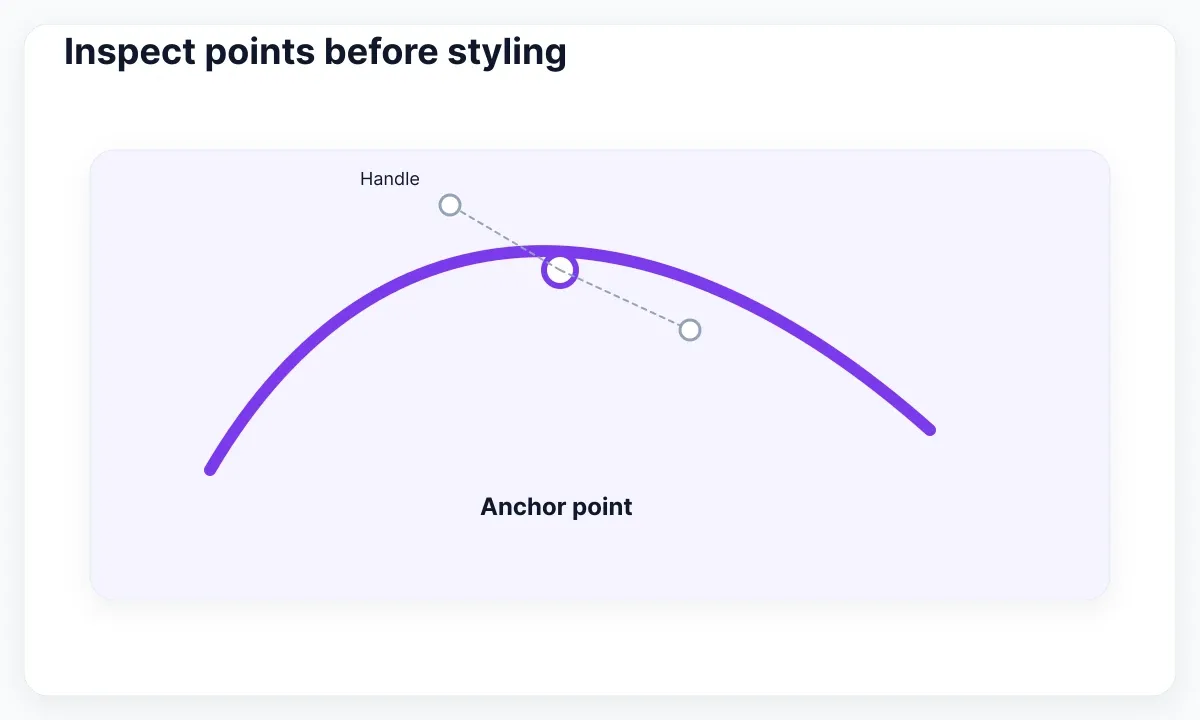
Inspect points before styling
Select the vector and enter edit mode. Identify the two segments meeting at the problem point. Move a point only when the outline itself is in the wrong place; adjust Bézier handles when the curve leaves or enters the point with an unintended direction. Use small changes and compare against a reference grid or adjacent icon rather than dragging until the result merely feels better.
If a path should close, bring its endpoint to the intended existing point and confirm the close indicator before releasing. If it should remain open, inspect caps instead. Figma’s documentation distinguishes closed paths from open paths and describes endpoint styling for open paths in its vector networks documentation. For a basic exercise in adding and repositioning a point, see Figma’s vector edit mode lesson.
Do not flatten or outline a stroke at the beginning. Those steps can hide the editable decision you still need to inspect. If the defect is caused by duplicated shapes, remove the accidental overlap or rebuild the intended path first. A clean layer list and a named duplicate make review easier when another designer needs to reproduce the fix.
Choose the stroke join
When the path is correct but the corner looks too sharp, inspect its stroke join. Figma offers miter, bevel and rounded joins; its miter-angle threshold controls when a sharp join bevels. Choose a join according to the visual language of the asset, not as a universal repair setting. A small rounded icon may need a round join, while an arrow may deliberately use a miter.
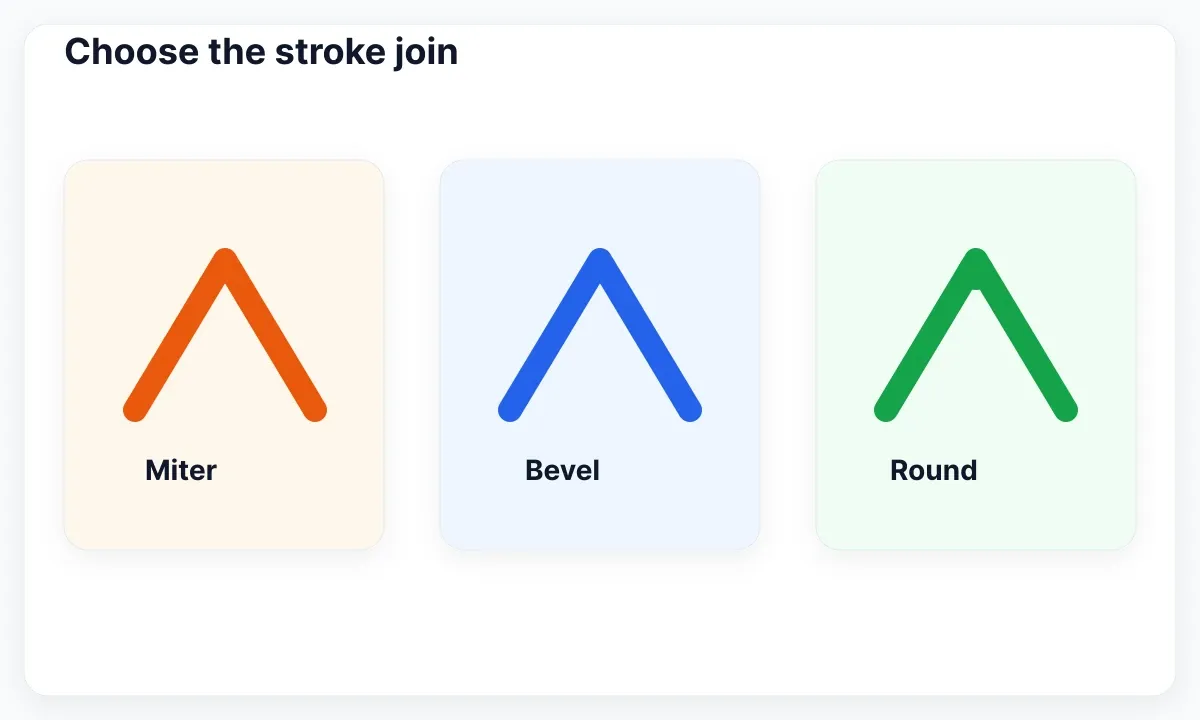
Figma’s stroke-property guide documents join choices and miter angle. Check weight too: a heavy stroke makes a tight angle more noticeable. For a single troublesome point, enter vector edit mode rather than changing an entire library icon without inspecting the consequence. If you need to diagnose other source-versus-instance problems, read how to fix a Figma component.
Use outline stroke deliberately
Outline stroke converts a stroke into editable vector paths. That can be useful when the final silhouette—not the stroke settings—is what you need to reshape. It is a destructive conversion: after outlining, you no longer edit the original stroke properties in the same way. Keep a source copy or rely on version history before using it on a shared asset.
Figma describes the trade-off in its Outline stroke documentation. In a component library, prefer the simplest editable source that still delivers the asset you need. EmviUI can provide an editable UI context in Figma for placing and reviewing icons, but it does not automatically repair custom vector geometry. Test the icon beside the actual button, input or alert where it will appear.
Test the repaired asset
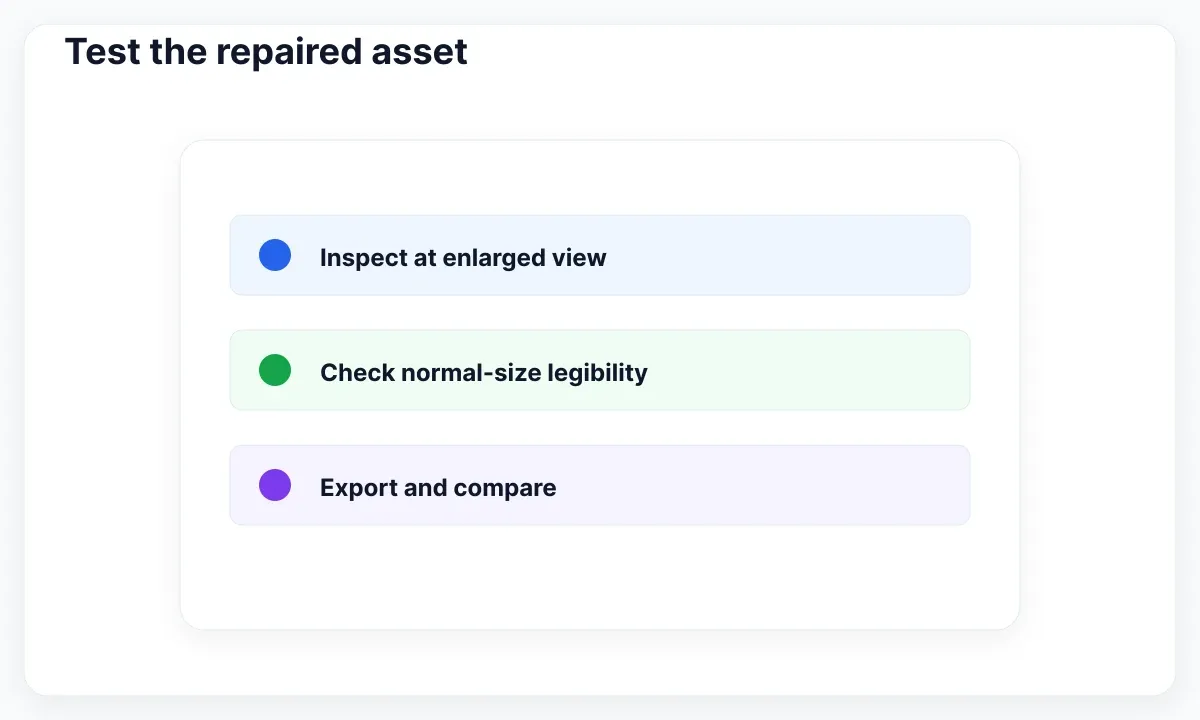
Test at three views: enlarged inspection, normal interface size, and the exported format. At enlarged view, check for unintended gaps, doubled edges and sudden kinks. At normal size, check whether the icon still reads cleanly beside text. After export, compare the result in the browser or product surface, because rasterization and scaling can expose a defect that was not obvious on the canvas.
Document the repair with the original symptom, the changed point or join, and one screenshot of the result. That small record helps a team avoid repeating a fragile conversion. If the issue appears only after a component update, compare the main component and instance before editing the vector; our guide to Figma variants and UI states is useful when the visual difference belongs to state rather than geometry. For broader editor performance issues, use the Figma lag diagnostic workflow instead of treating slow rendering as a bad joint.
Keep the repair reversible
Before changing a shared icon, make a clearly named working copy and write the expected result in a nearby note. This is useful for icons with 16 px, 20 px and 24 px versions. A change that improves a 24 px mark may make the small version heavier or close an intentional gap. Compare the repaired copy beside the approved source at every supported size. If the icon appears in a component, test normal, hover, selected and disabled specimens rather than assuming the same color and stroke contrast work everywhere.
Use a narrow repair order: geometry first, stroke styling second, export third. A point that is off the grid is a geometry problem. A correct corner with a long spike is a styling problem. A seam that appears only in a PNG or browser is an output problem. This order keeps a team from using a rounded join as a cosmetic cover for duplicated paths. It also makes review concrete: another person can identify the category, inspect the relevant change and decide whether the result preserves the intended construction.
Handle scale and pixel alignment
Small UI icons are sensitive to apparent weight. A corner that is elegant when enlarged can look uneven after scaling, particularly when a thick diagonal meets a horizontal or vertical segment. Work from the intended size when choosing a final stroke weight, and compare nearby icons that belong to the same family. Do not treat a screenshot at a high browser zoom as proof that the exported asset works. Use the scale that the interface presents, then inspect enlargement only to explain a defect.
When the mark needs to align with an interface grid, check final frame dimensions, point placement and fractional values introduced while resizing. The appropriate alignment depends on export format and implementation; it is not a reason to force every curve into a square grid. The practical question is whether the delivered asset has a stable, intentional edge at its target size. Record the target frame and observed result so future revisions can repeat the same check.
Review with the interface, not alone
Place the repaired icon in a real component before declaring success. A dismiss icon beside a compact alert, an external-link mark in a button, and a navigation chevron in a list create different spacing and contrast conditions. EmviUI provides editable Figma UI-kit context for that comparison, but it does not define the correct vector construction for every custom symbol. Use the component as a review environment, then keep the vector source independent enough to update without rebuilding the whole interface.
Finally, ask a reviewer to name what changed without being told the intended answer. If they describe the same defect you recorded and can no longer see it at delivery size, the repair has useful evidence. If they find a new inconsistency, return to the smallest relevant layer: the point, the path relationship, the stroke setting or export settings. That loop is slower than a blanket conversion but produces a repair that remains understandable when the icon set evolves.
Review the joint in context
A useful repair is not only a smooth enlarged curve. It must remain clear when it shares space with labels, controls and other icons. Put the icon in a representative button, alert or navigation row and check its baseline, optical weight and available space. Compare its state colors without using color as the only signal. If the asset is intended for code, hand off the export dimensions and format with the source link so implementation does not silently substitute a different file.
Make the decision reviewable. Save one before-and-after frame, note the target sizes and identify whether the change affected geometry or only stroke styling. This evidence is more useful than a vague request to clean up an icon because it gives the next reviewer a specific artifact to test. It also makes it safer to revert an experiment when a later export reveals a new seam.
FAQs
Why is my Figma joint sharp? The underlying path may form a tight angle, or the stroke may use a miter join. Inspect the point first, then choose miter, bevel or round according to the asset’s intended edge.
Can a stroke join close an open path? No. A join controls how segments of a path meet visually. Close or reconnect the intended endpoints in vector edit mode when the path itself is open.
Should I outline every icon stroke? No. Outline stroke is useful when you need editable final geometry, but it removes the normal stroke-editing workflow. Keep an editable source and use it deliberately.
How do I smooth a bumpy curve? Inspect the anchor points and Bézier handles. Remove or adjust only points that create the unwanted turn, then compare at normal size.
Why does the export still show a seam? Test the exported asset at its actual scale. Separate overlapping shapes, fractional positioning, stroke weight and the target renderer can make a seam visible even if the enlarged canvas looks acceptable.
Does EmviUI fix vector artwork automatically? No. EmviUI is an editable UI-kit context for reviewing interface assets. Use Figma vector tools to repair custom geometry and test the result in the intended component.

Pablo Mayoral
Senior UX/UI & Web Designer with 10+ years of experience. Creator of EmviUI (10k+ components Figma design system), UImand, and Vitamin Bootstrap. Currently designing digital products at CQMRewards.