Figma Access Levels: Test File and Prototype Permissions
Choose who should reach a Figma resource, define the permitted action and verify the result with a practical review exercise.
Choose the intended audience and view or edit permission, inspect inherited access, then test the exact action with the recipient account. Editing also requires a seat supporting the product; a presentation link alone does not prove prototype-only access.
Figma access levels describe what someone can do with a shared resource. Start with the file’s audience, then choose view or edit permission, inspect inherited access, and test the result as the intended recipient. Someone who can view can comment without changing the design. Editing also requires a seat that supports the relevant Figma product. A working link alone does not prove that the recipient has the right access.
Choose an audience and an action
Separate two questions before opening Share: who should reach this work, and what should they do there? A stakeholder checking wording needs a different arrangement from a designer changing the source. Write the intended action first, then choose the smallest useful resource to share.
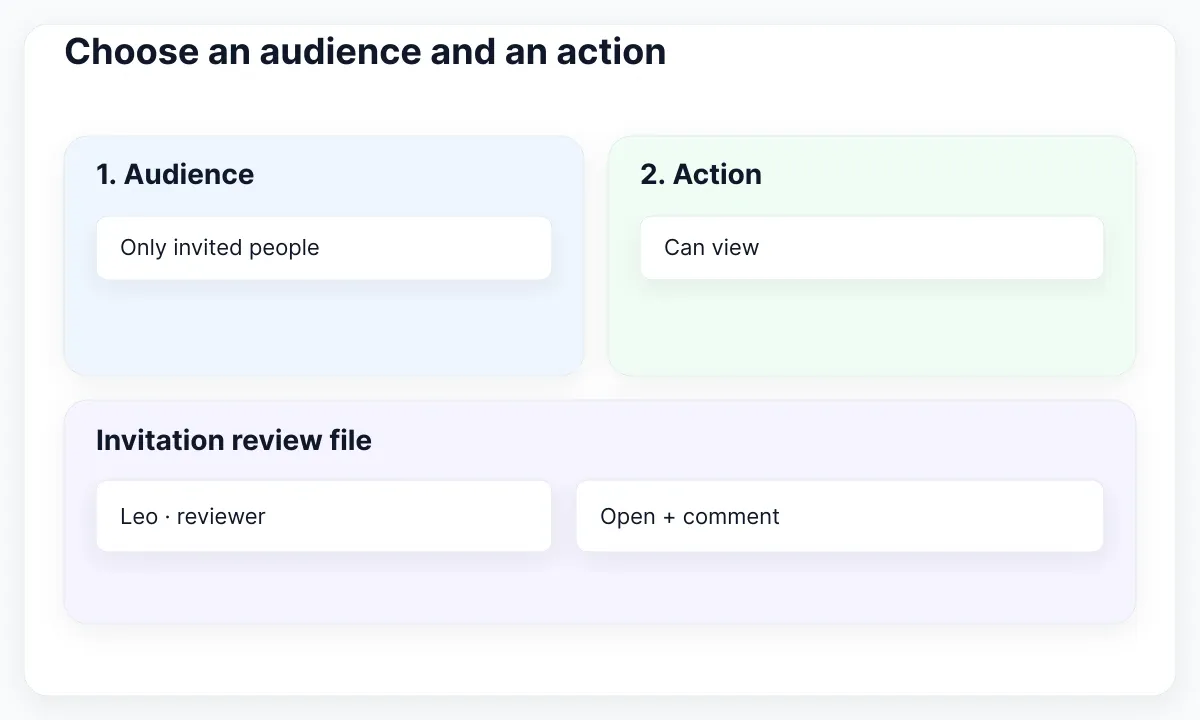
This guide uses a proposed exercise for Fieldnote, a fictional research workspace. Its designer, Mira, maintains an invitation dialog. Reviewer Leo should comment on its wording. Contractor Ana should edit a separate working file. These names, assignments and acceptance checks are editorial examples; they do not describe an actual organization or a measured security outcome.
Figma’s sharing overview distinguishes sharing resources at several scopes, including files, folders and prototypes. A review link, a folder invitation and a team membership therefore deserve separate decisions. Choose a file invitation for Leo’s single-file review rather than making him a collaborator across unrelated working material.
In the file’s Share dialog, inspect the audience and the individual invitation. Figma’s file-sharing documentation describes view and edit settings and notes that the available audience choices depend on the plan. If an organization prevents public links, the missing Anyone option is an administrative setting to investigate, not a reason to publish another copy elsewhere.
- Reader task: review invitation wording.
- Resource: the dedicated invitation review file.
- Expected action: open and comment, without editing layers.
- Check: use the reviewer’s actual account, not the owner’s session.
Keep plan and seat purchasing questions in the separate guide to Figma plans and seats. Here the deliverable is a tested sharing arrangement for one resource. Decide the desired result before considering an access upgrade.
Trace access from the parent folder
A person can reach a file through more than its direct invitation list. Open Share and examine audience access, inherited roles and individual roles. Record the route that explains the permission before changing it; otherwise a direct invitation can distract you from broader access.
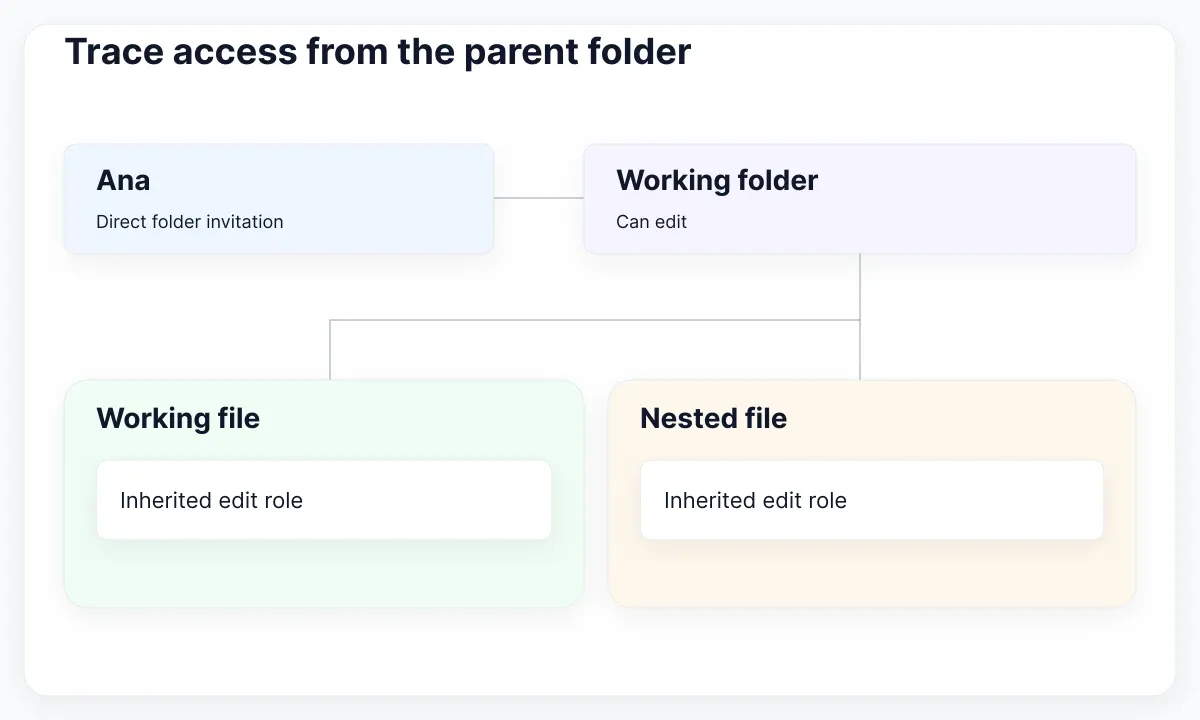
The important distinction in Figma’s file and folder permission guide is between a folder’s audience setting and a direct invitation to that folder. Audience access is configured separately on each resource. A direct folder invitation passes the person’s role into its nested contents. You can increase that person’s access on a file, but cannot reduce it below the inherited folder role there.
For the exercise, put Ana’s editable working file in a folder containing only material she is meant to receive. Keep the review file in its intended location. Before inviting Ana to the folder, make a simple inventory of its nested content. A folder name such as External review is an organizational label; inspect what it actually contains.
Suppose Ana can still edit the review file after a direct file role changes. Do not repeatedly toggle the same row. Note the folder route and ask the responsible owner to review that broader invitation. If a narrower arrangement is needed, plan the resource location and invitations together, then retest. Avoid moving live shared work casually during a review.
Organization membership and guest status add another layer. Figma’s organization resource guide explains that guests receive access to invited resources, while organization-wide sharing can reach members more broadly. Use a real external test recipient when validating an external workflow; a colleague’s organization account is a different case.
Write the result as a path, such as “Ana → direct folder invitation → working file.” This is more actionable than “Ana has access.” It tells the next editor which setting to inspect when the assignment ends.
Test viewing and editing separately
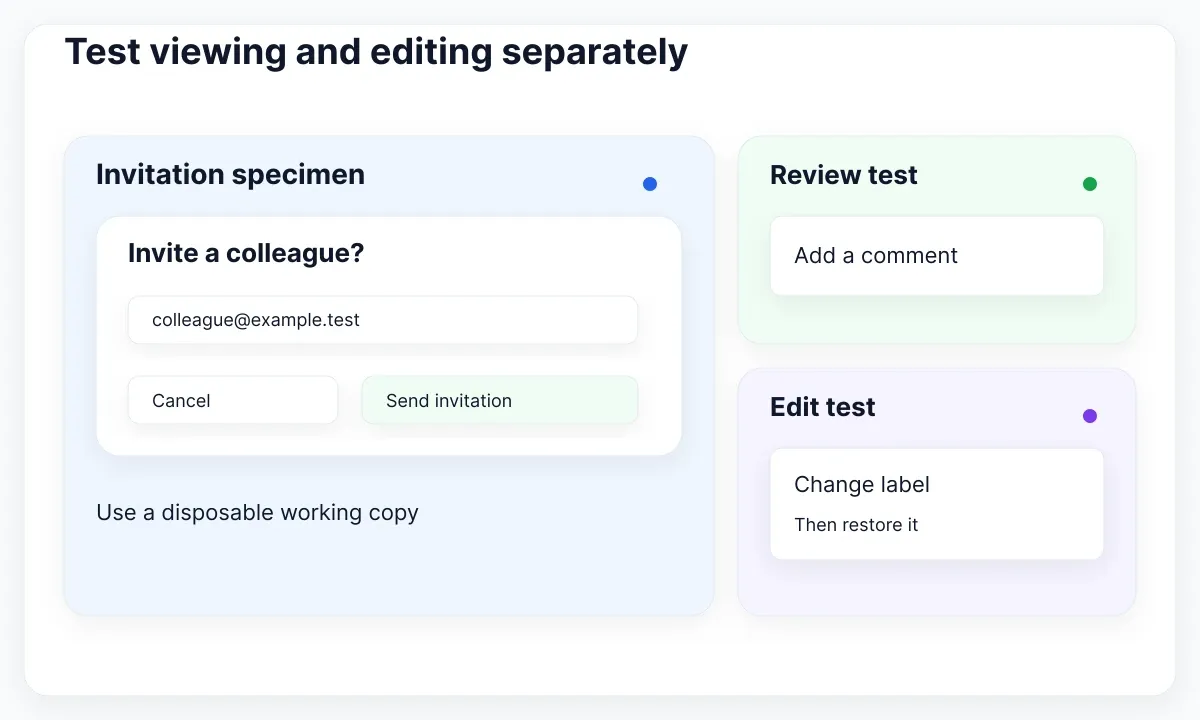
Build a small acceptance test around the exact design operation. Use disposable work, a harmless label change and a comment that can be removed afterward. Never infer edit permission from the fact that a reviewer can select an object or navigate the canvas.
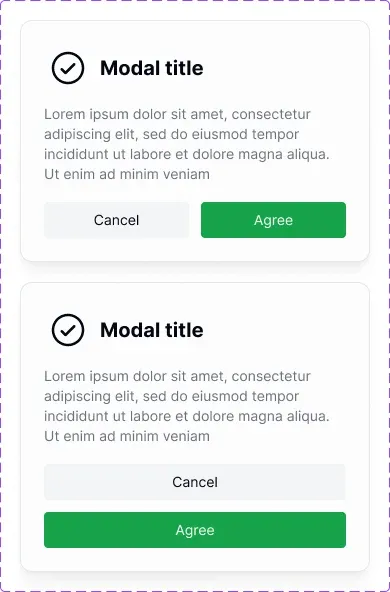
EmviUI supplies editable Figma interface patterns that can provide a realistic review specimen. The modal examples below show side-by-side and stacked actions. They are EmviUI design examples, not Figma’s sharing dialog and not evidence of a configured account permission. Use an authorized working copy of your design to test access; a screenshot cannot perform that test.
In the proposed exercise, Mira replaces generic dialog copy with a concrete invitation question. Leo adds a comment beside the action label. Ana changes that label in her working copy and restores it. Keep those operations separate: one checks review access, another checks source modification. Record which account performed each operation and which file it opened.
| Recipient | Expected result | Evidence to record |
|---|---|---|
| Leo, reviewer | Open and comment | Comment visible; no layer edit |
| Ana, designer | Edit working copy | Temporary label change and restoration |
| Uninvited test account | No access to invitation-only file | Access request or blocked opening |
Also decide whether viewers should be able to copy and export. The copying restriction documentation says viewers normally have these capabilities, with file-level controls on supported plans. Review that setting explicitly if the assignment calls for a restricted review. It is separate from the ability to edit the source.
The test passes when observed actions match the written expectation. If Leo can unexpectedly edit, stop and trace his access route. If Ana cannot edit, diagnose the blocked action before granting wider permissions.
Check the prototype boundary
Choose a prototype when the recipient needs to try an interaction rather than inspect the design source. Then verify whether the sharing arrangement actually limits access to that experience. Opening in presentation view is not, by itself, an access boundary.
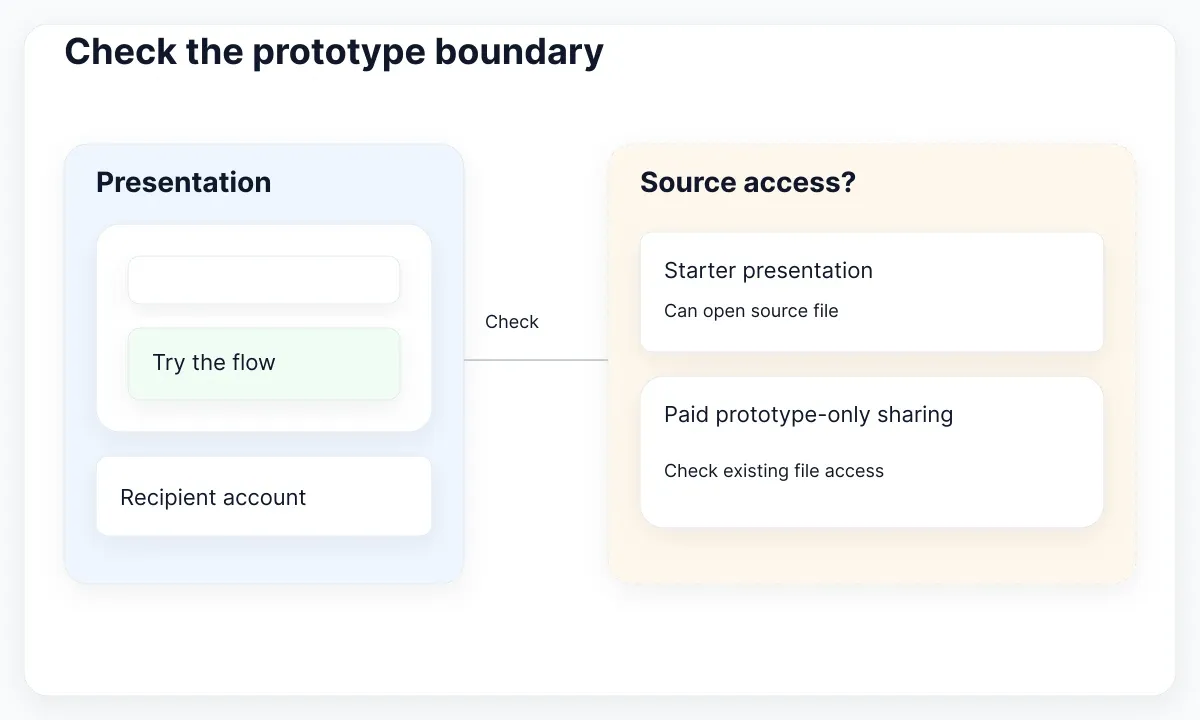
Figma documents prototype-only sharing on paid plans. On Starter, a viewer receiving a link from presentation view can still open the source through the file-name menu. Check the current prototype sharing instructions before promising that a participant will only see the flow. Existing source-file access also needs to be considered when testing the recipient’s experience.
For Fieldnote, make a deliberately small prototype containing the invitation and a clear completion screen. Give the participant one task: decide whether to invite a colleague now or cancel. Do not include internal notes, unrelated customer examples or discarded concepts in the exercise file. This is an editorial recommendation to make the test easier to interpret, not a substitute for permission controls.
Run the link from the participant’s intended account. Check the starting screen, navigation options and any route back to the editor. Then try a second account representing someone who should not have access. Record the difference. Testing only the owner’s presentation window establishes that the owner can present, which does not answer the participant-access question.
When planning the interaction itself, use the prototype recovery examples. That guide addresses task behavior. This check addresses who can reach the artifact containing the behavior. Both need to work before a research session starts.
If the required boundary is unavailable under your current arrangement, change the review plan openly. Prepare an appropriate separate artifact or ask the administrator about available sharing controls. Do not describe a source-file link as prototype-only just because it initially opens on the desired screen.
Diagnose the blocked action
Describe the failure as an action: cannot open, cannot comment, cannot edit, or cannot export. These symptoms point to different settings. Start with the recipient identity and exact URL, then inspect the permission route associated with that resource.
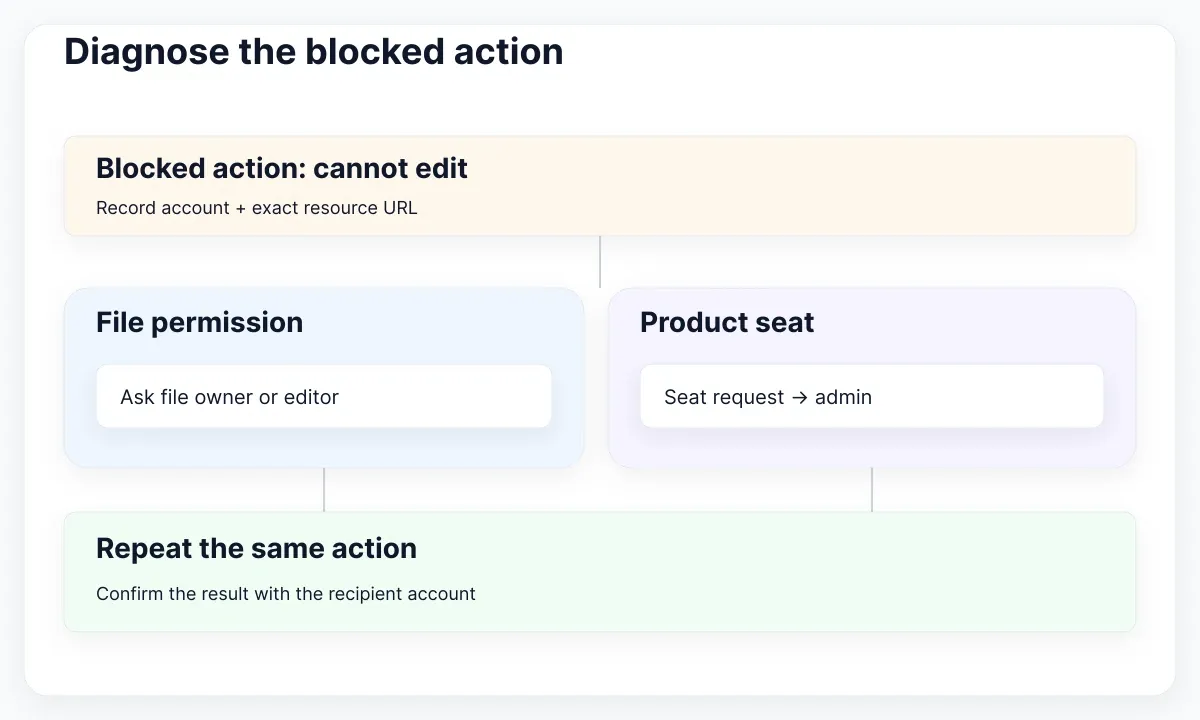
For a blocked edit, Figma’s edit request guide distinguishes requesting file edit permission from requesting a seat that supports the product. Owners and file editors can handle edit requests; seat upgrades require administrator approval. Send the right request to the right person with the file link and intended task. Avoid asking every reviewer to request editing just to leave feedback.
For a blocked opening, check whether the person is using the invited account, whether the invitation targets the correct resource and whether audience settings match the intended recipient. Write down what you verified. “The link works for me” is weak evidence when the sender owns the file and the recipient does not.
An embed deserves its own check. Figma’s embed documentation says that audience and permission settings must be considered; organization-only embeds require the viewer to be logged in. Placing an embed in a public project brief does not establish that the brief’s readers can open its Figma content. Test from the actual briefing surface as well as the direct link.
- Reproduce the single blocked action with the intended account.
- Record the file or prototype URL and visible message.
- Inspect audience, inherited and individual access routes.
- Check the relevant product seat only if the action needs it.
- Change one applicable setting and repeat the same test.
Keep an unresolved result unresolved. If an administrator must explain a restriction, record that dependency and pause the affected review. A test file with broader public sharing is not proof that the original file’s access has been repaired.
Check copying without changing source
Use a recognizable, non-sensitive asset for a separate export test. The EmviUI palette specimen below is useful because the reviewer can identify a particular frame without modifying its contents. Its displayed numbers are part of the specimen; this guide does not use them to certify contrast or accessibility.
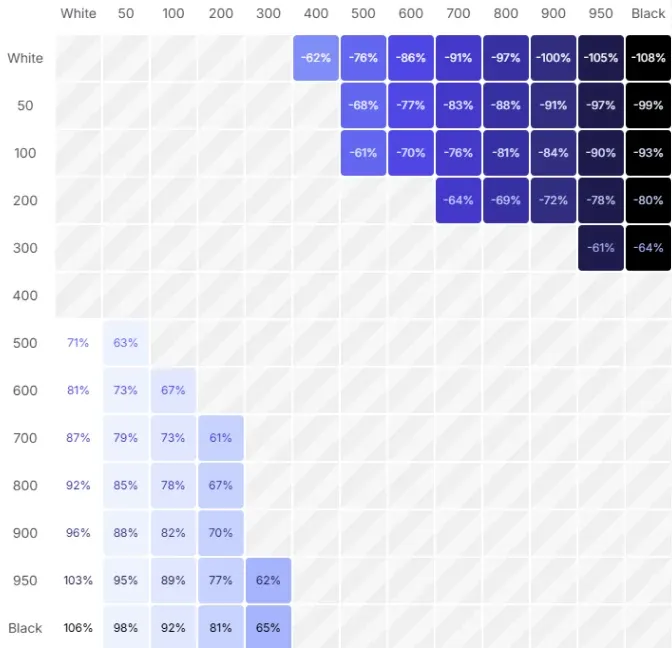
In your authorized test file, select the agreed asset and ask the reviewer to try the permitted export operation. Record whether that operation is available, along with the file’s viewer-copy setting. Do not ask them to reproduce the table manually or turn the exercise into a color audit. The question is whether this recipient can perform this operation on this resource.
If copying is restricted, repeat the relevant attempt and record the observed block. If exporting is part of the handoff, check that the recipient can obtain the agreed asset. Delete disposable exported test files when the check ends. Keep the screenshot and the account-permission evidence clearly separate in your notes.
Record the sharing decision
Leave a short decision record that another editor can use without repeating the investigation. Include the resource, intended audience, allowed action, access route, test result, owner and a sensible time to review the arrangement again.
For the Fieldnote exercise, the record might read: “Invitation review; Leo’s named account; view and comment; direct file invitation; comment test passed; Mira owns the decision; revisit after wording approval.” Ana’s working-file entry should be separate. This keeps permission ownership attached to the resource and avoids treating a project-wide chat message as the access inventory.
Make cleanup part of the same task. Remove temporary test comments and restore the sample label. Ask the owner to review temporary invitations when the collaboration finishes, including inherited routes recorded earlier. Repeat the relevant negative test after changing access; do not claim access was removed solely because one invitation disappeared.
Use sections to organize the review question inside the design file, while keeping the sharing decision in the access record. A neat canvas helps reviewers find their task. It does not demonstrate that unrelated people are excluded. Publish a review link only after both the content and the recipient experience have been checked.

Pablo Mayoral
Senior UX/UI & Web Designer with 10+ years of experience. Creator of EmviUI (10k+ components Figma design system), UImand, and Vitamin Bootstrap. Currently designing digital products at CQMRewards.