Figma Export Settings: Formats, Sizes and Asset Delivery
Figma export settings work best when you specify the receiving job first: choose the asset, format, pixel dimensions and filename, then inspect the exported file where it will be used. Use a small delivery manifest to separate reusable artwork from the live interface. E
Figma export settings work best when you specify the receiving job first: choose the asset, format, pixel dimensions and filename, then inspect the exported file where it will be used. Use a small delivery manifest to separate reusable artwork from the live interface. Exporting a whole screen is useful for review, but does not deliver working controls.
Figma export settings work best when you specify the receiving job first: choose the asset, format, pixel dimensions and filename, then inspect the exported file where it will be used. Use a small delivery manifest to separate reusable artwork from the live interface. Exporting a whole screen is useful for review, but does not deliver working controls.
This guide builds a proposed asset package for a fictional learning catalogue: one course cover, a small brand mark and a review image. All dimensions and acceptance checks below are worked examples, not Figma defaults or measured product outcomes.
Define the asset delivery contract
Write down what the receiving person needs before touching Export. Our sample delivery contains a cover displayed at 320 × 180 CSS pixels, a scalable brand mark and a static image for an editorial approval. Give each item its own row, owner and destination. This prevents one convenient screenshot from becoming the answer to three different requirements.
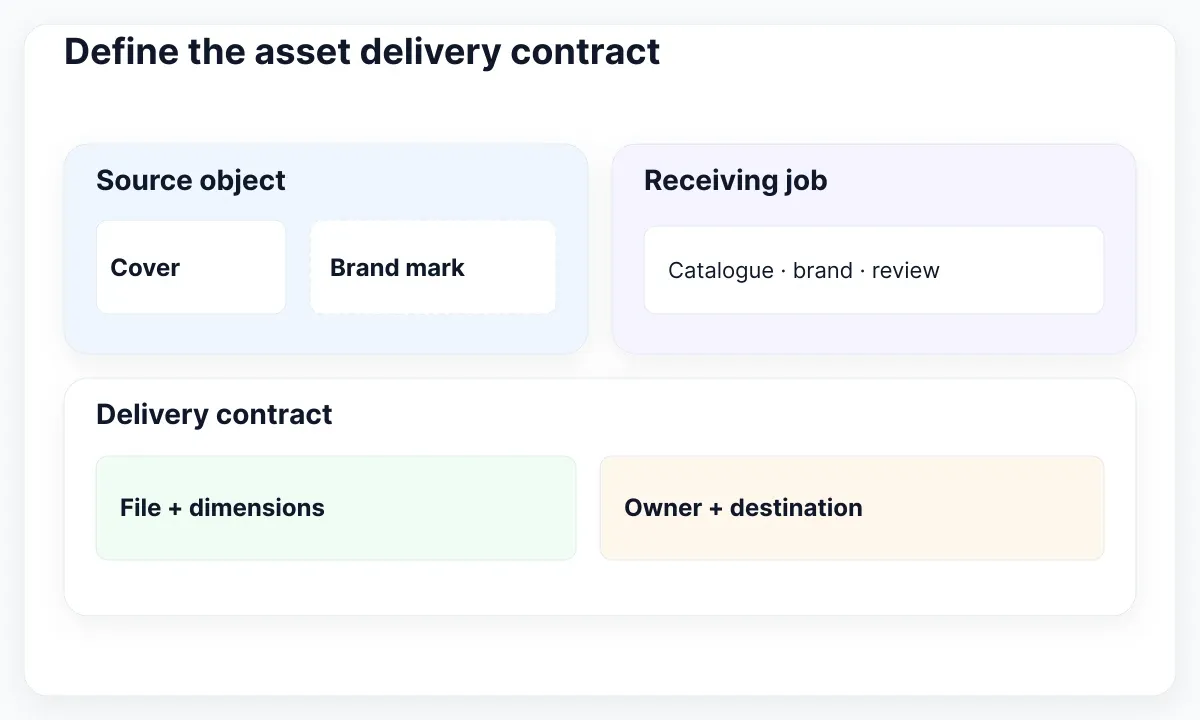
For the cover, record the intended crop and whether its background must remain transparent. For the mark, record the smallest intended display size and whether the lettering may become paths. For the review image, record the language and the approved screen state. These are proposed team decisions; agree them with the recipient rather than inferring them from the canvas.
Keep the source object discoverable. Add its page and layer name to the delivery note, plus a short explanation of anything intentionally excluded. A recipient should be able to request a revised cover without searching through unrelated screens. Save the accepted output alongside the note so the next export can be compared against a known version.
If the chosen object has the wrong boundaries, handle that separate problem with the frame bounds and clipping guide. Here the job is selecting and verifying output settings after the intended source object is established.
Choose formats by the receiving job
Use the MDN image format guide to distinguish vector artwork, lossless raster graphics and photographic compression. SVG suits simple scalable artwork; PNG supports transparency and precise raster reproduction; JPEG is a candidate for photographic content when lossy compression is acceptable. Our proposed package uses SVG for the mark and PNG for the review image.
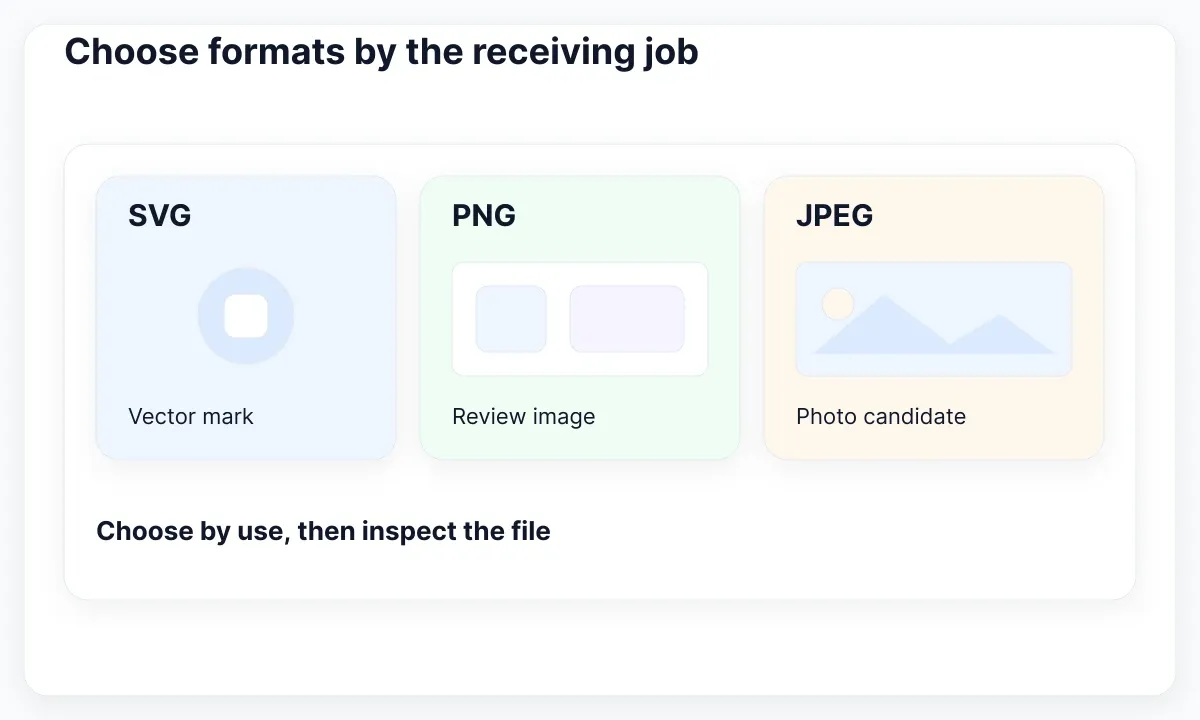
For the cover, compare two candidate outputs at the actual display size before agreeing a delivery format. Look at fine edges, small embedded lettering and transitions in the image. Record the file size and visible defects rather than announcing that one extension always wins. If downstream processing converts the image for the website, keep that deployment decision in the handoff note.
Do not choose PDF merely because it opens on a colleague’s computer. In this example, reserve a document output for a recipient who explicitly needs one. Ask which page ordering and review process they expect. Then open the delivered document and inspect it; the export action alone does not establish that the result satisfies that workflow.
Use Figma’s format and settings reference when configuring the file. It documents scale multipliers and fixed width or height constraints, and the available export color profiles. Our recommendation is to write the chosen profile in the manifest and test it in the destination, particularly when a recipient reports a visible color mismatch.
Separate pixel size from display size
For our 320 × 180 cover, propose a 640 × 360 raster candidate for a two-density delivery. These are output pixels, while the intended layout stays 320 × 180 CSS pixels. Doubling each dimension produces four times as many pixels; it does not imply a predictable fourfold file size or make the page element twice as wide.
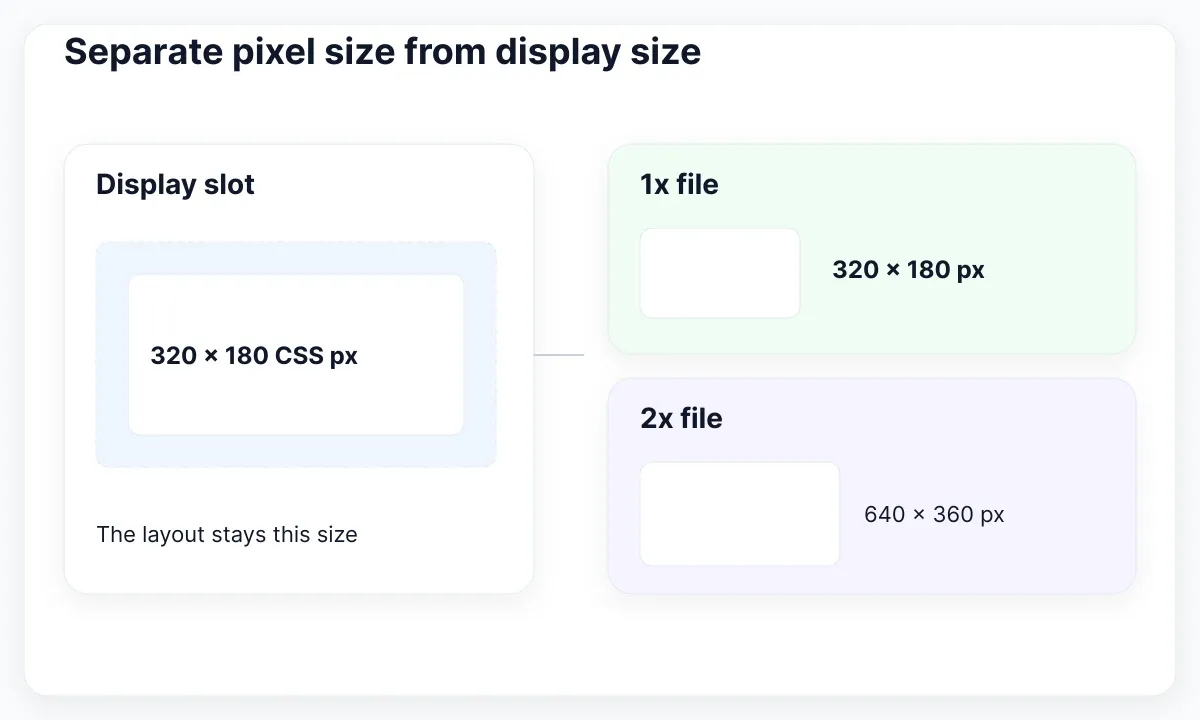
Treat “2x” as a relationship to the source dimensions. If another designer changes the source to 400 × 225, that same multiplier produces a different file. A fixed-width export can make the delivery requirement clearer when the recipient explicitly requests 640 pixels. Confirm the actual dimensions of the result instead of trusting a remembered label.
The MDN responsive images guide explains how source candidates and layout hints help the browser choose an image. In the proposed density example, the implementation might offer the 320-wide and 640-wide versions for the same visible slot. Agree that integration with the developer; a second export is useful only if the page can use it appropriately.
Try the cover in both the catalogue grid and its detail page before approval. Inspect whether the crop removes a subject, whether a repeated background becomes distracting and whether a small version remains understandable. If the two destinations need different compositions, request separate crops rather than enlarging the same file and hoping the problem disappears.
Add a rejection example to the note: “The cover is delivered at 640 × 360 but is shown at 640 × 360 instead of the agreed 320 × 180.” This makes the distinction easy to test. Preserve both the intended slot and output dimensions so a later reviewer can identify which side changed.
Decide what SVG text must preserve
For the brand mark, decide whether the recipient needs fixed letter shapes or editable text. The Figma ExportSettings reference documents the SVG outline-text choice: text can become vector paths or remain text elements. Our recommendation is to keep a small approved mark specimen with the delivery so the exported geometry can be checked against it.
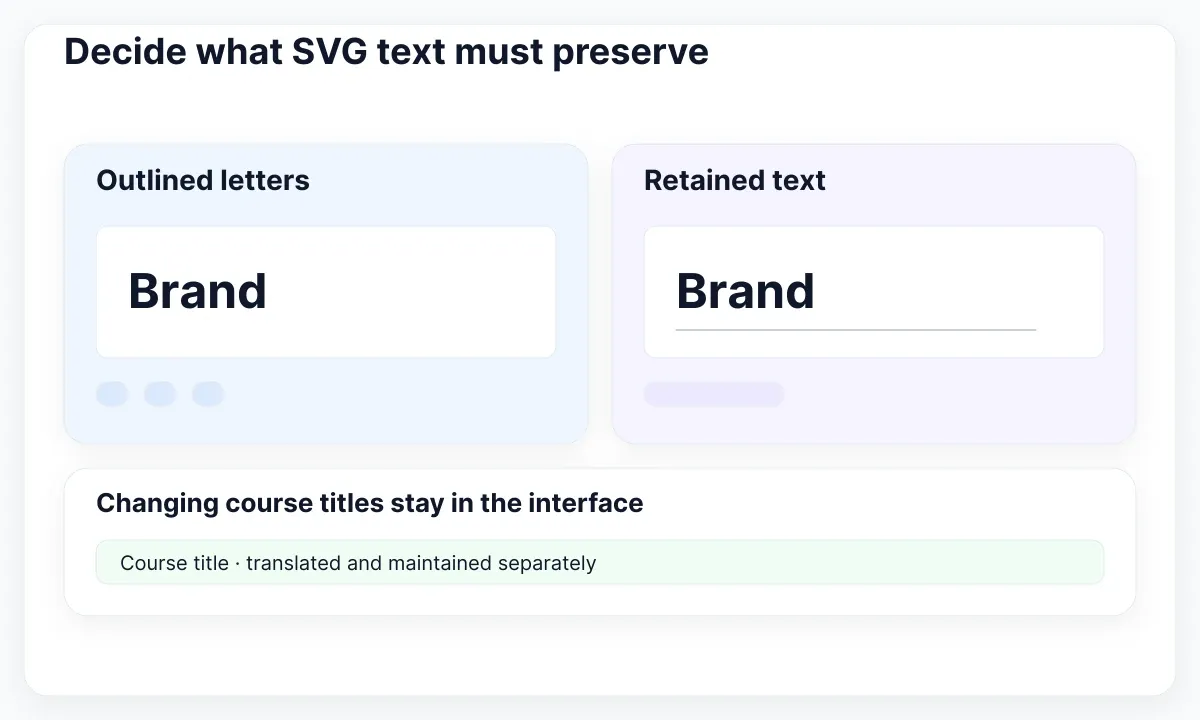
If you keep SVG text, test the file in the intended environment with its required fonts available. MDN’s SVG text reference explains that text is represented by a text element and does not wrap by default. Do not treat editable SVG lettering as a substitute for testing a translated heading or the host page’s font setup.
For this catalogue, recommend keeping the changing course title as live interface text, outside the brand artwork. The mark can be a stable graphic while the title changes by course and language. This reduces the number of images that require editorial updates and makes the ownership of the words explicit.
Inspect the smallest intended mark, not only a large preview. Check counters, thin strokes, spacing and the relationship between symbol and lettering. If a mark looks wrong, record whether the exported shapes differ or the destination renders the supplied text differently. These observations lead to a more precise request than “SVG is broken.”
For creating and reviewing the original artwork, continue with the practical Figma logo workflow. The asset package should point to the accepted artwork, without expanding this export task into a new identity design exercise.
Make the batch inspectable
Select the intended layers and add an export configuration using the plus control in the Export section. Figma’s static export instructions also describe previewing one selection and reviewing configured items through File → Export. Use that batch list as an inspection step before saving the package.
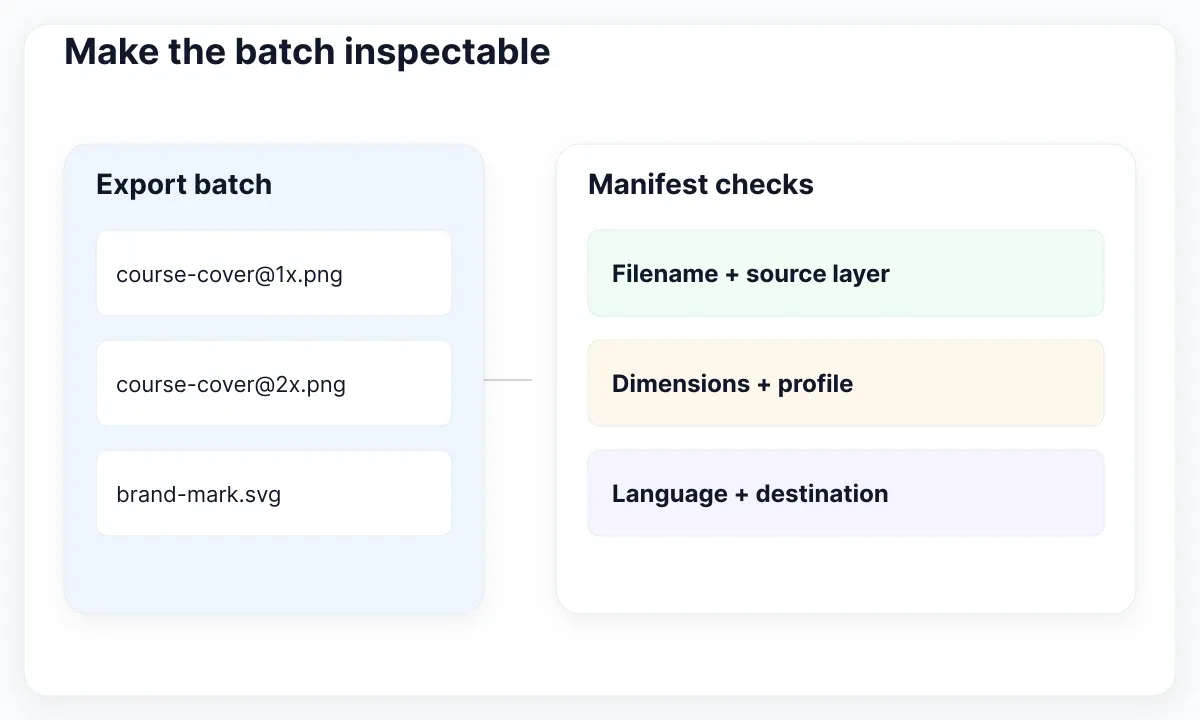
Adopt a proposed naming rule that communicates role and density: course-cover@1x.png, course-cover@2x.png and brand-mark.svg. Add a locale when the artwork actually differs by language. A suffix should describe a real distinction; avoid exporting identical language copies merely to make the folder look complete.
Review a sample manifest with columns for filename, source layer, dimensions, profile, language and destination. Write “vector” where raster dimensions are not the acceptance condition, and include the intended display check. Keep a version note describing the actual change, such as “cover crop moved upward,” so the receiver knows what to compare.
Before replacing the accepted package, put the new batch in a separate review folder and compare the manifest against its contents. Look for missing files, duplicate names and an old image that accidentally survived from a previous batch. This is a recommended team workflow, not a promise that Figma automatically manages delivery versions.
Here is a compact proposed manifest for the three outputs. The source-page labels are team examples; replace them with the actual objects in your file. In this sample, the delivery owner has agreed sRGB for the raster files. Keep the mark’s visual acceptance check separate from those raster pixel requirements.
| File | Source | Acceptance |
|---|---|---|
| course-cover@1x.png | Assets / Course cover | 320 × 180 pixels; catalogue crop |
| course-cover@2x.png | Assets / Course cover | 640 × 360 pixels; same visible slot |
| brand-mark.svg | Assets / Approved mark | Check at 24 CSS pixels high; lettering approved |
Assign one person to compare this list with the folder and another to place the files in the receiving screen. If a file is missing, correct the package before asking for visual approval. If the file is present but displayed incorrectly, keep that implementation issue distinct in the correction note. Both observations belong to the same delivery record.
Separate EmviUI artwork from interface controls
The real EmviUI card specimen below makes this boundary concrete: it combines a cover image, tags, text, avatars and an action. The EmviUI product site provides an editable Figma UI kit and design system. Use the design as a source for deciding which parts need image delivery and which need implementation.
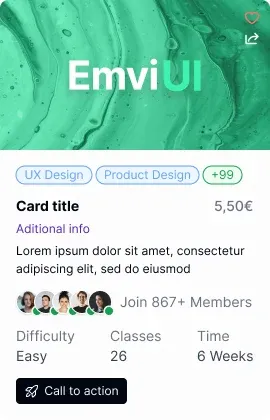
In our catalogue example, nominate the cover artwork as an export candidate. Keep the course title, category labels and action as interface content. The screenshot is an EmviUI design specimen with generic sample copy; its displayed amount is not a current price claim. It does not demonstrate a functioning course page or an approved asset configuration.
Ask the developer to describe the image slot and the expected behavior of the nearby action. A full-card image could be appropriate for an internal review slide, while the public card needs real text and controls. Label the review output clearly so nobody mistakes it for the implementation deliverable.
The WAI alternative-text decision tree bases text alternatives on the image’s purpose in context. Agree what the cover communicates in this particular card and whether nearby text already supplies the same information. Keep that decision with the implementation notes rather than copying the exported filename into alternative text.
For the broader bridge from design to application, read the Figma-to-Tailwind workflow. EmviUI helps establish a consistent specimen; exported pictures do not supply application logic, responsive behavior or accessibility evidence.
Accept the files in their destination
Finish with a small acceptance run that another person can repeat. Open every delivered file, confirm its dimensions or vector behavior, and place it in the intended destination. Compare the cover on the real background, the mark at its smallest size and the review image against the approved language and state.
Use the MDN image element reference for the implementation contract around dimensions and alternative text. Our proposed acceptance sheet records the visible slot, the loaded file and the descriptive decision. If the result differs, identify the source export, image selection or layout rule involved before changing several settings at once.
Send a concrete correction request: “The 640-wide cover has the right crop, but the implementation uses the old 320-wide file.” Attach the filename and observed destination. After correction, repeat that same case and update the delivery note. An export is complete when the recipient can use the intended asset and verify what it represents.

Pablo Mayoral
Senior UX/UI & Web Designer with 10+ years of experience. Creator of EmviUI (10k+ components Figma design system), UImand, and Vitamin Bootstrap. Currently designing digital products at CQMRewards.