Figma Prototype Examples: Four Tasks to Test Recovery
Four practical prototype exercises reveal whether people can recover from empty results, cancel safely, retry a save and resume a list.
Build four focused Figma prototype examples: clear an empty filter, cancel a deletion, retry a failed save and return to the same list position. Give each a task, a known starting state and a recovery route. Observe comprehension, and verify application behavior separately.
Useful Figma prototype examples let someone attempt a task, encounter a meaningful alternative, and recover without guidance. Start with four small exercises: clear an overrestrictive filter, cancel a deletion, retry a failed save, and return from a detail page to the same place in a list. Each tests a different decision. A beautiful transition alone cannot tell you whether someone understood what happened.
The examples below are proposed practice fixtures for a fictional project workspace, not research results or downloadable working files. Build only enough interaction to answer your question. Use Figma Design for the simulation and record which outcomes are scripted. If you need the basics first, read how Figma prototypes connect screens and interactions.
Choose the question before the animation
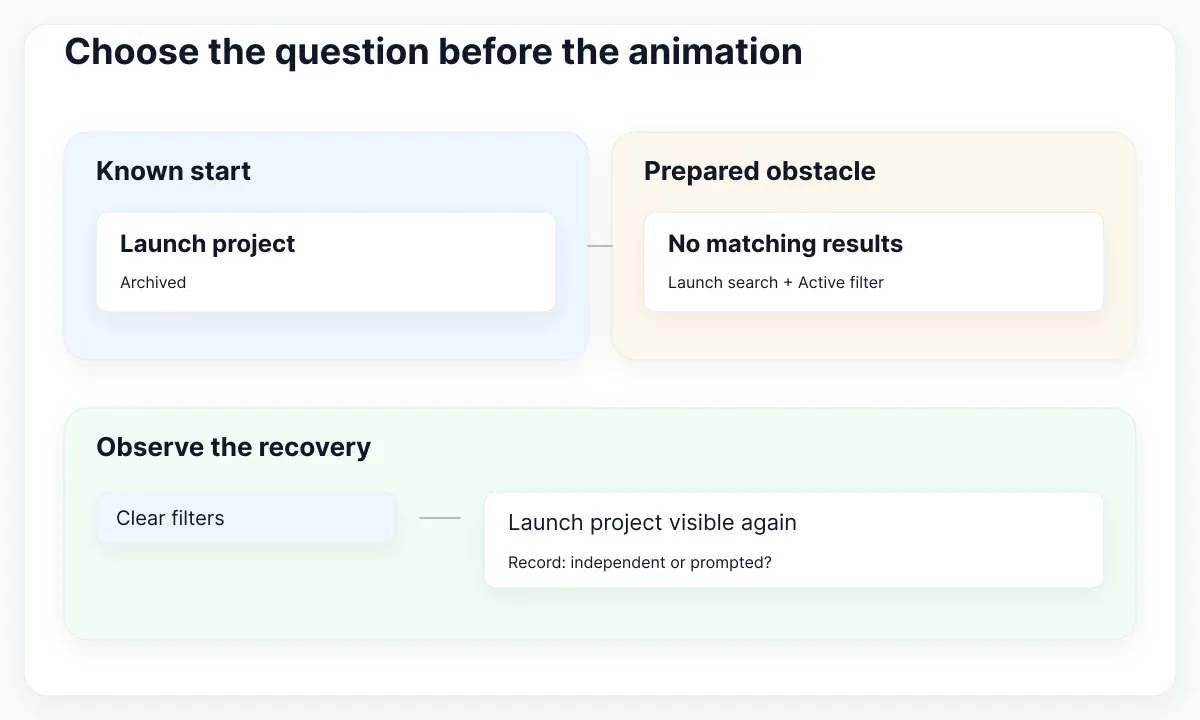
Choose a question that another person can answer through behavior. For example: when a project search returns nothing, can the reader recover without creating a duplicate project? Write the expected observation before arranging screens. This makes it easier to remove decoration that does not help the study.
| Fixture | Decision to observe | Recovery route |
|---|---|---|
| Filtered list | Understand why results disappeared | Clear filters |
| Delete confirmation | Recognize the affected project | Cancel |
| Failed save | Distinguish failure from success | Retry without losing changes |
| List and detail | Resume the original task | Return to the prior position |
Give each exercise one entry frame and a known initial condition. Figma supports multiple flow starting points; its prototype playback documentation explains how these control the beginning of a journey. Name flows by the task, such as Find an archived project, rather than Screen 4.
Keep the visual fidelity proportionate to the question. A wireframe can expose an unclear route before you polish a dashboard. Our guide to wireframes as UX deliverables helps separate the artifact from the tool. For these exercises, use one realistic project name consistently so that each decision has a concrete object.
Example 1: recover from an empty filter
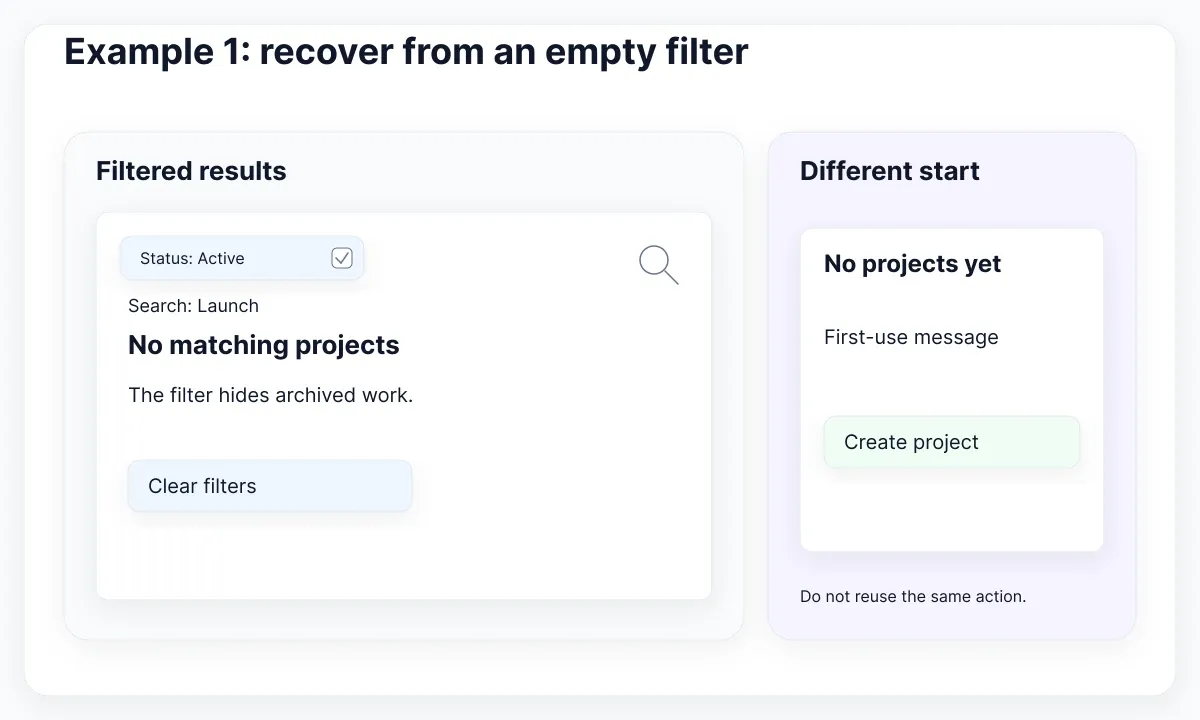
Begin with a project list containing active and archived work. The participant searches for the archived Launch project, but an Active status filter is also selected. No active project matches that search. The empty result should explain the current restriction and offer Clear filters. It should not invite the participant to create a new project as though the workspace had never contained anything.
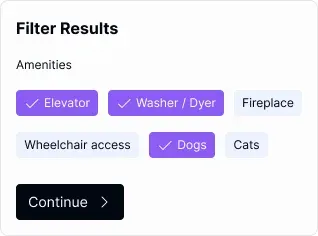
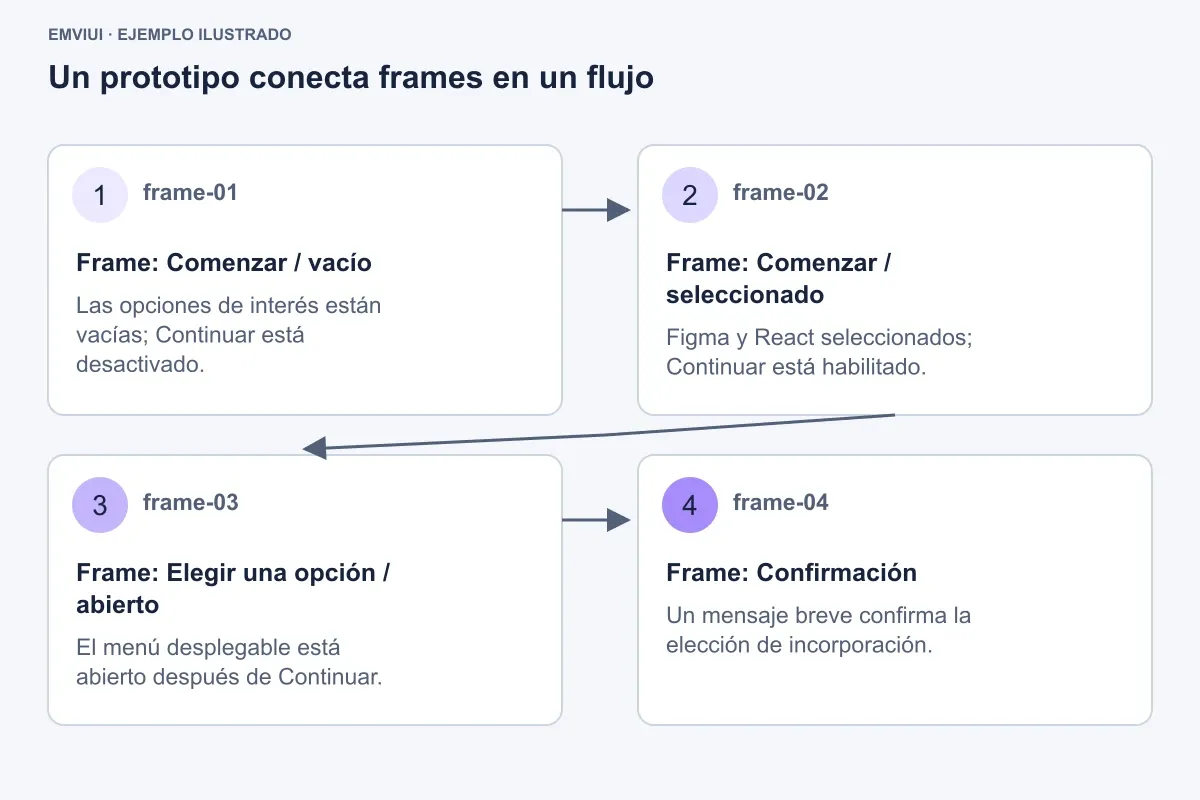
The real EmviUI chip specimen shows a filter for amenities, with selected and unselected choices. It is a visual reference, not a project-search screenshot. Adapt the selection treatment to project status and provide your own result logic and recovery action. Build a populated frame and a filtered-empty frame. Connect Apply filters to the latter; connect Clear filters back to a frame with the original results and reset control appearances. This explicit-frame version is easy to inspect because the result is visible on the canvas. It is a scripted outcome, not a search engine.
For a reusable filter control, Figma's interactive component documentation describes Change to interactions between variants within a component set. Use that for selected and unselected appearances. A checked-looking control does not automatically filter a list: the result still needs a connection or a deliberate state model. See how to describe UI states with variants when naming those appearances.
Ask: Find the archived launch project. Do not tell the participant to clear a filter. Watch whether they inspect the active restriction, understand the empty message, and use the recovery action. If they create a project instead, record the first confusing cue. Rewriting the message may be more useful than adding animation.
For a second trial, remove every project from the fixture. Now a first-project invitation is appropriate. Comparing these two starting conditions reveals whether your design confuses no data with no matches. Both can look empty while requiring opposite next steps.
Example 2: cancel a destructive action
Use a project row with a Delete action that opens a confirmation. The task is to inspect the consequence and then keep the project. Show the exact project name and an explicit cancellation route. The test is whether someone can back out confidently, not whether they can discover a hidden close icon.
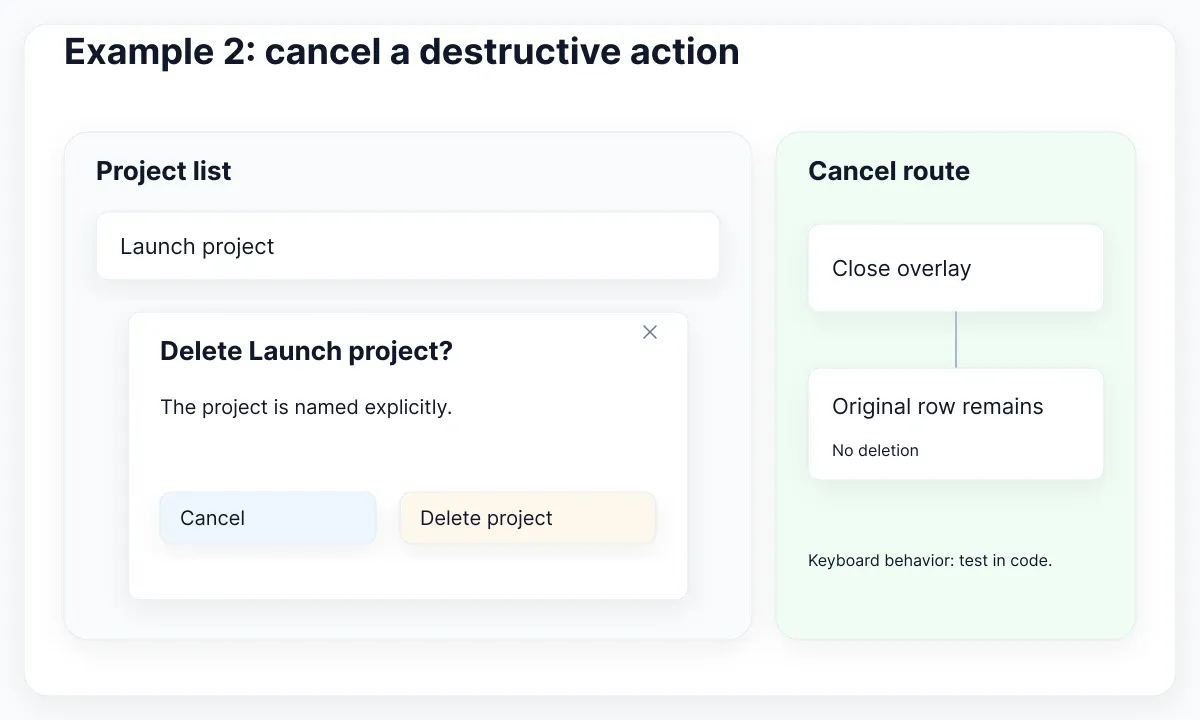
In Figma, put the confirmation inside its own frame and use Open overlay. Connect Cancel to Close overlay. The official overlay guide documents positioning, outside-click dismissal, and overlay swapping. Decide intentionally whether clicking the background dismisses this example; keep a visible Cancel action whichever setting you choose.
Make a second branch for confirming deletion. It can navigate to a list without that project, while Cancel leaves the original row intact. Use distinct copies of the list if that keeps the model understandable. Mark deletion as simulated so a stakeholder does not mistake a convincing transition for a real data operation.
Observe whether the participant reads the project identity before choosing. A confirmation labeled only Are you sure? provides less information for this exercise than one identifying the affected object. This is a proposed content decision to test, not a universal claim that every deletion requires a dialog.
Specify the eventual keyboard behavior separately. The WAI-ARIA modal dialog pattern describes focus entering the dialog, contained Tab navigation, Escape dismissal, and logical focus restoration. A visual overlay does not demonstrate that the shipped application implements those behaviors. Record those checks for the coded version instead of declaring the prototype accessible.
Example 3: recover from a failed save
Next, let someone rename a project and save it. The first attempt should display a deliberately scripted failure; the second should succeed while preserving the proposed name. This tests whether the message explains the situation and whether retry feels safer than starting again.
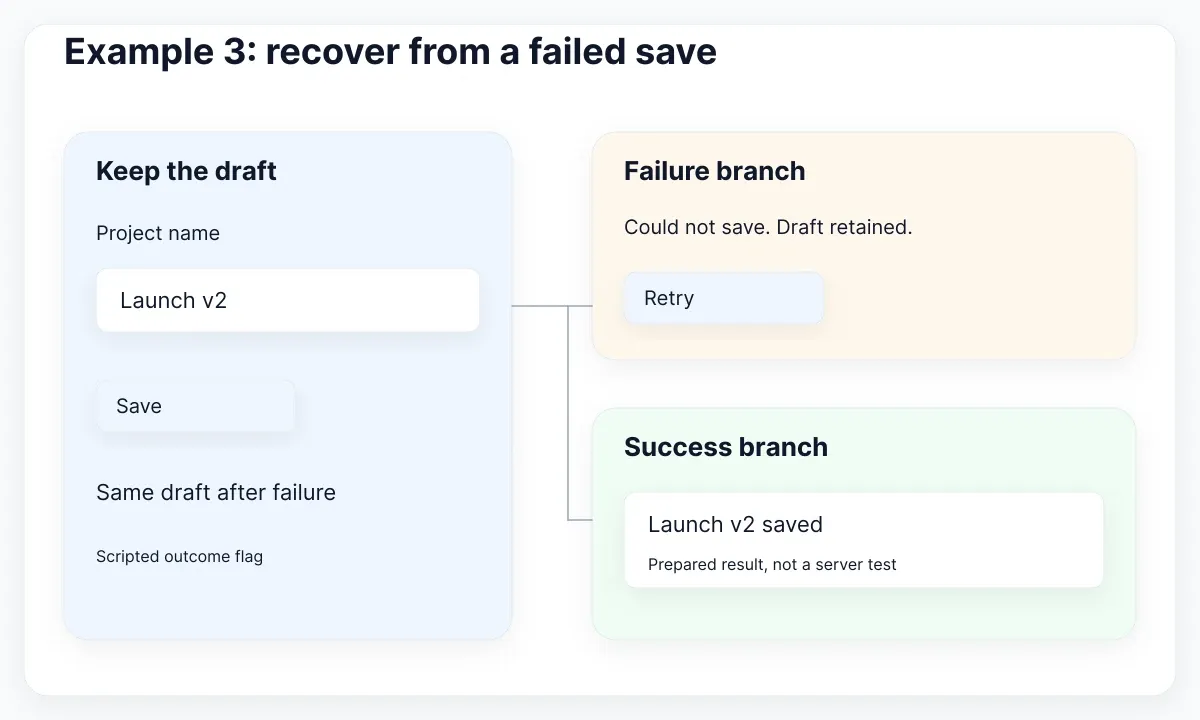
Use separate frames for editing, saving, failure, and completion if you only need a reviewable scenario. Show the same draft name in editing and failure. Keep success copy specific, such as Project name saved, so the participant can distinguish a completed task from a button that merely stopped spinning.
If the scenario benefits from shared state, Figma prototype variables can hold values applied to visible properties. For example, a string can supply the displayed draft name and a boolean can select a scripted outcome. The documentation currently places variable prototyping on paid plans. Check your file access before choosing this route; explicit frames remain a useful alternative.
For a conditional fixture, evaluate a scenario flag when Save is triggered. Route one branch to failure and the other to success. Figma documents ordered actions and if/else conditions; changing a value before a condition can change the branch taken. Keep the condition visible in your authoring notes, and verify the actual action order in playback.
Do not claim that this reproduces a server outage or arbitrary text validation. It rehearses a designed response. To test a field error separately, identify the affected field in text; WCAG error identification guidance requires textual identification and description for automatically detected input errors. A connectivity failure needs different wording from an invalid project name. Avoid blaming valid input for a simulated network failure.
Example 4: return to the same list position
Create a long project list, open a project near its lower half, and return. The participant should continue comparing neighboring projects without searching for the previous row again. Write down the intended return position before wiring navigation; otherwise an accidental jump can pass unnoticed during a quick demo.
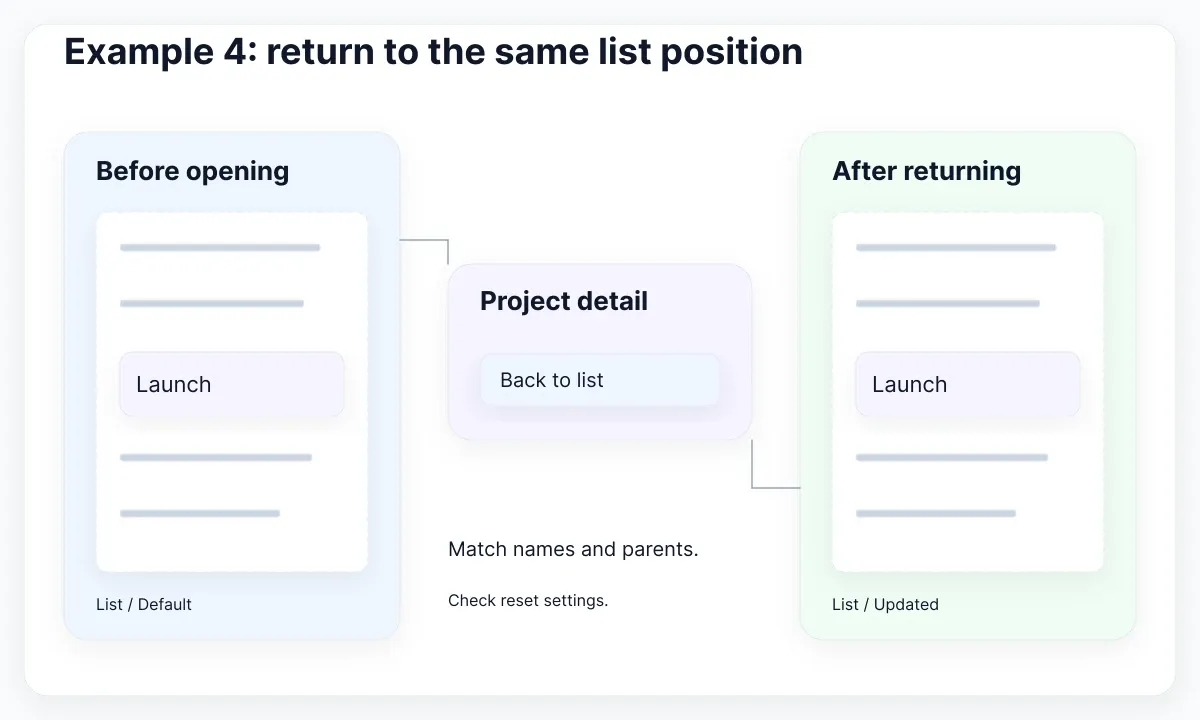
Make the viewport smaller than its contents and apply the appropriate overflow direction. Figma's scroll and overflow documentation explains that scrolling needs content beyond the frame bounds. A very tall frame displayed fully on screen is not the same fixture as a constrained scrolling viewport.
Follow the current scroll preservation rules: memorization applies by default, while sharing across frames depends on matching layers. Nested objects need identical names and parent structure; top-level frames can share a name prefix before a slash. Reset scroll position overrides preservation for an interaction. Check names as well as the connection when the return seems wrong.
For this exercise, use List / Default and List / Updated as related top-level names, with the scrolling content nested consistently. Compare a version that preserves position with a deliberate reset version. Ask the participant to inspect one project and then compare it with the next. Record whether the return supports that task.
Inspect a narrow viewport too. A fixed action bar can take up a large portion of the visible list, even if the same composition looks comfortable on desktop. Treat the mobile fixture as another observation condition; a prototype frame does not establish that an eventual web implementation reflows correctly.
Build the fixtures with EmviUI
Use EmviUI as the visual starting point for these fixtures. Its real empty-state specimen shows first-project messages, illustrations, and creation actions. That makes it useful for comparing the starting condition of an unused workspace with the filtered-list exercise. The stock message needs different wording and actions before it represents no matching results.
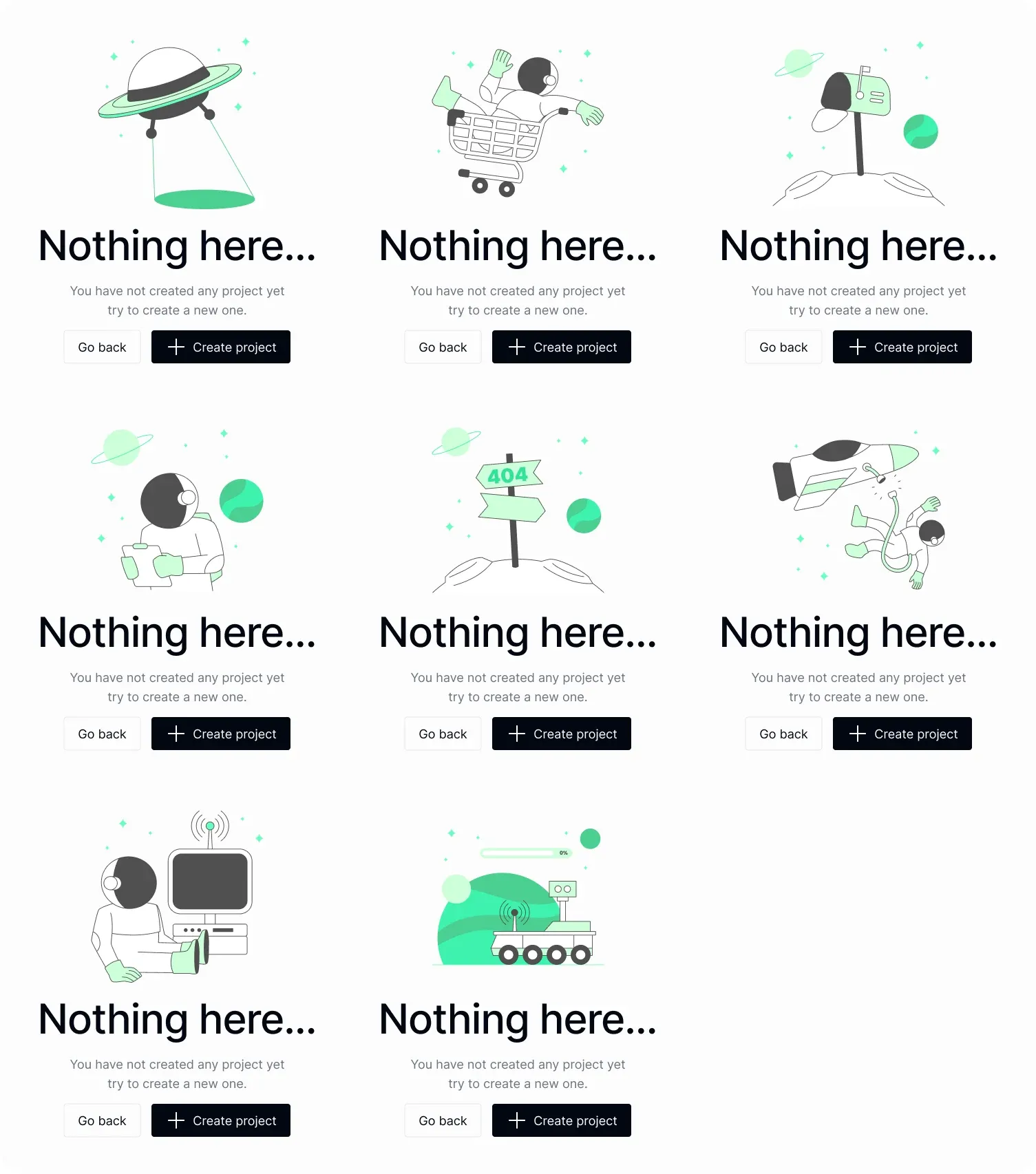
The current EmviUI catalogue presents editable Figma components and templates. Reuse the visual language of buttons, fields, and lists, then supply your own project data and interactions. The kit helps you avoid redrawing every control while you concentrate on the question being tested.
Keep a small fixture register: source component, local customization, initial state, and expected recovery. Replace generic copy with the project name used in the task. EmviUI does not supply evidence that a particular error message is understood or that your prototype has working persistence. Those conclusions need observation and, later, implementation checks.
Run a repeatable observation session
Before inviting anyone, run each fixture from its intended entry point. Trigger every branch, including Cancel, Clear filters, failure, and retry. Return to the start and check the initial values again. A participant should not inherit the previous reviewer's selected filter or completed state by accident.
- Explain the fictional workspace and the task without naming the control to use.
- Let the participant act; note the first hesitation and their interpretation of the result.
- Ask what they believe happened before showing the next condition.
- Record whether recovery was independent, prompted, or incomplete.
- Restore the documented starting condition before the next attempt.
Use a brief record such as: Participant expected to find the project; the empty message suggested creating another one; Clear filters was missed. This is more actionable than a general rating of whether the screen looked professional. Separate your observation from your proposed explanation.
Figma playback supports preview and presentation modes, but a change in viewing scale can change what is visible. Choose a consistent presentation setup and confirm that important actions are on screen. Tell participants when input, saving, or deletion is predetermined. Simulated outcomes can still reveal comprehension problems when their limits are clear.
Turn observations into a decision
After the session, assign each observation to a decision: revise the empty message, rename the destructive action, retain the draft on failure, or preserve list context. Change one important cause at a time when possible, then replay the same task to see whether the difficulty remains.
Hand off the state transitions alongside the visual fixtures. Include the initial condition, triggering action, resulting state, and recovery route. Identify which transitions were simulated and which requirements still need application evidence: actual request handling, persistent data, keyboard focus, screen-reader output, and responsive behavior.
The useful output is a smaller set of resolved questions with a clear next test. Keep decorative animation only when it helps explain continuity or feedback. These four examples work best as compact experiments that make one product decision easier, rather than an impressive tour whose apparent completeness hides untested behavior.

Pablo Mayoral
Senior UX/UI & Web Designer with 10+ years of experience. Creator of EmviUI (10k+ components Figma design system), UImand, and Vitamin Bootstrap. Currently designing digital products at CQMRewards.