Figma Plugins Not Working: Access, Selection and Network Checks
Identify the failed stage, test one supported selection and separate access, network and canvas errors before retrying a Figma plugin.
Identify the failed stage, test one supported selection and separate access, network and canvas errors before retrying a Figma plugin.
For Figma plugins not working, first identify whether the plugin is unavailable, cannot launch, opens but cannot fetch data, or runs without producing the expected canvas result. Check your account, editor and organization approval before altering the design. Then reproduce the failure with one supported selection in a small test file. This sequence narrows the problem without turning a production screen into an experiment.
The workflow below is a recommended diagnostic method, not a claim that one cause explains every failure. It covers classic plugins used in design work, including third-party tools and a short developer handoff. A plugin’s own instructions remain important: an icon importer, a text transformer and a code exporter have different inputs and outputs. Record what the specific command promises before judging its result.
Identify the stage that fails
Describe the last successful step in plain language. “I cannot find the command” differs from “the window opens but its list stays empty.” “The list loads but Apply changes nothing” is a third case. Write the exact command, selection and expected visible change. A short screen recording can be more informative than the phrase “broken plugin.”
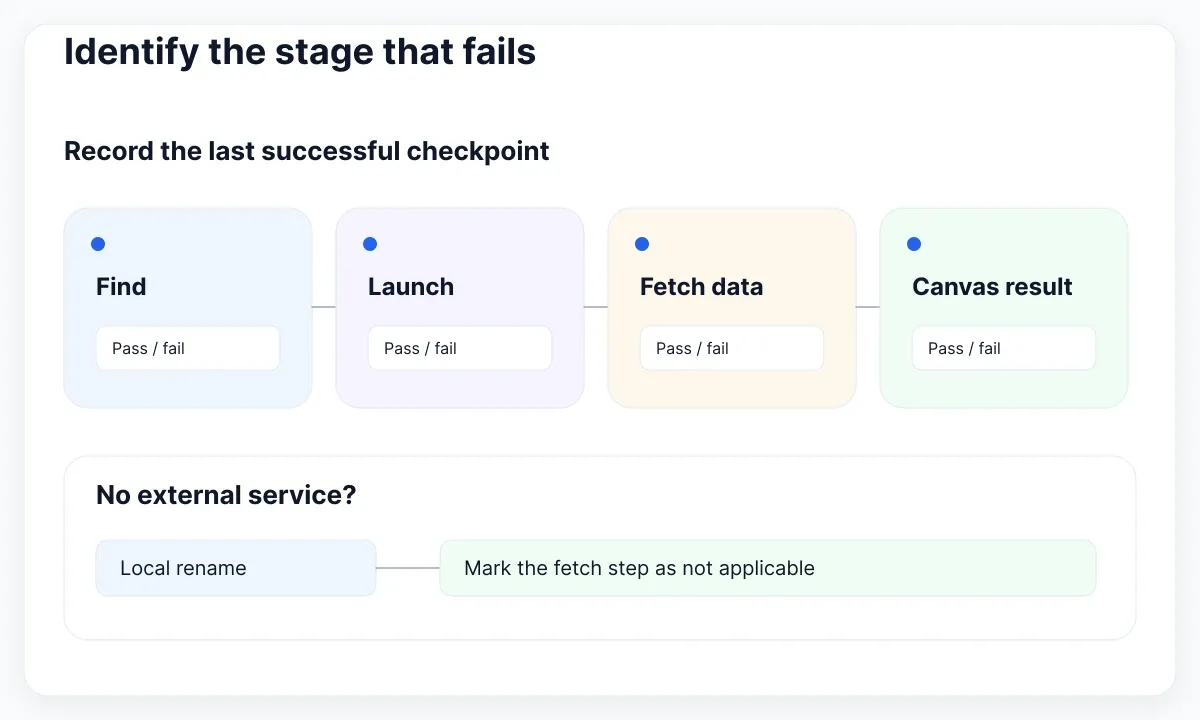
Use four checkpoints: discovery, launch, external data and canvas output. Mark each as passed, failed or not involved. For example, a local rename command may have no external-data step. Do not mark it as a network failure merely because the machine has a slow connection. Keep an unknown result separate from a confirmed failure.
If several unrelated Figma actions also fail, consult Figma’s service-status page and record the incident time and affected service if one is listed. A normal status page does not prove a third-party plugin service is healthy. Conversely, an incident affecting a different feature does not establish the cause of your problem. Treat status information as context for the reproduction.
Make one change per attempt. Keep a compact record: environment, selected layer type, command, result and new evidence. This recommendation gives the next reviewer a usable trail. If the entire file is sluggish rather than one plugin operation failing, the Figma lag diagnostic guide addresses that separate investigation.
Check access before changing the file
Start with the account and product you are actually using. Confirm the intended organization and workspace, then inspect the plugin’s Community entry for supported use. A tool available in one editor is not automatically available in another. Keep “not available here” distinct from “available but crashing.”
Figma’s plugin manifest documentation defines editorType as the declaration of supported editors. Its approval guide explains that organizations can require approval and Enterprise access can vary by workspace. Ask for the correct access through the documented request process; moving confidential content to another workspace is not a diagnostic fix.
Check the current seat-and-editor eligibility table in Figma’s guide to using plugins rather than assuming that file visibility grants every plugin capability. Then compare the state of the affected plugin with an already approved tool in the same editor. If both are unavailable, investigate access before selecting more layers or replacing components.
For an approval request, describe the task, the plugin URL and the kind of data it needs. The organization management guide describes admin controls for plugins and widgets. A pending request belongs with that reviewer; a canvas-reproduction report belongs with a different owner. Keep those routes separate so a developer is not asked to repair an intentional policy restriction.
Build a small selection test
Create a small permitted test file or a clearly isolated duplicate of the relevant content. Use invented text and a simple supported object. If the plugin expects a frame, select one frame. If it expects a text layer, select one text layer. Begin with its documented example before introducing your real hierarchy.
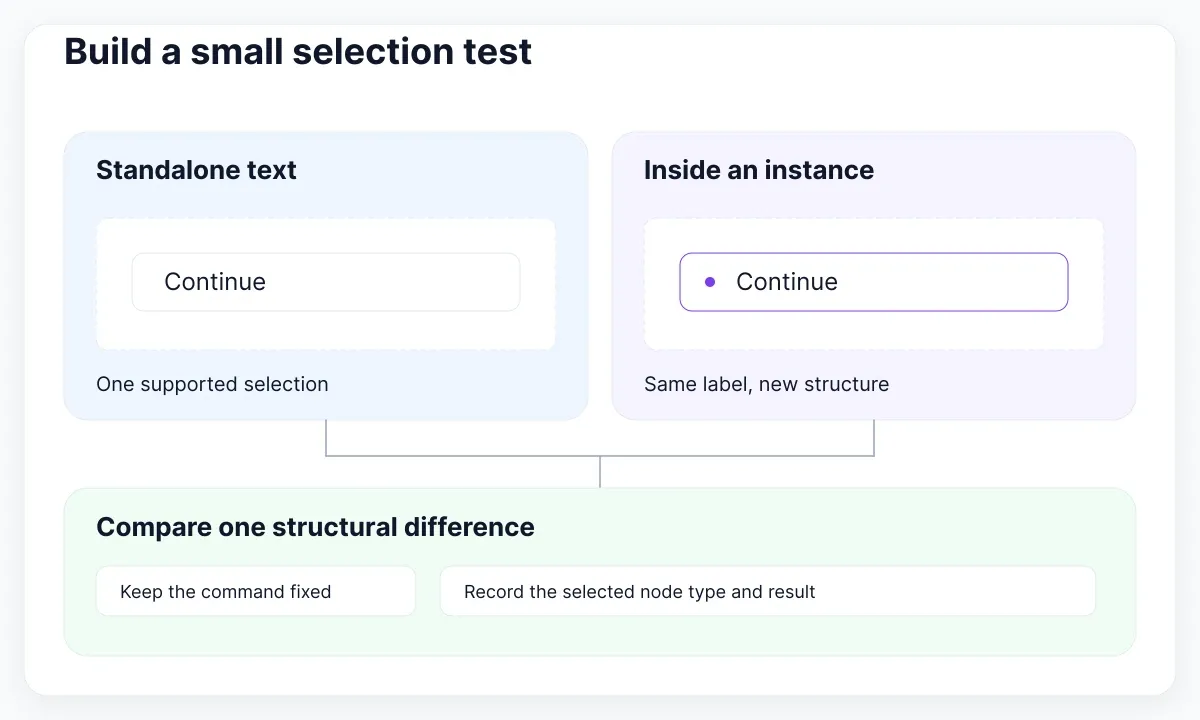
A useful test ladder is: one shape, one text label, one component instance and one composed frame, but only include inputs that the command claims to support. A text-only plugin failing on a rectangle says nothing useful. Record the selected node type, not just its visual name: a layer called Button could be a frame, an instance or an outlined group.
Change one structural property between tests. For example, keep “Continue” constant while comparing a standalone label with the corresponding label inside an instance. If the first passes and the second fails, you have isolated a boundary worth reporting. That result does not prove all instances are unsupported; it identifies a reproducible difference for the author to inspect.
Keep a before copy and inspect the exact target after every run. Avoid detaching an entire library to make a trial pass. If the uncertainty is about frame membership or clipping, the frame bounds and clipping guide helps verify the input. Your immediate goal is the smallest meaningful failing selection, not a redesigned screen.
Separate network failures from canvas failures
When the plugin opens but remote content does not load, separate three questions: did the operation attempt a request, was the request permitted, and did the service return a usable response? A blank picker alone cannot answer them. Preserve the displayed error and the time of the attempt.
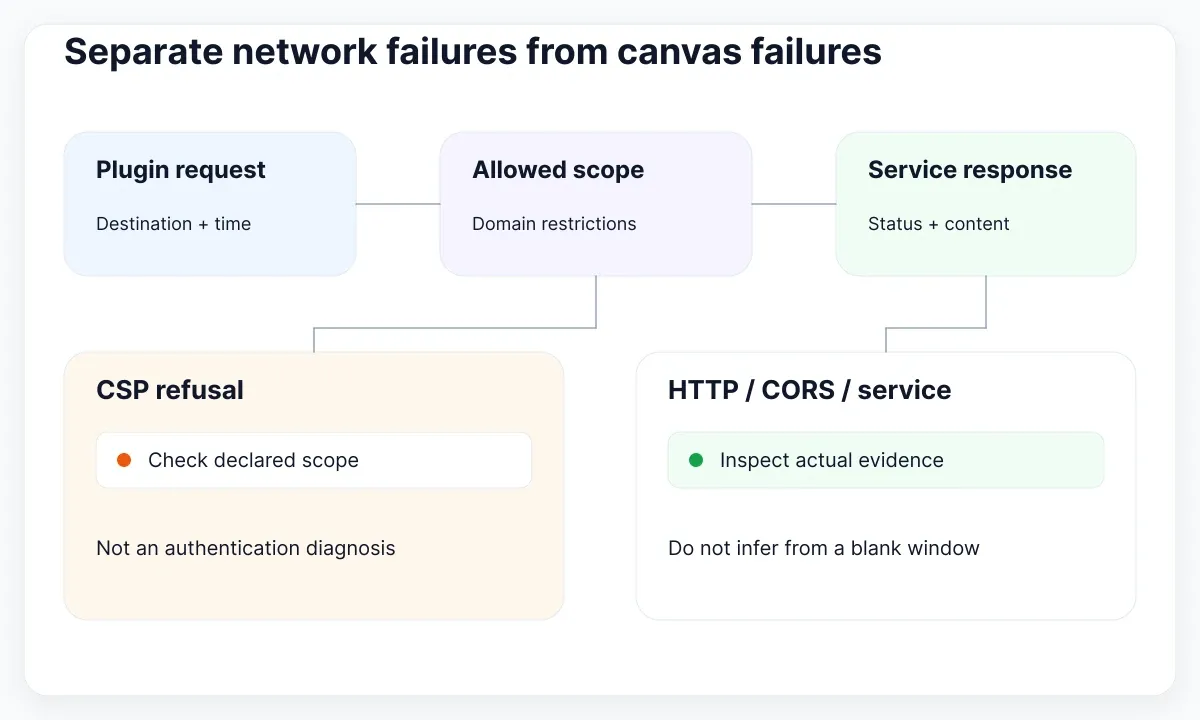
Figma’s network-request guide distinguishes domain restrictions enforced through Content Security Policy from browser CORS requirements. A CSP refusal is not the same diagnosis as an HTTP authentication response or an unreachable endpoint. Collect the actual message before recommending a fix. Ordinary users should send that evidence to the author rather than edit a published plugin’s configuration.
For developers, check the failing destination against the declared network scope and inspect redirects or additional resource hosts. Confirm the request method, response status and expected content format. Use a test endpoint without customer information. Keep production credentials out of shared recordings and reports. A successful request outside Figma is useful comparison evidence, but does not prove the plugin execution context has the same permissions.
For a managed network, ask the responsible administrator to compare the specific destination and time against its policy. Do not prescribe a general firewall bypass. If the plugin requires a separate service account, verify that account using its own documentation. Being signed into Figma does not establish the state of a separate provider session. Note whether local canvas-only commands still work.
Inspect partial changes before retrying
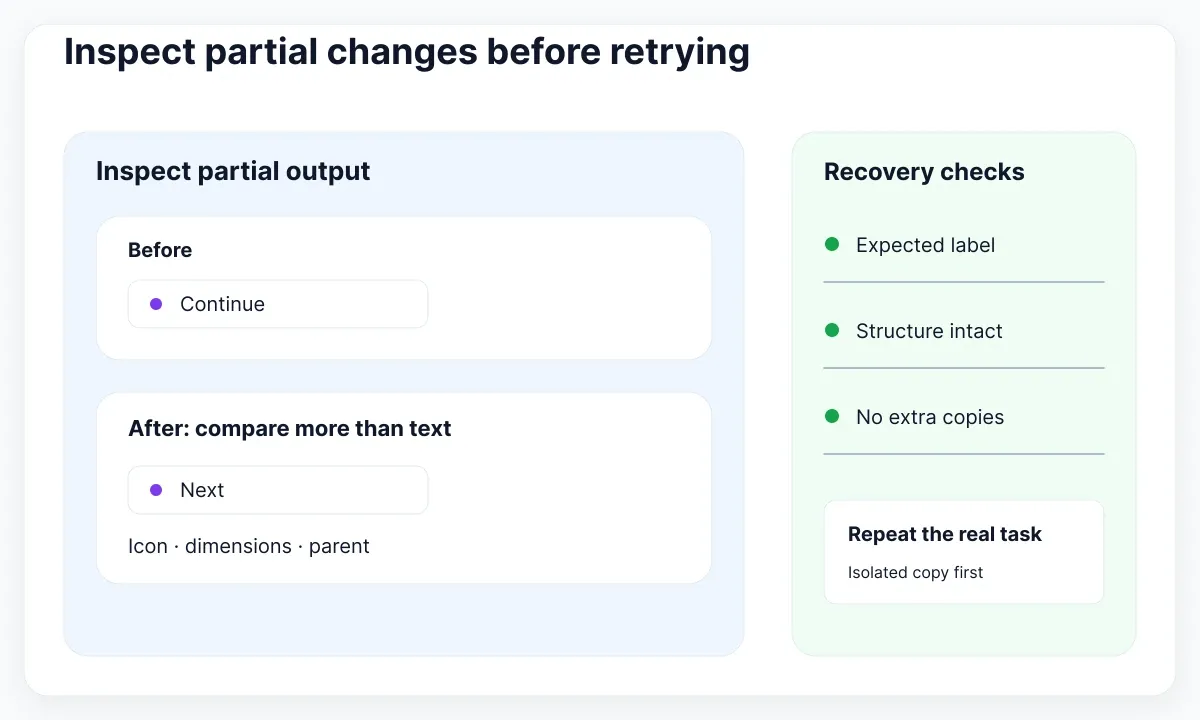
Before rerunning a command, look for partial output. Count newly created layers, inspect renamed items and compare the intended target with its before copy. A command can fail after making some changes. Repeating it blindly may make the next observation harder to interpret, especially for an importer that inserts another copy.
Text operations need a separate check. Figma’s text API guide distinguishes missing fonts from fonts a plugin has not loaded, and discusses mixed font values. A visible label does not establish that every edit operation can proceed. Tell the author whether a simple single-style label succeeds while a mixed-style sample fails.
If you develop the plugin, collect the exception around the smallest failing operation and confirm that required font loading is awaited. If you only use it, provide the font family and style names when relevant, without distributing font files. For access problems affecting ordinary manual text editing too, continue with the missing-font repair guide.
Retest on a fresh copy with the same selection. Compare both the visible result and the layer structure: a generated label in the wrong parent can look like no result when it is simply outside the expected area. Record what exists after the attempt instead of inferring success from the plugin window closing. Treat automatic closure as an observation, not a completion receipt.
Use EmviUI to keep the comparison concrete
An existing component specimen keeps a test specific. The button collection shown here offers visible text, icon and surface variations. Use a small licensed example in your own Figma file to define what a proposed rename or text transformation should preserve. The screenshot itself does not reveal the layer hierarchy or plugin compatibility.
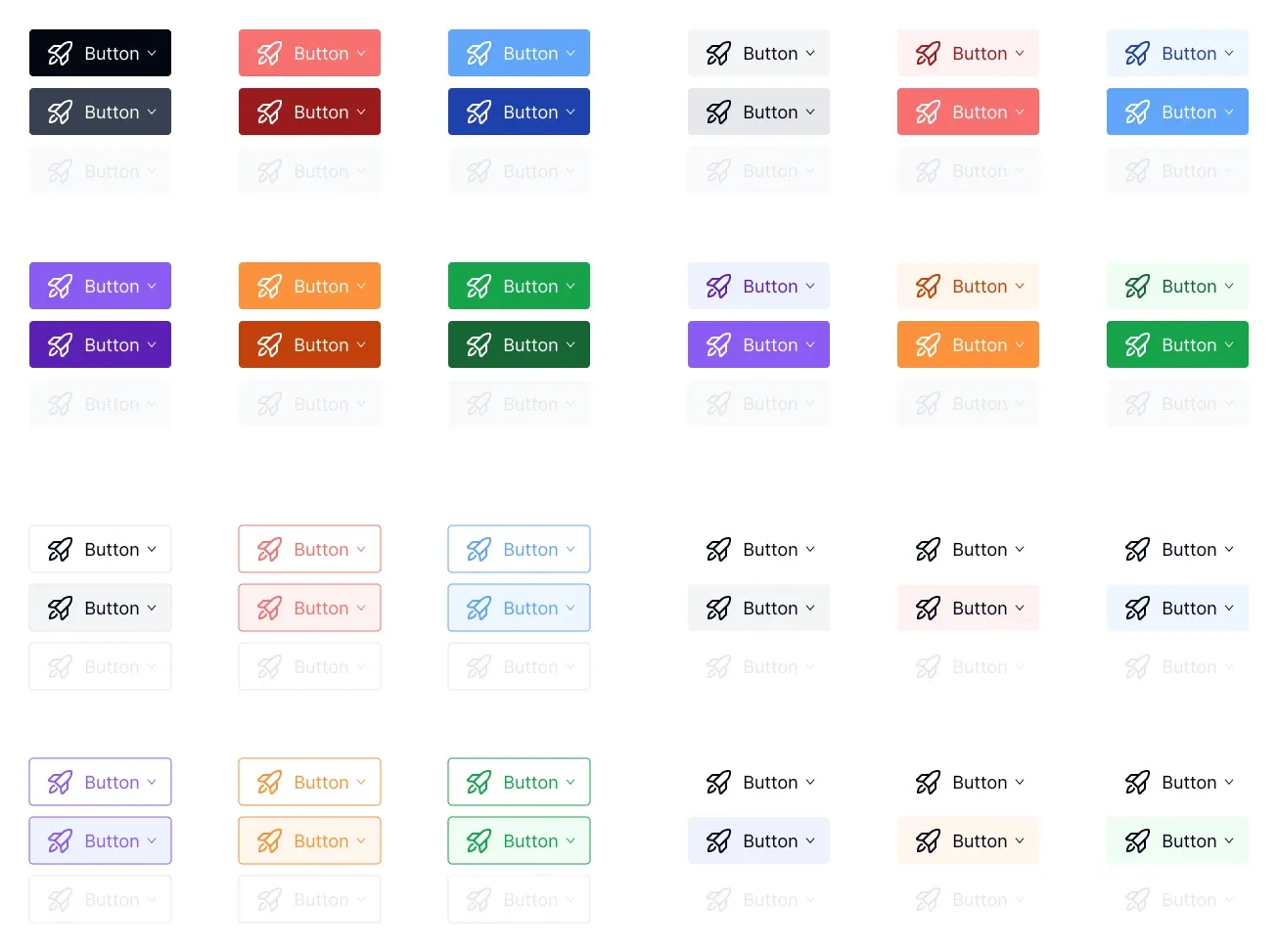
The EmviUI component catalogue supplies visual references for buttons, inputs and other interface parts. For this diagnostic exercise, choose one button and write an acceptance note: change its label while preserving its icon, container dimensions and intended component relationship. This is a proposed test task, not a claim that every third-party plugin supports the kit.
Compare the before and after specimens side by side. A plugin that changes the label but removes an icon may have completed its operation while failing your acceptance criteria. Capture that distinction in the report. EmviUI helps make the expected interface result concrete; it cannot grant plugin approval, repair a remote service or validate the plugin’s implementation.
Send a reproducible report to the right owner
Route the evidence according to the first failed checkpoint. Access restrictions go to the organization reviewer. A reproducible failure in one tool goes to its developer’s listed support contact. A wider Figma incident needs the relevant platform support route. Include enough detail to avoid another round of “which file and which action?”
Figma’s debugging documentation describes opening the development console and inspecting plugin messages. If a developer or support contact requests console evidence, capture the relevant failure and redact tokens, private text and unrelated requests. You do not need to understand every log entry to preserve the one tied to your reproduction.
Use this report checklist:
- Plugin Community URL and command name.
- Editor, browser or desktop environment and time.
- Small supported selection and exact steps.
- Expected output and observed output.
- Error text plus any partial canvas changes.
- Results of the same test in another permitted environment.
Finish with one next question the owner can answer: “Does this command support a mixed-style text node inside an instance?” is actionable. “Can you fix our file?” is much broader. Share a sanitized reproduction only through the agreed support route. Keep the original production file with its normal owners while the reduced example carries the investigation.
For an environment comparison, keep the same account, file and selection while changing only the permitted client. Record the browser or desktop version when available. If the outcome changes, report that contrast as evidence rather than declaring the other client a permanent fix. Restore the original conditions before testing a second hypothesis.
Verify recovery on the original task
A successful small test is the start of recovery. Repeat the original command on an isolated copy of the real selection, compare output against the acceptance note and inspect any downstream component relationships. Then confirm the user can continue the actual task without a hidden manual repair.
Keep the passing input and a short record of the change that resolved the issue. If it was approval, record the workspace; if it was a developer patch, record the plugin version when available; if it was a font-access issue, record the repaired prerequisite. This prevents a future recurrence from starting with an unsupported guess.
When the tool still fails, preserve the reduced case and use a documented manual alternative for the immediate design task. Do not relabel the workaround as a repaired plugin. A useful outcome can be a reliable reproduction with the right owner, even while the underlying fix is pending. The same checkpoints make the next attempt comparable.

Pablo Mayoral
Senior UX/UI & Web Designer with 10+ years of experience. Creator of EmviUI (10k+ components Figma design system), UImand, and Vitamin Bootstrap. Currently designing digital products at CQMRewards.