How to Fix Figma Missing Font: Access, Styles and Versions
Identify the missing family and style, restore font access, compare versions, and review representative text before replacing shared typography.
Identify the missing family and style, restore font access, compare versions, and review representative text before replacing shared typography.
Short answer: To fix a missing font in Figma, identify the exact family and style, restore access to that font, and test an affected text layer before replacing anything. A replacement changes the design; recovering access preserves its intended typography. The useful order is file evidence, font availability, browser connection, version consistency, then a controlled replacement if necessary.
If you searched for how to fix figma missing font, start with one broken label rather than the entire library. This guide gives you a repeatable investigation, a small test specimen, and a repair acceptance checklist. It addresses unavailable fonts in design files; for the separate question of Figma's own interface typeface, see what font Figma uses.
Identify the missing family and style
Record the affected layer, family, and style before making changes. Figma's missing-font guidance explains the alert and the modal that identifies unavailable fonts. Treat that list as your starting evidence, rather than guessing from the appearance of a screenshot.
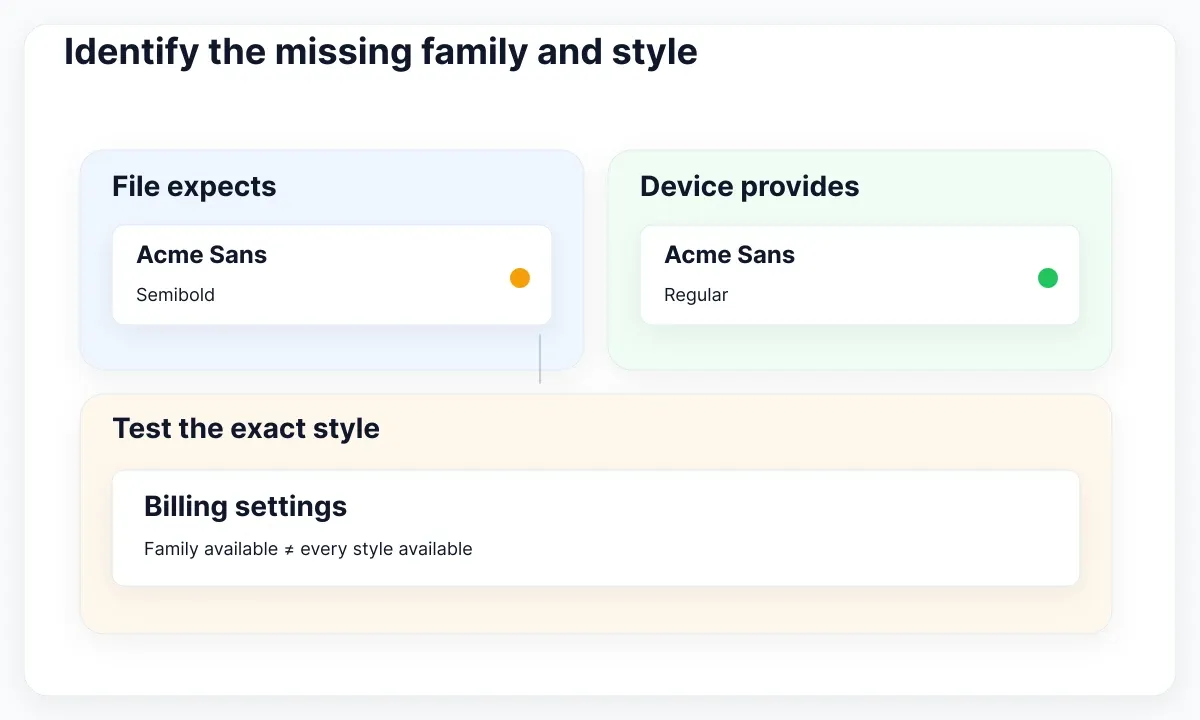
Build a short incident record: file name, page, layer path, expected family, expected style, editor environment, and whether another collaborator can edit the same text. Add the time the problem first appeared and the last known working environment. This is a practical recommendation: it gives later tests a stable reference and stops two people from repairing different symptoms under the same ticket.
Imagine a fictional billing dashboard whose headings use Acme Sans Semibold and whose descriptions use Acme Sans Regular. Your descriptions are editable but the heading triggers an alert. Your first hypothesis should concern the Semibold face or its availability, rather than replacing the whole family. A similar-looking Regular face is not evidence that the intended Semibold is installed. The specimen in this article uses invented names to explain the investigation, not a claim about a particular commercial font.
Separate three observations: the file remembers a font choice, your environment can access that choice, and editing produces the expected layout. A design can look plausible while still failing the editing test. Ask a collaborator to inspect the same layer without changing it. If their environment works, compare the two environments before altering shared content. If both fail, look at the original asset package and the file's intended typography.
Use a scratch page with three representative strings: a heading, a button label, and a two-line description. Record frame width and text sizing behavior alongside each string. Keep the original broken layers untouched while diagnosing. For example, use “Billing settings”, “Save changes”, and a longer sentence about invoice delivery. Those strings cover different wrapping pressures without requiring an entire dashboard to be rebuilt. Avoid converting text into outlines as a diagnostic shortcut: the goal here is editable typography that the team can maintain.
Separate font access from browser access
A font file on disk and a browser connection to that font are separate checks. Follow Figma's font installation instructions for supported font files and local installation. Browser users need the font installer; the desktop app includes it.
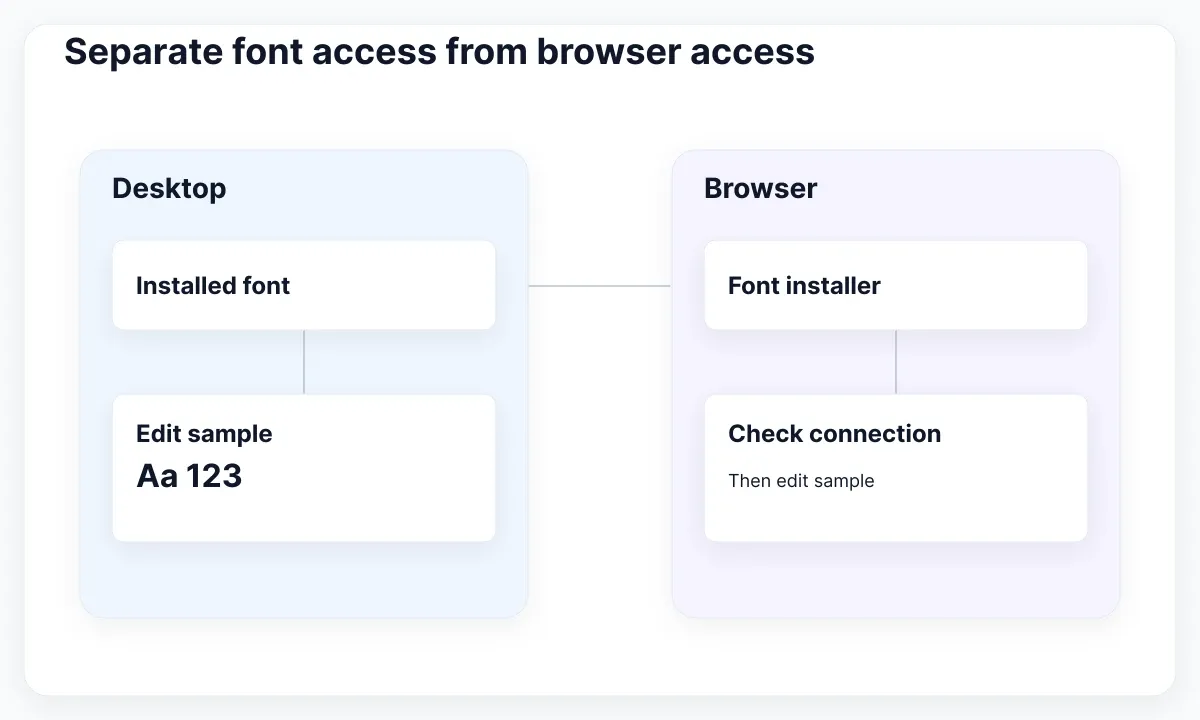
For a local-font incident, first confirm the intended face is installed through the operating system's font manager. A downloaded archive sitting in a project folder is not an installation record. Compare the family and styles with your incident list. Keep the source package and version information together so another designer can repeat the check. Obtain the file through your team's approved source, rather than downloading a similarly named family from an unrelated website.
Then test a new text layer in a scratch file. If the intended face is unavailable there too, investigating the original component hierarchy is premature. If the new layer works but the original layer fails, return to the exact style and version used in the original file. This controlled comparison is a suggested troubleshooting method; it does not establish a universal cause from a single result.
In the browser, Figma's font-installer troubleshooting guide directs users to Preferences, then Permissions and helpers, to inspect Local network access. Follow its prompts when the connection is blocked or disconnected. After restoring access, reload the design file and repeat the same small editing test. When investigating the helper process, use Figma's documented instructions for your operating system rather than changing unrelated browser settings.
A useful diagnostic matrix has four cells: desktop scratch layer, desktop original layer, browser scratch layer, and browser original layer. Mark each as pass or fail, and note the environment used. If desktop tests pass but browser tests fail on the same computer, that is a reason to inspect the browser connection. If both environments fail only on one style, inspect that style. These are hypotheses that narrow work, not guarantees.
Change one variable at a time. Installing a new family, replacing the heading, restarting the app, and updating a component in one step may remove the symptom, but it leaves you unable to explain the repair. Keep the shortest successful test as the basis for the next action. A support ticket that says “browser access restored; original Semibold label now editable” is more useful than “reinstalled everything”.
Resolve conflicting versions before replacing fonts
A matching family name does not finish the investigation. Figma documents layout shifts and unavailable weights caused by conflicting font versions. Compare version information when collaborators get different results on the same text layer.
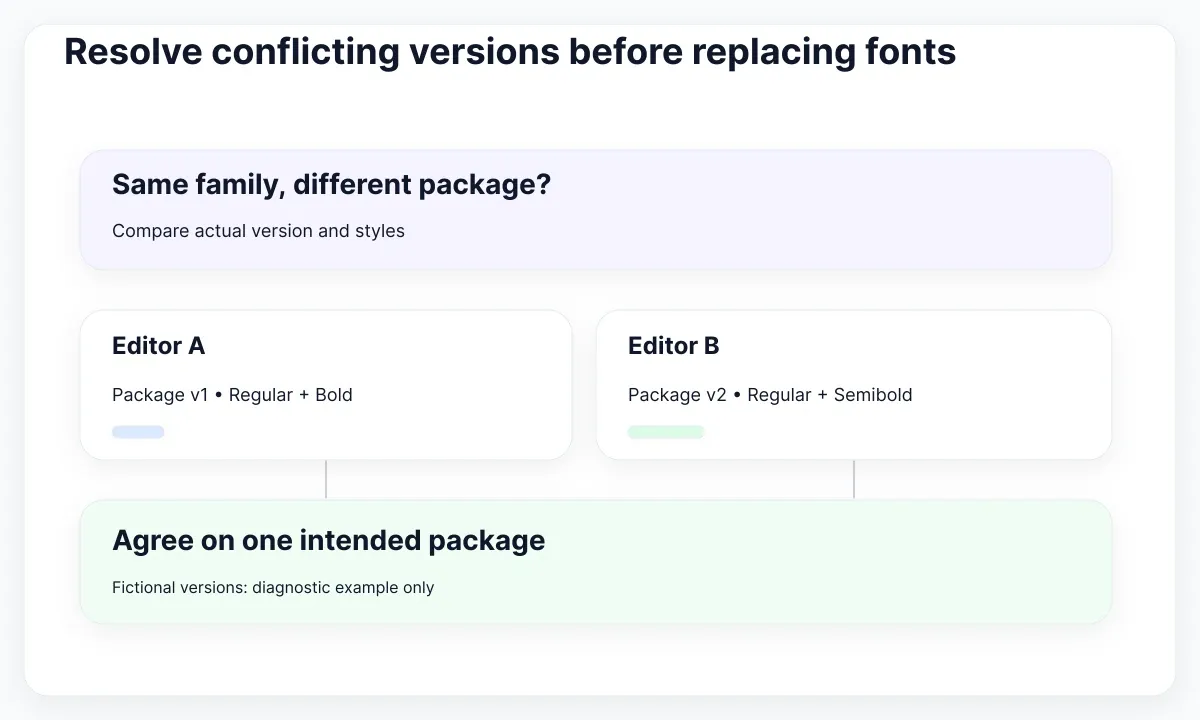
Make a compact inventory for the people who edit the affected file. Record the package source, version, styles, operating system, and whether they use browser or desktop. Ask everyone to report the actual installed details rather than recalling when they downloaded the font. In our fictional example, one editor might have a package containing Regular and Bold while the file expects Semibold. Another might have a different release. These are two different repairs even when the visible alert looks the same.
Once the team agrees on the intended package, coordinate the change in a bounded window. Figma's conflict guide describes updating from a common source and recomputing affected text layout. Apply that documented route when a version conflict is confirmed. Avoid turning a troubleshooting session into an unplanned typography migration. Keep the incident record explicit about whether the family is being preserved or intentionally changed.
Before recomputing or repairing a broad selection, retain a comparison copy and identify representative text layers. Include a page title, a compact navigation label, a numeric value, and a paragraph. Measure outcomes against their original layout contract. A label might still fit while a longer Spanish description gains a line. The fact that the warning disappears does not tell you whether the surrounding composition is still acceptable.
For components, inspect both the main component and a representative instance. Record which typography decisions belong to a shared text style and which are local overrides. If a label was intentionally overridden for a campaign, a blanket reset could erase that intent. When investigating unexpected instance changes, use the separate variant and override troubleshooting workflow after establishing that font access is healthy.
Finish this stage with a clear decision: restore the intended package, coordinate versions, or escalate an unresolved environment issue. If the same face remains unavailable despite a reproducible installation and connection check, preserve the evidence and contact support. List the failed tests and affected styles. Do not keep replacing fonts simply to make a modal disappear; you may be changing shared design decisions without addressing the underlying cause.
Replace deliberately and test layout
Replacement is an editorial design decision. Figma's missing-font documentation warns that replacement affects collaborators and recommends saving a version first. Use that safeguard before selecting an available alternative, then review the result as a typography change.
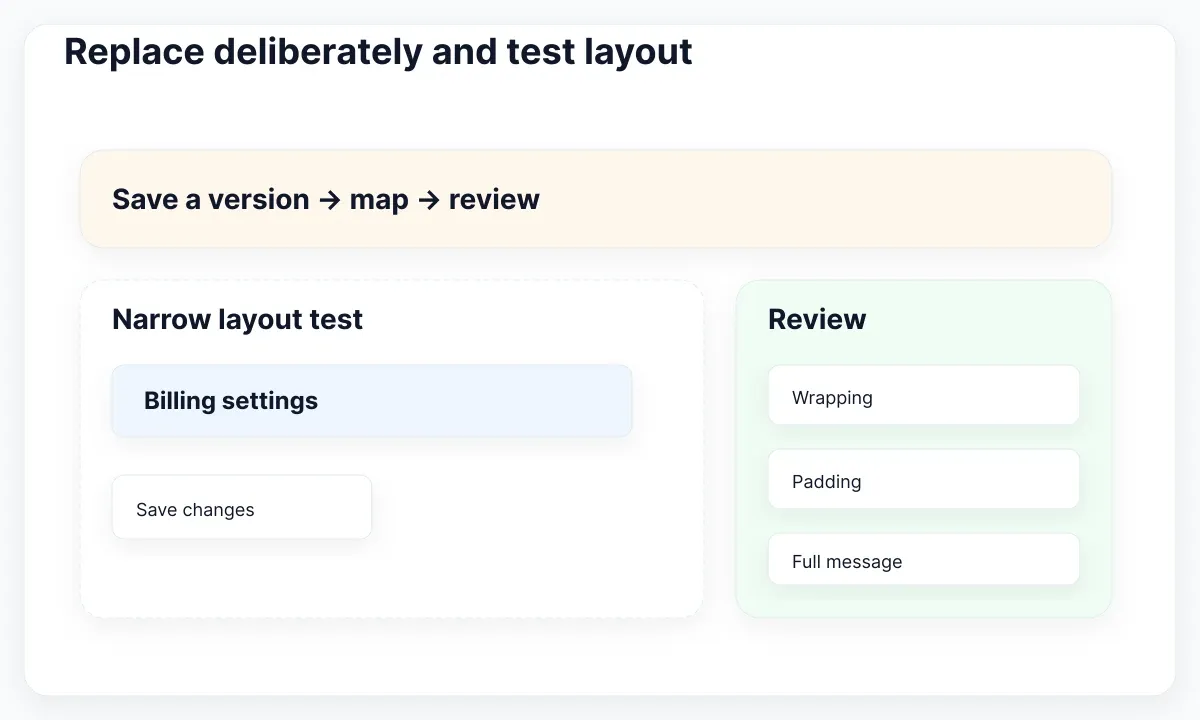
Define the reason for replacement: the team cannot obtain the original face, has agreed to migrate, or needs an approved temporary alternative. Give the temporary choice an owner and a review date. If the original brand face remains the desired outcome, say so in the file notes. Otherwise a quick unblock can quietly become the permanent standard, leaving developers and designers with different expectations.
Create a mapping table before acting. For each unavailable family and style, list the proposed replacement, intended weight, affected text roles, and verification sample. Do not assume that “Medium” and “Semibold” have interchangeable visual impact across families. Compare the actual hierarchy on your sample page. Start with a copy or a deliberately limited specimen, and agree on acceptable results before applying a broader change.
| Sample | What to inspect | Pass condition |
|---|---|---|
| Page title | Wrapping and hierarchy | No unintended extra line |
| Button | Label and surrounding padding | Readable label without clipping |
| Description | Line count and container height | Full message remains visible |
| Numeric value | Alignment and emphasis | Comparable values stay easy to scan |
Test narrow and wide frames with realistic copy. Use the longest credible label in your product, not a fabricated paragraph that will never appear. For a billing screen, include a long account name, a currency amount, and a localized confirmation. Keep the text size fixed for the first comparison so the effect of the font change is visible. If you later adjust size or spacing, document those as additional design decisions.
When a button becomes wider or a title wraps differently, inspect the layout rules rather than immediately shrinking the text. The separate Auto Layout guide for nested text and buttons helps with that next step. A font repair should produce an editable and readable component at its supported sizes. Keep a before-and-after specimen so reviewers can assess the tradeoff without reconstructing the incident.
Verify a reusable typography specimen
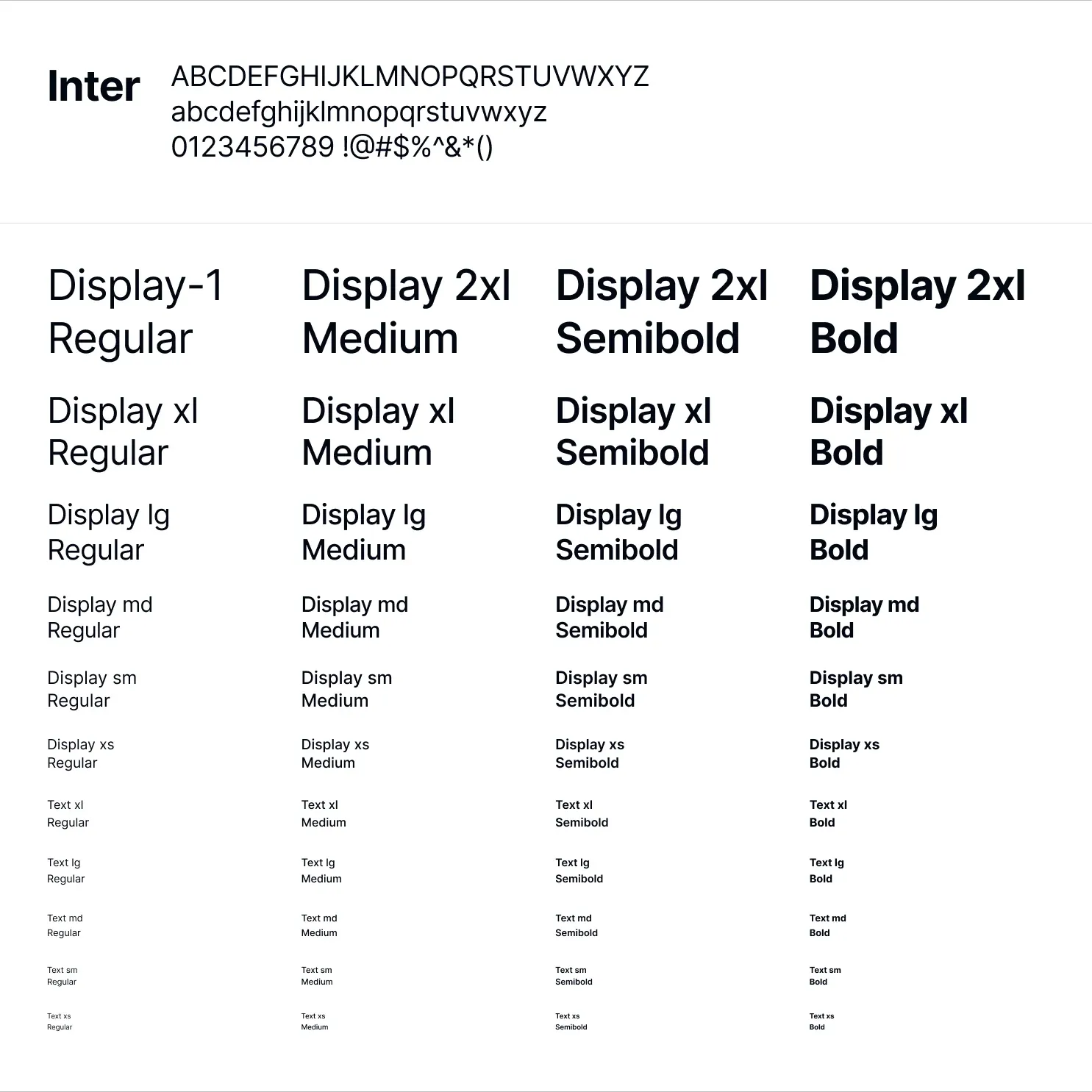
Use a consistent specimen to close the incident. The real EmviUI typography asset below shows Inter across multiple sizes and weights. It is a visual reference for checking hierarchy, not a screenshot of Figma's missing-font dialog or proof that your environment has a particular font installed.
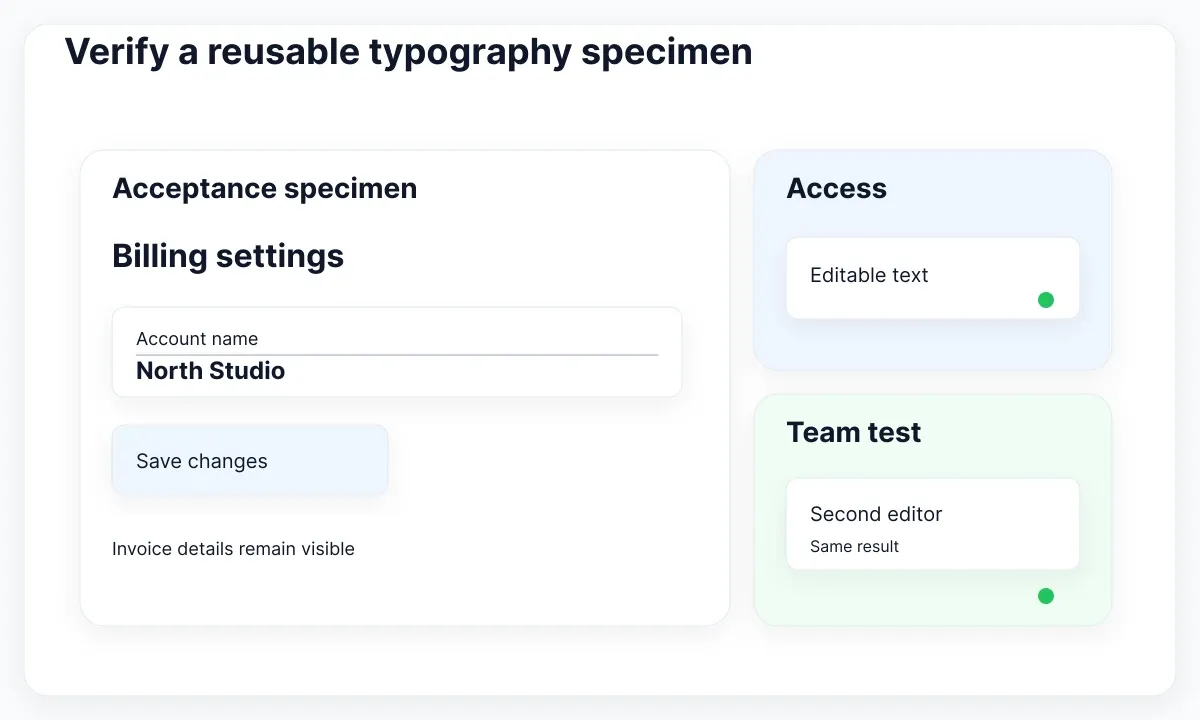
The current EmviUI component catalogue provides interface examples that can anchor a realistic test. Choose a heading, a form label, a button, and helper text relevant to your screen. Reuse those roles in the specimen so your repair addresses the product's actual interface. EmviUI can supply design starting points; it does not install local fonts, repair browser permissions, or establish your team's font licenses.
Write an acceptance checklist with observable outcomes. The selected text is editable, the intended family and style are available, the warning no longer affects the tested layers, and representative components preserve their layout. Ask a second editor to repeat the check in the environment used for collaboration. If only your computer passes, record the remaining limitation instead of declaring the entire team unblocked.
Include bilingual samples when the product supports them. Test “Save changes” beside “Guardar cambios”, and an English description beside a natural Spanish version. Compare wrapping at the same frame width while keeping each language's copy realistic. This is a recommendation for interface review, not an assertion that every Spanish string is longer. The goal is to catch actual changes in your product before a shared component update spreads them.
Close the incident with the chosen package or replacement mapping, a link to the comparison specimen, the environments tested, and any unresolved exceptions. Keep a short onboarding note that tells new editors which styles they need and how to verify access. On the next occurrence, that evidence lets the team distinguish a new machine setup issue from a change in the shared file.
For a final handoff, describe whether typography stayed identical or changed intentionally. Give implementation reviewers the actual text roles and accepted layout outcomes rather than a screenshot alone. The best repair leaves a clear explanation: what was unavailable, which test isolated it, what restored editing, and how the team checked that the interface still works.

Pablo Mayoral
Senior UX/UI & Web Designer with 10+ years of experience. Creator of EmviUI (10k+ components Figma design system), UImand, and Vitamin Bootstrap. Currently designing digital products at CQMRewards.