Master Figma Variables: Boost Your Design Systems & Prototyping
Learn how to master Figma variables for efficient prototyping and scalable design systems. Discover key tips, best practices, and real-world examples.
What Are Figma Variables and Why Should Designers Care?
Understanding the Basics of Variables in Figma
Figma variables are reusable values that you define once and use throughout your design files. Think of them as named containers for colors, numbers, strings, or booleans. Instead of manually updating every instance of a color or spacing value, you can change the variable and see updates everywhere it's used. This makes your design process more efficient and consistent.
How Do Figma Variables Enhance Design Productivity?
Variables help designers work faster and smarter. By centralizing values like colors, spacing, or states, you reduce repetitive tasks and the risk of inconsistencies. For example, if your brand's primary color changes, you only need to update the variable, not every button or text element. This saves time and ensures your designs stay aligned with brand guidelines.
The Role of Variables in Modern UI/UX Workflows
Variables are essential in today's UI/UX workflows, especially for teams building scalable design systems. They make it easier to maintain consistency, support theming (like light and dark modes), and enable more advanced prototyping. As design and development become more integrated, variables bridge the gap by making design decisions easier to translate into code.
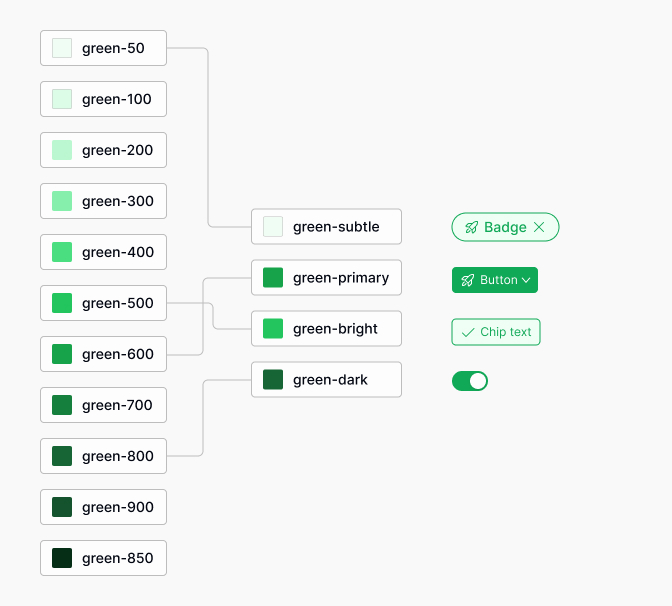
Figma Variables vs. Design Tokens: What's the Difference?
What Exactly Are Design Tokens?
Design tokens are a way to store design decisions-like colors, typography, spacing, and more-in a format that can be shared across tools and platforms. They're often used to keep design and code in sync. For example, a design token for a primary color might be primary-color: #1D4ED8, which can be used in Figma, CSS, or even mobile apps.

When Does a Figma Variable Become a Design Token?
A Figma variable becomes a design token when it's exported or referenced outside Figma, typically as part of a design system. If you use Figma variables only within your design files, they're just variables. But when you export them (for example, as JSON or CSS variables) to share with developers or other tools, they become design tokens.
Why Is This Distinction Important for Product Teams and Interviews?
Understanding the difference between variables and tokens is crucial for product teams. Variables are for internal design use, while tokens are for cross-platform consistency. In interviews, being able to explain this distinction shows you understand modern design workflows and how to collaborate with developers.
| Aspect | Figma Variable | Design Token |
|---|---|---|
| Usage | Within Figma files | Across design & code |
| Format | Figma-specific | JSON, CSS, etc. |
| Purpose | Design efficiency | Cross-platform consistency |
Setting Up Figma Variables: Step-by-Step Tutorial
How to Create and Organize Variables in Figma
Setting up variables in Figma is straightforward. Here's how you can get started:
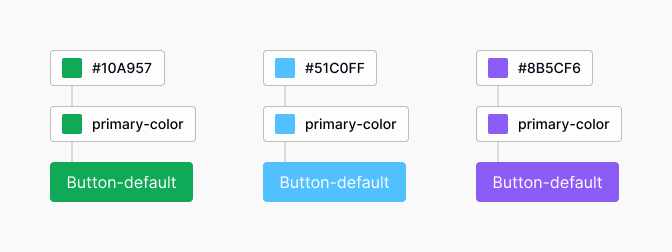
- Open your Figma file and go to the Variables panel.
- Click Create variable and choose the type (color, number, string, or boolean).
- Give your variable a clear, descriptive name.
- Assign a value to the variable.
Naming Conventions and Organization Tips
Use consistent naming conventions to keep your variables organized. For example, use color-primary or spacing-md. Group related variables by category (e.g., colors, spacing, typography) to make them easier to find and manage.
Grouping Related Elements for Efficient Variable Assignment
Group variables that belong together, such as all brand colors or all spacing values. This allows you to assign variables to components more efficiently and helps your team quickly locate and update them as needed.
Assigning Variables to Components and Layers
To use a variable, select a component or layer, then choose the variable from the properties panel (for example, for fill color or spacing). This links the property to the variable, so any changes to the variable will update all linked components automatically.

Using Boolean Variables for Interactive Prototypes
Boolean variables are perfect for toggling states in prototypes, such as showing or hiding elements. For example, you can use a boolean variable to control the visibility of an alert banner or a modal window in your design.
Prototyping with Figma Variables: Real-World Examples
How to Build an Interactive Alert Banner with Boolean Variables
Step 1: Creating the Frame and Banner Component
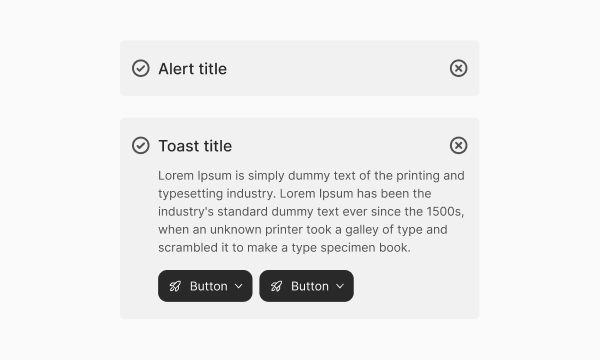
Start by creating a frame that will serve as your page or screen. Inside the frame, design your alert banner component with a background, icon, and message text.
Step 2: Adding a Close Button and Grouping Elements
Add a close ("X") button to the banner. Group all elements of the banner together so you can easily show or hide the entire banner as a single unit.
Step 3: Assigning and Toggling the Boolean Variable
Create a boolean variable called isBannerVisible. Assign this variable to the visibility property of the banner group. In your prototype, add an interaction to the close button that toggles isBannerVisible to false, hiding the banner when clicked.
Simulating User Interactions and Dynamic States in Prototypes
With boolean variables, you can simulate user interactions like toggling menus, switching tabs, or changing themes. This makes your prototypes more realistic and helps stakeholders understand how the final product will behave.
Integrating Figma Variables with Design Systems and Tailwind CSS
How Do Variables Fit into a Scalable Design System?
Variables are the backbone of scalable design systems. They centralize design decisions, making it easy to update and maintain consistency across all components. When your design system grows, variables ensure that changes propagate smoothly and efficiently.
Connecting Figma Variables to Tailwind Components and UI Kits
If you use Tailwind CSS, you can map Figma variables to Tailwind's utility classes. For example, a color variable in Figma can correspond to a Tailwind color class like bg-blue-600. This mapping helps designers and developers stay aligned and speeds up the handoff process.
Exporting Variables as Design Tokens for Cross-Platform Consistency
Figma allows you to export variables as design tokens, usually in JSON format. These tokens can then be used in code, ensuring your designs look the same on web, mobile, and other platforms. For more on exporting and using design tokens, check out the Figma's guide to variables.
Best Practices and Common Mistakes When Using Figma Variables
What Are the Most Common Pitfalls Designers Face?
- Inconsistent naming: Using different names for similar variables can cause confusion.
- Overusing variables: Creating too many variables for minor differences makes management harder.
- Not documenting variables: Without documentation, team members may misuse or duplicate variables.
How to Name and Document Variables for Team Collaboration
Use clear, descriptive names and follow a naming convention agreed upon by your team. Document what each variable is for, especially if it's not obvious. Consider keeping a shared document or using Figma's built-in variable descriptions to help new team members onboard quickly.
Avoiding Misconceptions: Variables vs. Tokens in Multi-Tool Workflows
Remember, variables are for design, tokens are for code. Don't assume that creating a variable in Figma automatically makes it available to developers. You need to export variables as tokens and ensure they're integrated into your codebase or style guide.
Advanced Tips: Conditional Logic and Dynamic Prototyping in Figma
How to Use Conditional Logic with Boolean Variables
Figma's prototyping features let you use boolean variables to create conditional logic. For example, you can show different UI states based on whether a variable is true or false. This is useful for simulating things like toggling dark mode or displaying error messages.
Creating Multi-State Components and Responsive Layouts
Combine variables with variants to create components that respond to user actions. For example, a button component can have "default," "hover," and "disabled" states, all controlled by variables. You can also use number variables to adjust spacing or layout dynamically for responsive design.
Leveraging Variables for Advanced Prototyping Scenarios
Variables unlock advanced prototyping, such as form validation, multi-step flows, and dynamic content changes. By linking variables to component properties, you can simulate real app behavior, making your prototypes more interactive and valuable for user testing.
Frequently Asked Questions About Figma Variables
Can Figma Variables Be Used Outside of Prototyping?
Yes, variables are useful beyond prototyping. They help maintain consistency in design systems, support theming, and make it easier to update designs as requirements change.
How Do Variables Affect Handoff to Developers?
Variables streamline the handoff process by making design decisions explicit and easy to export as tokens. Developers can use these tokens directly in code, reducing errors and speeding up implementation.
What Should You Know for Technical Interviews?
Be prepared to explain the difference between variables and tokens, how to set up and organize variables, and how they fit into design systems and developer handoff. Demonstrating practical knowledge of these concepts will set you apart.
Conclusion: Unlocking the Full Power of Figma Variables in Your Design Workflow
Key Takeaways for Designers and Developers
Figma variables are a powerful tool for creating consistent, scalable, and interactive designs. They save time, reduce errors, and make collaboration between designers and developers smoother.
Next Steps: Applying Variable-Driven Design in Your Projects
Start by identifying common values in your designs and turning them into variables. Use variables to build components, prototypes, and design systems. Export them as tokens to keep your code and design in sync.
Resources for Further Learning on Figma, Design Tokens, and UI Systems
Related reading

Pablo Mayoral
Senior UX/UI & Web Designer with 10+ years of experience. Creator of EmviUI (10k+ components Figma design system), UImand, and Vitamin Bootstrap. Currently designing digital products at CQMRewards.