How to Create String Variables in Figma: Shared UI Copy
Connect shared interface copy deliberately, prove each binding and review localized content in real components.
Create a String variable, enter its name and value, then bind it to text content. Test a source edit across intended consumers and an independent control. Review component overrides, localized layouts and the application content mapping before delivery.
To create string variables in Figma, open Variables, create a variable with the String type, enter its name and value, then apply it to a text layer’s content. Prove the binding by changing the source value. Use shared strings for copy that should change together, and keep independent content independent.
This guide builds a proposed content exercise for Fieldnote, a fictional project workspace. Two project-empty screens share a creation action, while a separate invitation keeps its own wording. The names, translations and acceptance checks are editorial examples. The task is reusable interface copy, rather than font-family variables or a complete localization platform.
Define which copy should stay shared
Start with the meaning of a message, not with repeated letters. Two buttons may both say Create project and represent the same operation. Another button saying Create invitation performs a different job. List the operation, audience and destination before deciding that text belongs in a shared variable.
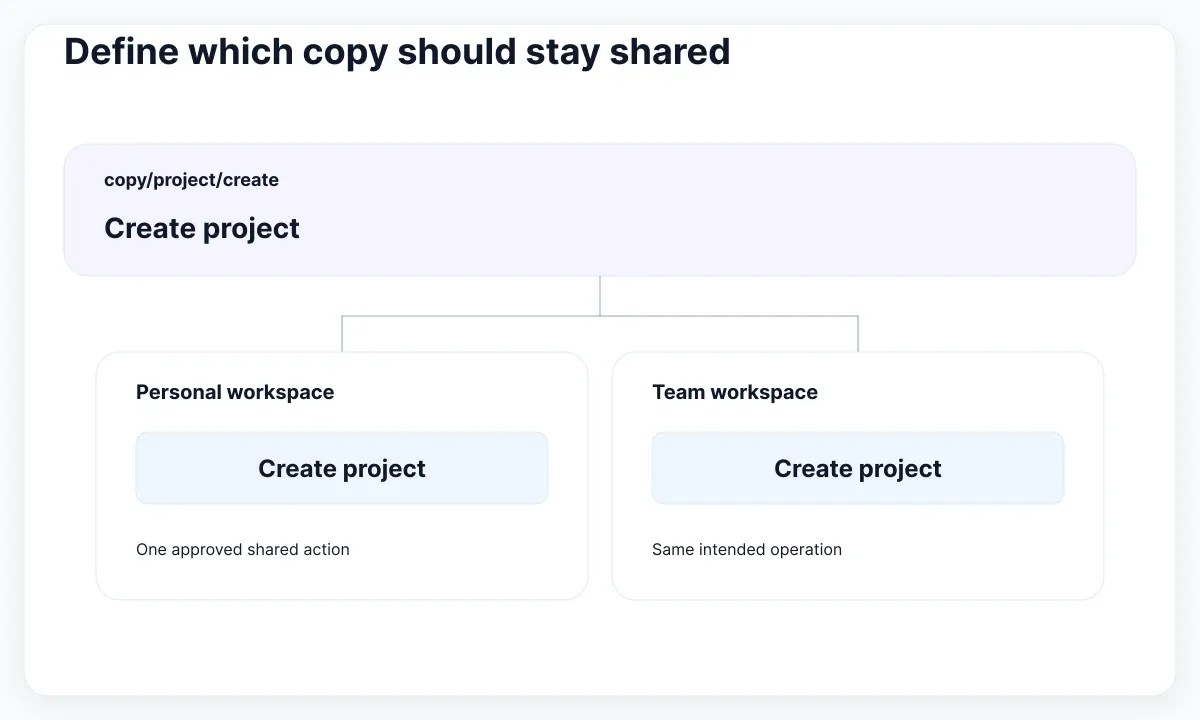
For the exercise, place two empty project screens side by side: a personal workspace and a team workspace. Both offer Create project. Give each screen a different explanatory sentence, because their contexts differ. Add an invitation card with Send invitation as a negative control. Our proposed rule is that only the two project actions must update together.
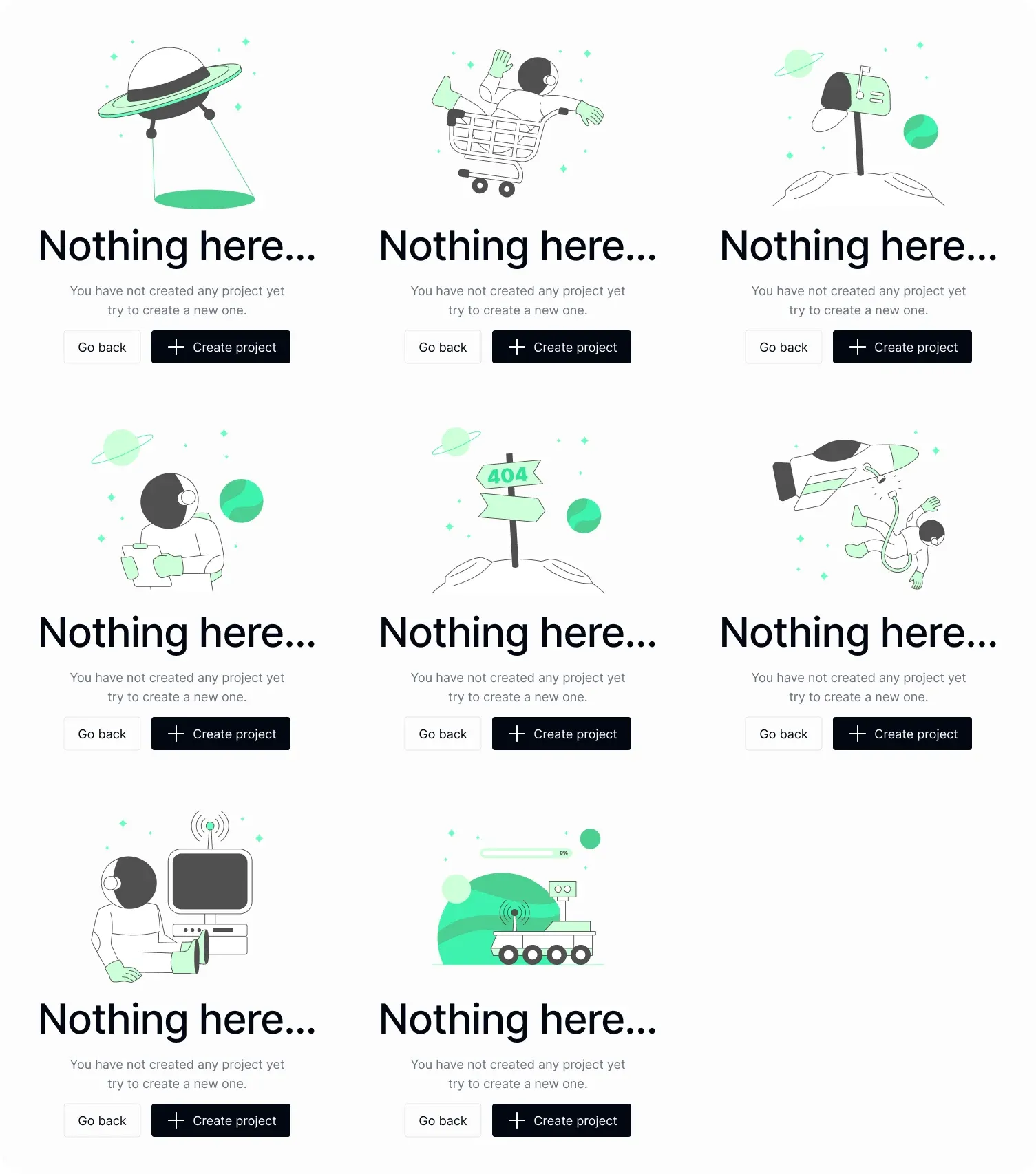
The real EmviUI empty-state specimen shows several illustrations paired with repeated headings, explanations and actions. It is useful for examining where repeated copy could be shared. The image is an EmviUI design specimen, not Fieldnote, and its pixels do not establish variable bindings. EmviUI provides a Figma UI kit and design system; inspect the file you actually use before claiming that a text value is already connected.
Create a small content inventory alongside the canvas. Name the shared action copy/project/create and write its initial English value as Create project. Record its owner, the two intended consumers and the invitation that must remain unaffected. A name based on the action can survive a wording change better than a name based on the current sentence.
Figma’s variable-type reference distinguishes strings from number, color and boolean values. Strings can supply text content as well as some other properties. In this exercise, the value is interface copy; it does not determine font size, spacing or whether a click creates real data. Keep those separate responsibilities visible in your notes.
Do not centralize every occurrence of a common word. A generic Continue value can conceal different next steps across an onboarding flow, a payment confirmation and a settings panel. Share the value only when the intended editorial change should reach all those places. When that decision is uncertain, leave the text independent until the owner can describe the dependency.
| Consumer | Content source | Expected response |
|---|---|---|
| Personal workspace action | copy/project/create | Follows the approved shared string |
| Team workspace action | copy/project/create | Follows the same shared string |
| Invitation action | Independent invitation copy | Unaffected by project copy edits |
| Private project exception | Reviewed instance content | Inspect separately against its destination |
Create a string and bind the text
With edit access, use the current variable creation guide: open Variables from the left navigation, create a String variable in a collection, and enter its name and value. Call the exercise collection Interface copy. Keep the first version local and small enough to inspect without a separate release process.
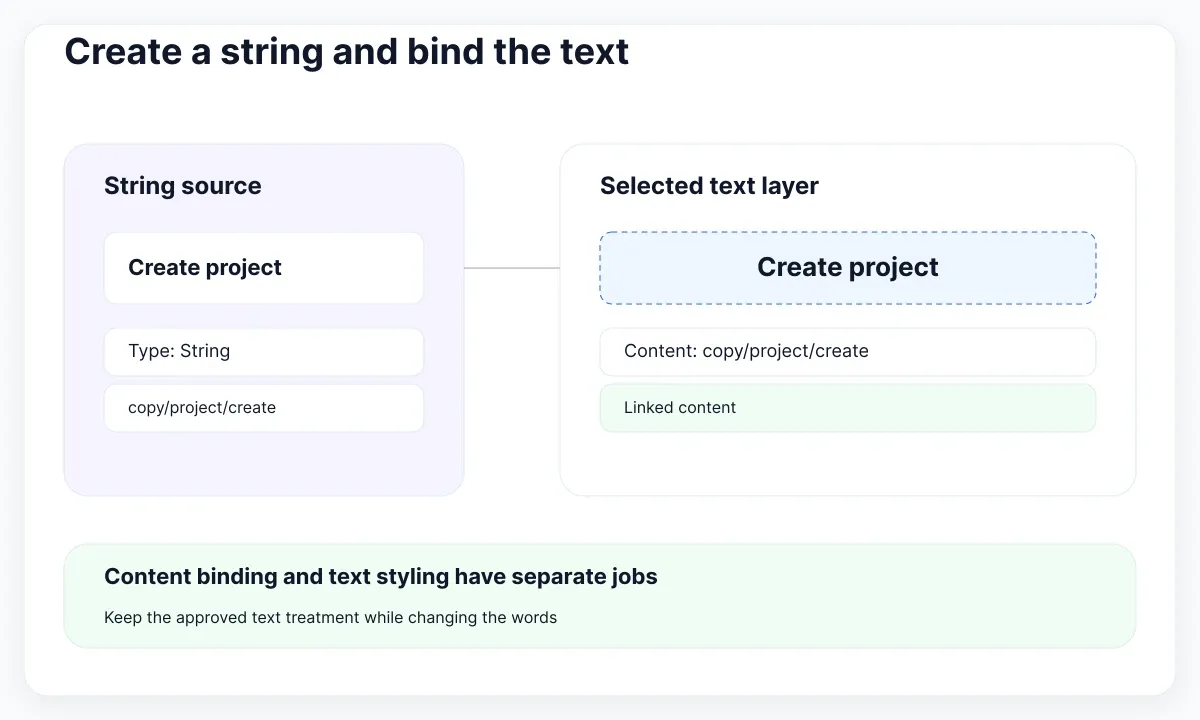
Add copy/project/create with the value Create project. Enter a description such as “Action that begins a new project from either empty workspace screen.” Avoid calling it the default button label: that description hides the job it serves. Keep a nearby note identifying the content reviewer so a later change has an accountable owner.
Select the action’s actual text layer, then use Apply variable in the Text section and choose the new string. Figma’s application guide documents this text-content binding. Confirm that you selected the words inside the button, rather than its outer frame or a font-family field. Bind the second project action to the same source.
Change the source value temporarily to Start a project. Both intended buttons should respond. The invitation must still say Send invitation. Then restore the approved wording. This controlled change is stronger evidence than a screenshot containing two identical labels: identical text could have been typed twice with no shared relationship.
If the variable does not appear in the picker, inspect its type, its scope and whether the expected library is available. For this local exercise, start by confirming that you are in the correct collection. Do not create a second string with almost the same name just to make the picker look right; that can leave two competing sources.
Binding the content does not choose its visual treatment. Keep the existing text style while checking that only the words change. Our guide to variables and styles explains that separation. If you need reusable type roles, follow the separate typography-variable workflow rather than putting a font name and an action sentence in the same naming group.
Keep component overrides intentional
Next, decide whether the reusable component owns a content slot or the system owns a shared sentence. A button component may expose Label so designers can supply different actions. A shared content variable has another purpose: keeping approved wording connected across selected consumers. Write down which behavior you want before changing the component.
Figma’s component property documentation describes text properties and allows an existing string variable as a property’s default value. It also distinguishes default changes from instance overrides. Use a duplicate of your component for this experiment so you can inspect those cases without changing a published library.
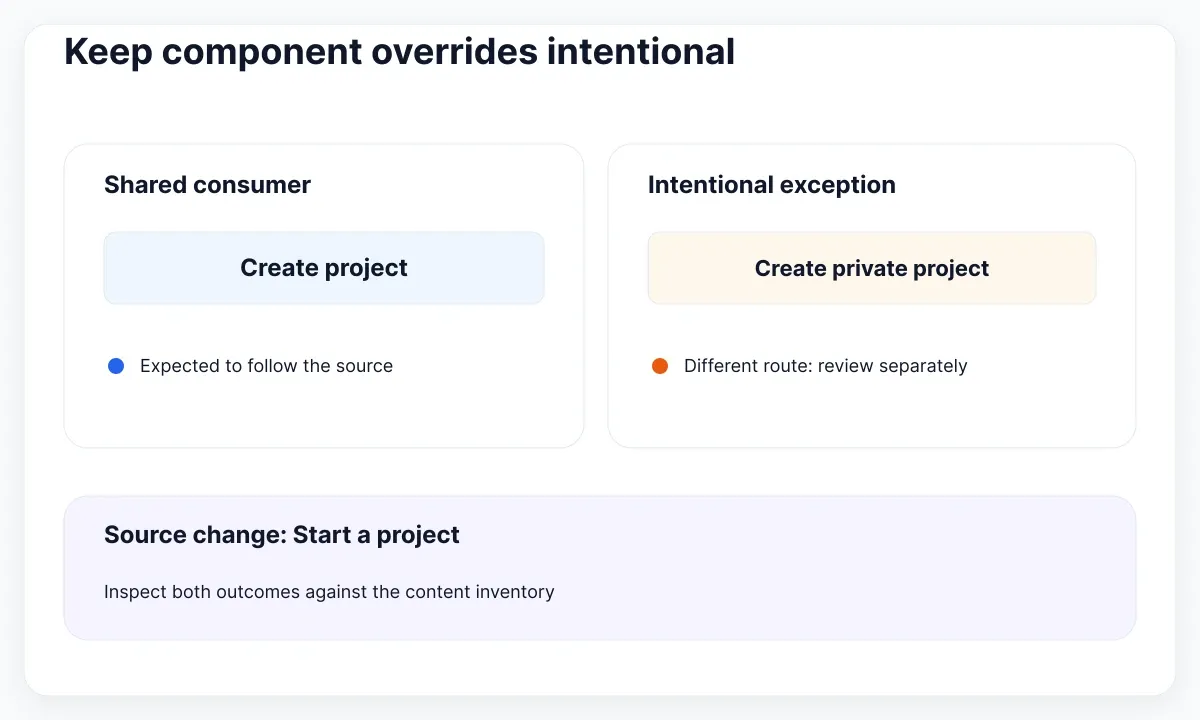
Build two instances of the exercise button. Leave the first on its approved shared label. Give the second an intentional content override such as Create private project, and mark that choice in the inventory. Change the source string again and observe the actual result on both instances. Record whether each consumer still follows the shared value; do not infer its binding from the component name.
The correct outcome depends on the content contract. If every empty-workspace action must follow the same wording, an independent override is a defect to resolve. If a private-project action promises a different destination, forcing it to inherit a generic label may be the defect. A component’s visual consistency does not settle that editorial decision.
Use one deliberate negative control during review. Place an ordinary text layer reading Create project outside the shared system and label it Independent sample. Change the source to Start a project. The connected controls should change while the sample stays still. Remove this review-only sample from the final design once the dependency is understood.
Avoid detaching a whole instance merely to fix one word. Inspect the selected text, the exposed property and the relevant binding first. Make the smallest correction that restores the intended relationship. Afterward, repeat the source-change test and the independent-control test, because a local repair can make one screenshot look correct while leaving future changes unreliable.
Keep a short exception record: consumer, approved wording, reason and owner. For example, “Private project action; Create private project; enters a different setup route; product content reviewer.” This gives the next designer enough context to preserve a meaningful exception rather than automatically removing every override.
Review English and Spanish as layouts
Once the English dependency works, compare a natural Spanish version at the same component width. Use Create project and Crear un proyecto as the first pair. Keep the operation equivalent, then inspect the actual lines, button width and nearby explanation. Translation review is both a meaning check and a layout check.
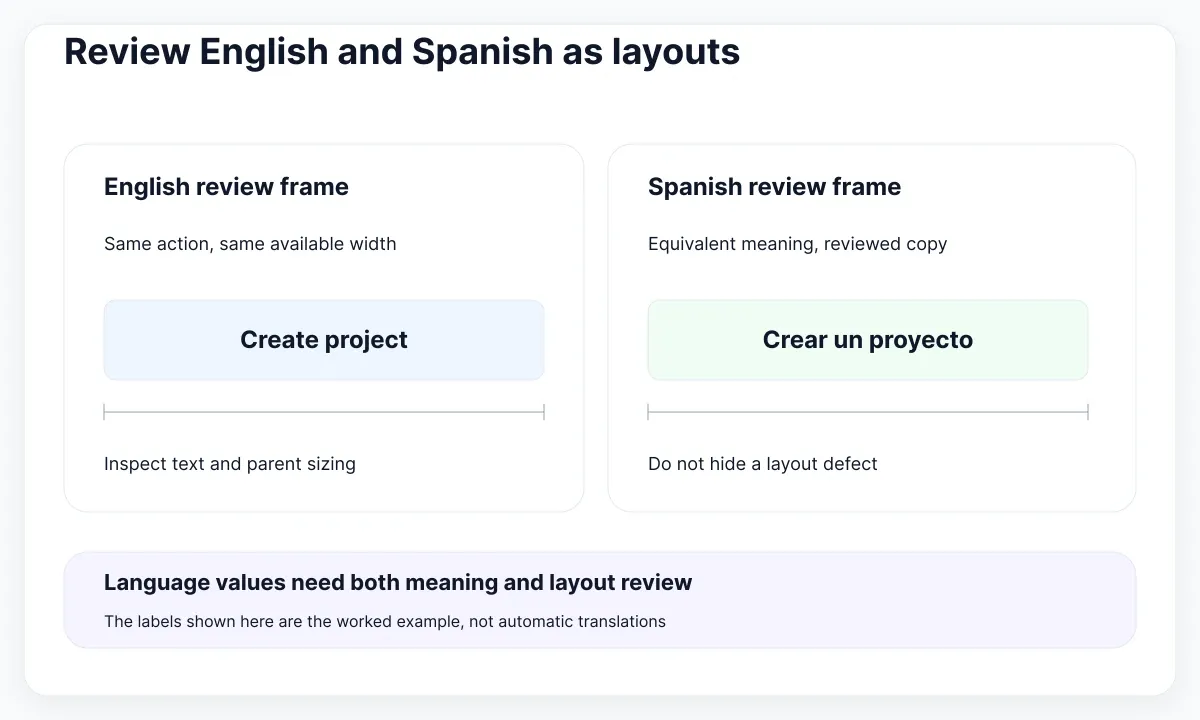
Figma’s mode documentation explains how a variable can have contextual values and how mode availability depends on the plan. If your file supports the needed modes, create English and Spanish values in the copy collection and apply the intended mode to each review frame. Review the new column’s entries; duplicated starting values are not completed translations.
If that mode setup is unavailable, keep a separate, explicitly labeled Spanish exercise rather than pretending the file has a working language switch. The useful outcome is a reviewable pair with known dependencies. Do not create a complex collection architecture just to demonstrate two buttons; settle the content contract first.
The text resizing reference separates a text layer’s bounds from its font size and explains how resizing affects wrapping. When the translation grows, inspect the text layer and its parent button. Preserve the action’s meaning while correcting available space or layout. Shrinking the text until it fits can conceal the original sizing problem.
Try the same labels in a narrow empty-state card and a wider workspace panel. In the narrow version, check whether the action remains readable next to its icon and whether the explanatory sentence can grow vertically. In the wider version, check that added space does not make the action appear disconnected from the message it serves.
Include a longer but plausible review string, such as Crear un proyecto para el equipo. This is a stress fixture, not a proposed final translation. Record whether the button can accommodate it, whether another action is pushed out of view and whether the intended reading order remains clear. Restore the approved copy after documenting the result.
Review punctuation, accents and the full explanation together. A shared action can be correct in isolation yet feel misleading below a sentence describing a different operation. Ask a Spanish-speaking reviewer what they expect the button to do. Compare that expectation with the destination in your inventory before approving the localized value.
Prove changes and document the handoff
Finish with a repeatable acceptance record. For each consumer, note the collection, variable name, selected language, approved value and expected response to a source edit. Keep the record beside the exercise so another designer can verify the relationship without reconstructing it from your original demonstration.
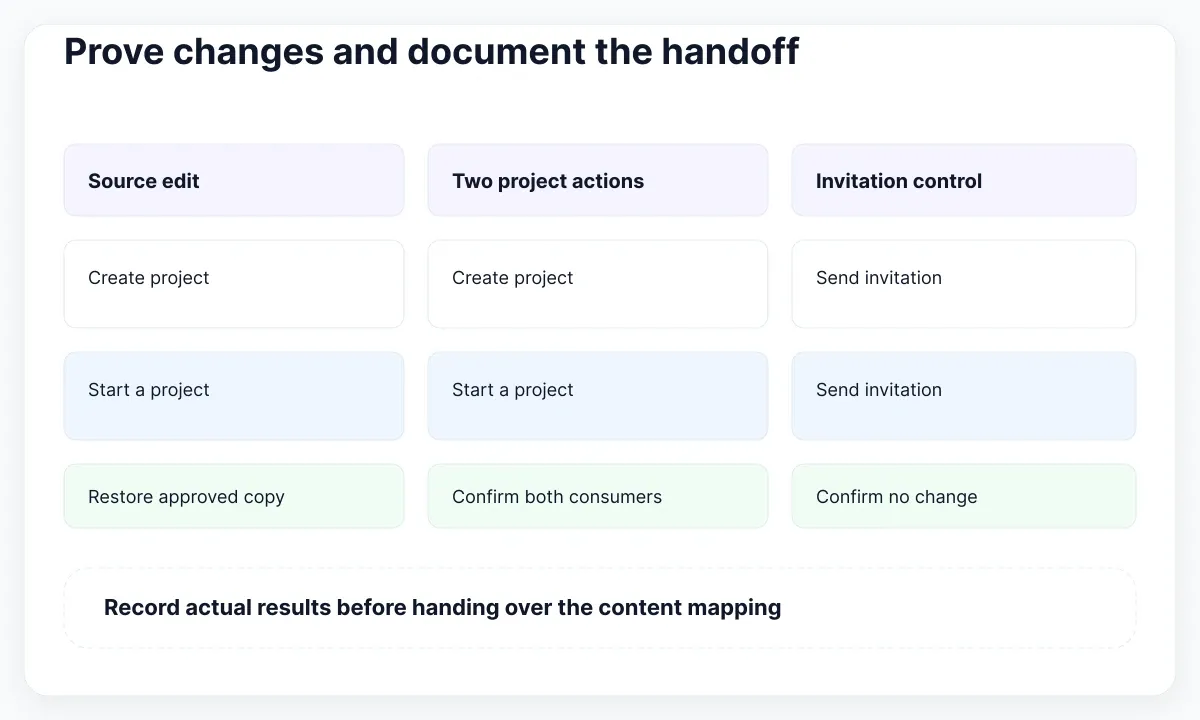
Run three changes in order: edit the English source, restore it, then inspect the Spanish frame. Confirm which consumers respond and which language values remain intentionally independent. Finally, inspect the invitation card again. A test that checks only changed layers cannot detect an unrelated label that changed by accident.
If you add an interactive demonstration, distinguish source copy from temporary prototype state. Figma’s prototype-variable guide documents Set variable actions and their access requirements. Use a separate test variable for a scripted selection, rather than rewriting an approved content value and assuming that the prototype now represents production data.
The expression reference supports composing string values with the addition operator. For this exercise, treat a generated phrase as something to review, not an automatic translation strategy. An English prefix plus a project name may not produce a natural sentence in every language. Prefer complete reviewed messages where that makes the intended wording clearer.
For handoff, map the design variable to the application’s actual content identifier only after agreeing with the implementation owner. Write down the English and Spanish values, the allowed substitutions and the contexts where the message is used. A Figma variable does not establish that a translation file, database or application state has been updated.
Use Auto Layout and Fill Container when the remaining defect concerns parent sizing rather than the string connection. EmviUI components can supply a concrete canvas for these checks, but the content inventory, binding decisions, translation approval and application implementation still need your team’s work.
Before delivery, ask a colleague to rename the shared action in the exercise copy and identify every affected consumer. Then ask them to find the intentional exception without your help. If they cannot explain either result, improve the names or notes and repeat the review. The deliverable is a dependable content relationship, not merely a longer list of variables.

Pablo Mayoral
Senior UX/UI & Web Designer with 10+ years of experience. Creator of EmviUI (10k+ components Figma design system), UImand, and Vitamin Bootstrap. Currently designing digital products at CQMRewards.