How to Create Typography Variables in Figma: Text Roles
Create matching string and number variables, bind supported text properties, and test a small set of reusable roles with real content before sharing the recipe.
Create matching string and number variables, bind supported text properties, and test a small set of reusable roles with real content before sharing the recipe.
To create typography variables in Figma, create string variables for font names and number variables for dimensions, then bind them to the matching text properties. Assemble those values into a few reusable text styles and test the results with real interface copy. A variable list becomes useful when a designer can apply a role, change an approved value, and predict which text will respond.
This walkthrough builds a small type recipe for a fictional project called Fieldnote. Its settings panel contains a title, explanatory text, field labels and a save action. The names, dimensions and acceptance exercises below are editorial examples, not Figma defaults or universal accessibility thresholds. The goal is a maintainable first implementation rather than a complete token architecture.
Start with three text roles
Begin with the jobs text performs: heading, body and label. Put a realistic settings panel beside the type specimen, so the recipe is judged against a task. Use “Workspace notifications” as the heading, a two-sentence explanation as body copy, and “Email frequency” as a label. Those three roles reveal more than a page of identical sample letters.
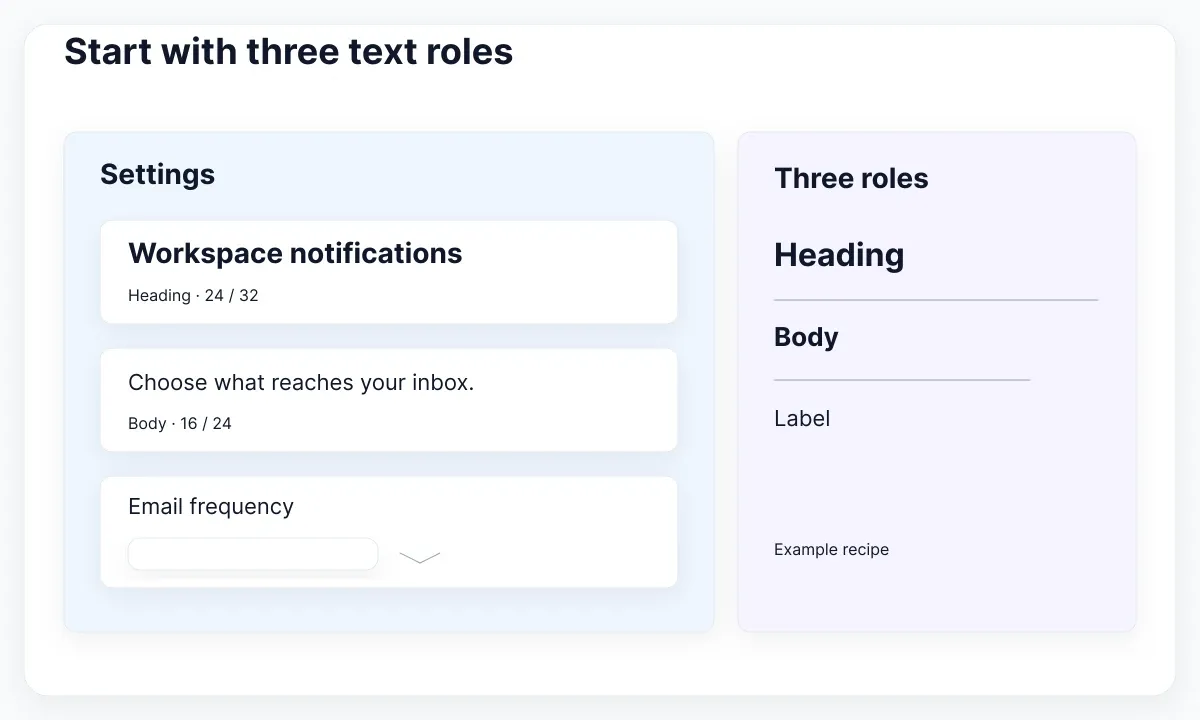
Write a short contract for each role. A heading establishes the section; body text explains consequences; a label identifies a control. Include the role’s expected length and its allowed emphasis. Fieldnote allows a heading to wrap, body text to grow vertically, and labels to remain readable beside their controls. These are choices for this specimen, not rules imposed by Figma.
Choose one available family before creating values. Verify accented characters, punctuation, numerals and the weights the interface actually uses. Compare “Monthly summary” with “Resumen mensual de actividad” and a longer account name. Do not assume that a family looks equally good in every role merely because its alphabet specimen is attractive.
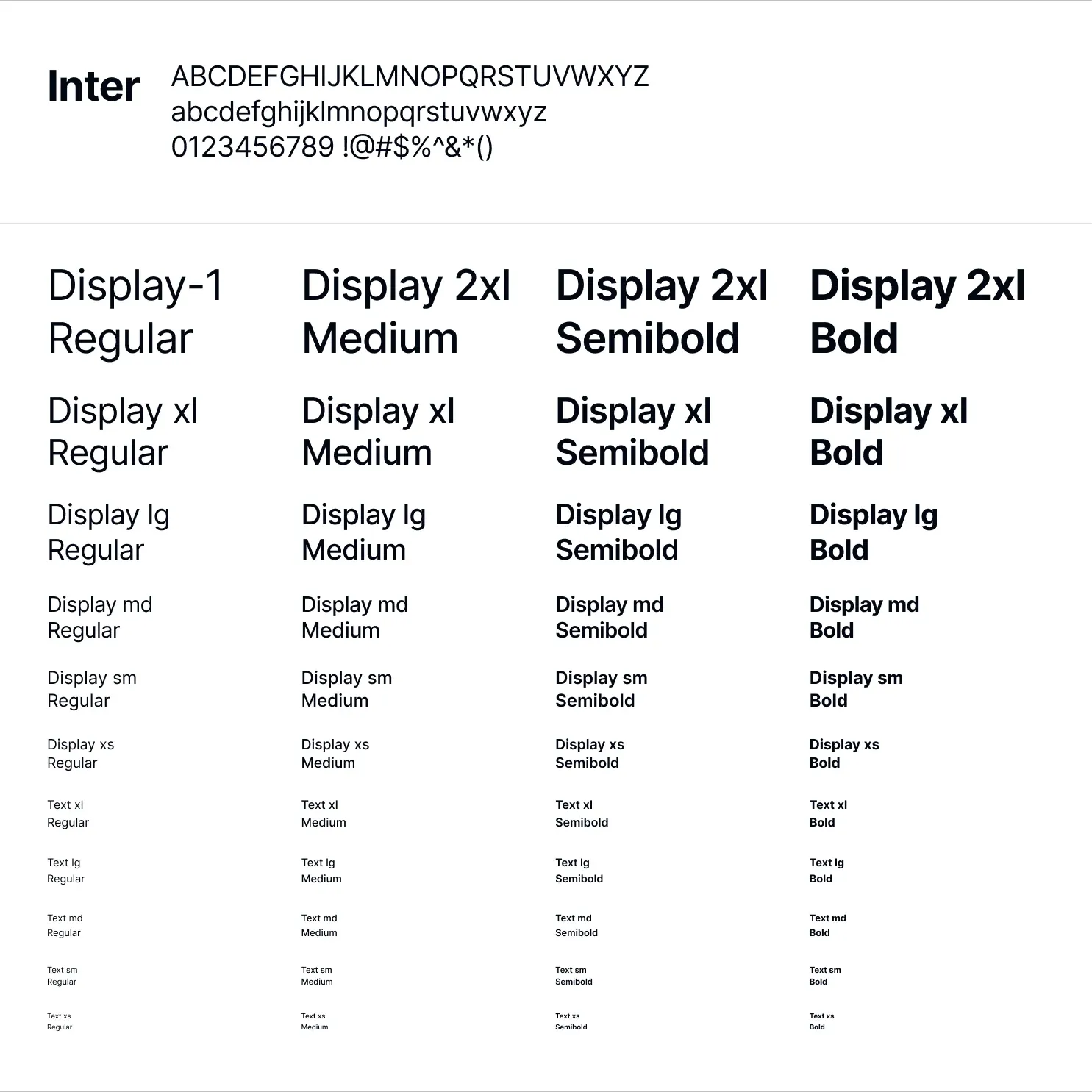
The inspected EmviUI typography specimen below shows Inter across a range of sizes and weights. Use it to discuss hierarchy and narrow the initial choices; it does not prove that a particular file has variable bindings. EmviUI’s Figma kit can provide interface components for trying the resulting roles in context. Inspect the actual file you use before describing its configuration.
Create and bind the type values
Open Variables from Figma’s left navigation, create a collection for this exercise, and add named values. The current variable creation guide explains this entry point, creation and scoping. Start locally with edit access; confirm your plan’s library and mode capabilities before designing a cross-file rollout.
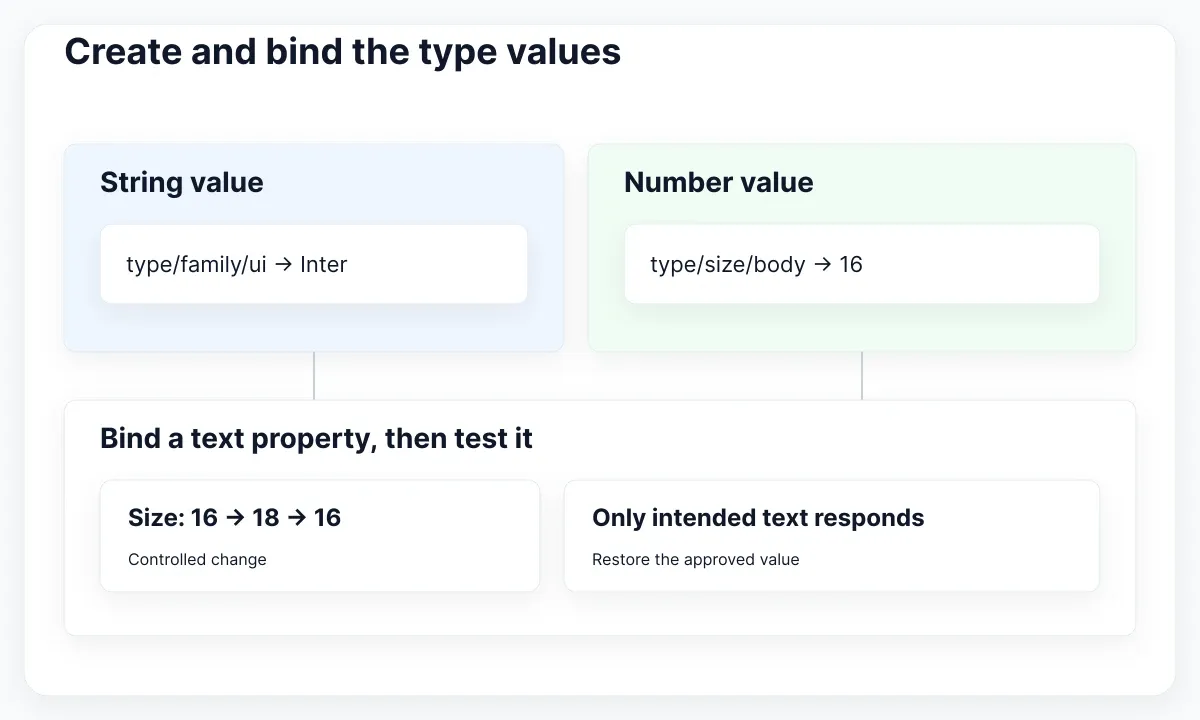
For Fieldnote, create type/family/ui as a string with the value Inter. Add number variables for type/size/body = 16 and type/line/body = 24. Add the other rows in the table, keeping dimensions separate from names. The example uses explicit pixel values for the Figma specimen. Its purpose is to make bindings visible and reviewable, not to prescribe a finished scale.
| Role | Example size / line height | Review question |
|---|---|---|
| Heading | 24 / 32 | Does a two-line title keep its hierarchy? |
| Body | 16 / 24 | Can the explanation grow without clipping? |
| Label | 14 / 20 | Is the control still easy to identify? |
Figma’s supported property list distinguishes strings for family or named style from numbers for size, numeric weight, line height and spacing. Select a text layer, open the appropriate property’s variable picker, and choose the matching value. If an expected variable is absent, check its type and scope before creating a duplicate with a similar name.
Bind the body size first and change its value temporarily from 16 to 18. Confirm that the chosen text responds, then restore 16. Repeat for line height. This controlled change distinguishes a binding from a number that merely happens to match. Record one positive example and one intentionally unbound layer so reviewers know what should remain unchanged.
Use a family’s valid style names rather than inventing a weight label. The Figma developer guide also documents numeric weight handling and bindings to text styles or text ranges. For this manual exercise, test one property at a time; mixed formatting within a paragraph needs a separate check instead of an assumption that the whole layer behaves uniformly.
Before leaving the variables view, add a useful description to each role value. For body size, explain that it serves ordinary explanatory copy, not compact metadata. For line height, state the unit used in the specimen and which size it accompanies. A description should help a colleague choose the right value without opening your original panel. Avoid describing a variable only as “the standard one,” because that instruction stops being useful as soon as another role is introduced.
Keep reusable text styles
Create Body, Label and Heading text styles from the approved specimen, following Figma’s text-style workflow. A style supplies a reusable combination of properties; variables supply reusable values within that combination. Keep those responsibilities clear when describing the recipe to another designer.
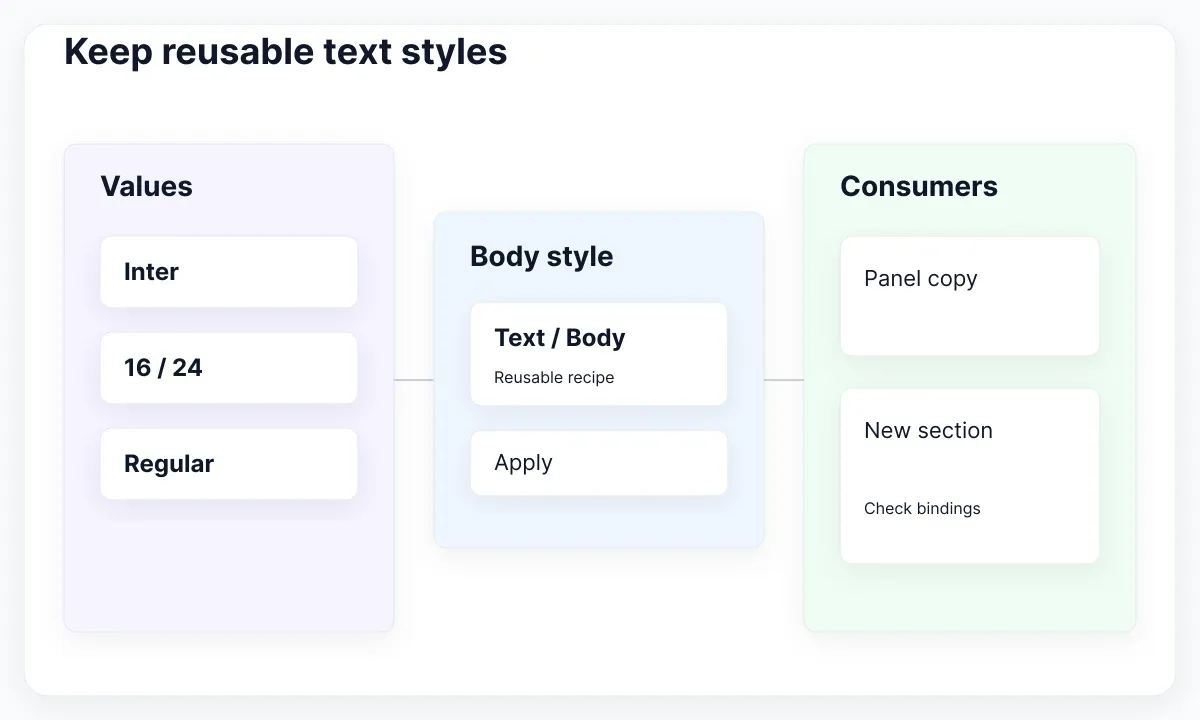
Name the styles for their purpose, such as Text/Body/Default, rather than encoding every current number in the name. Apply Body to a fresh paragraph and verify its bindings. Then change the underlying body-size value in the exercise copy. Both intended consumers should respond. If only the original text changes, inspect the new style definition and the second layer before expanding the system.
Keep text color and layout decisions explicit. A body role alone does not decide whether a text block should stretch, wrap or remain fixed. In the settings panel, allow the explanation to occupy available width and grow with its content. Test the parent container too: a flexible text layer inside a fixed-height card can still leave the user with clipped instructions.
For that layout work, continue with Auto Layout and Fill Container. If you need to revisit the division between reusable values and reusable treatments, use variables and styles. This exercise stays focused on proving a type recipe, rather than rebuilding either broader workflow.
Typography variables are also distinct from variable fonts. Figma’s variable-font guide describes font files with adjustable axes. Binding a size variable does not turn a static font into a variable font, and choosing a variable font does not create named design values. Resolve font availability separately if the specimen cannot use the intended family or style.
Do a small negative test before approving the style. Place a second paragraph beside the specimen and leave its size deliberately unbound. Change the approved body-size variable, observe the difference, and label the independent paragraph clearly. Then remove the test from the deliverable. This gives a reviewer a concrete demonstration of the dependency instead of relying on matching screenshots. It also makes accidental overrides easier to discuss without changing unrelated production components.
Test content before adding modes
Run the first acceptance exercise with one approved recipe. Replace the short copy with a longer translation and add an unfamiliar workspace name. Inspect heading wrapping, body height and label alignment. Keep the message intact while fixing layout; reducing text size to conceal an overflowing container changes the reading experience without resolving its cause.
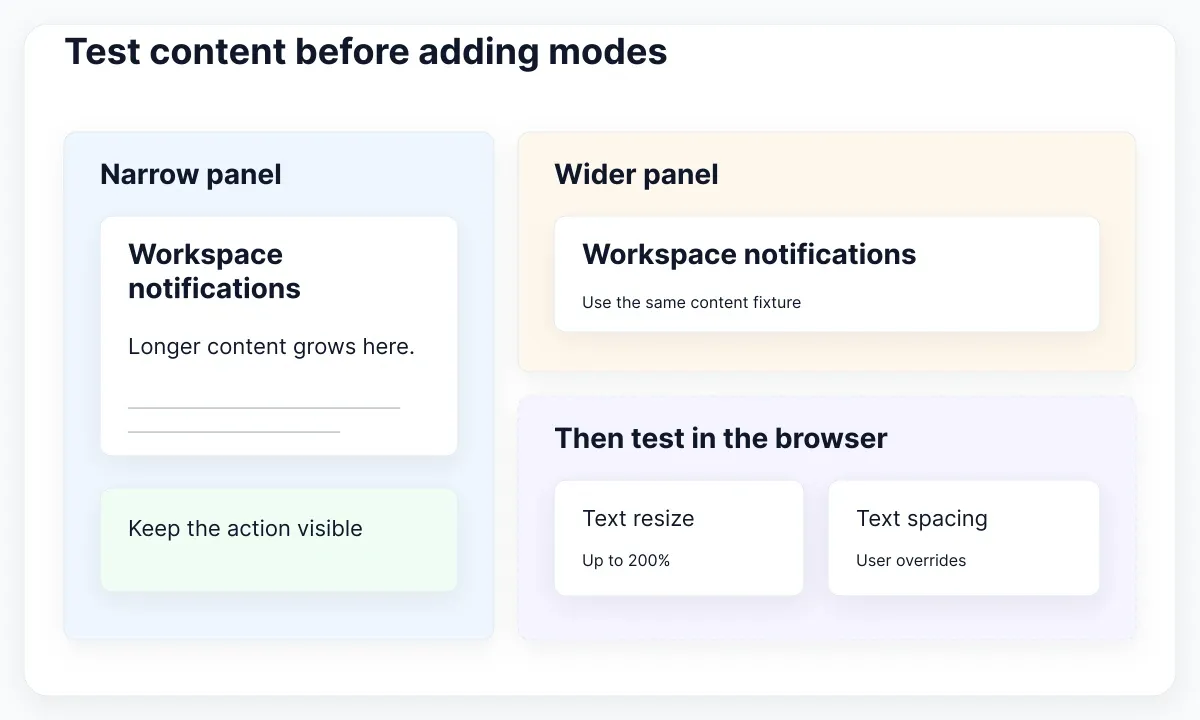
Use a compact test log: content, width, role, observed result and decision. Try a narrow settings panel and a wider one with the same copy. Record whether the problem comes from text metrics, container sizing or an inappropriate role. For example, a wrapped field label may need more vertical space, while a three-line heading may need a shorter editorial title. Those are different fixes.
Add modes only when you have a documented contextual difference to express. For Fieldnote, a proposed compact mode could change the heading to 20/28 while retaining body at 16/24. Compare both recipes in frames with explicit mode choices. Treat this as a design experiment; a mode name is not an implementation of browser breakpoints or automatic responsive CSS.
Prepare a separate implementation test for user-adjusted spacing. WCAG text spacing concerns preserving content and functionality when users apply its specified spacing overrides; it does not require those values as your default design. Note likely collision points in Figma, then test the actual web interface with overrides. A clean mockup alone cannot establish compliance.
Also test enlargement in the browser. WCAG resize text addresses resizing text up to 200 percent without loss of content or functionality, with stated exceptions. Ask whether explanations, labels and actions remain available. Keep the browser test result separate from the design review, and retain the failing content and viewport when something disappears.
Release a tested type recipe
Release the recipe only after a second designer can apply it to a new settings section and explain the result. Give them the three roles, the approved sample values, one long-content fixture and the expected wrapping behavior. Ask them to build a notification preference without copying the original text layers. This tests whether the recipe is understandable and reusable.
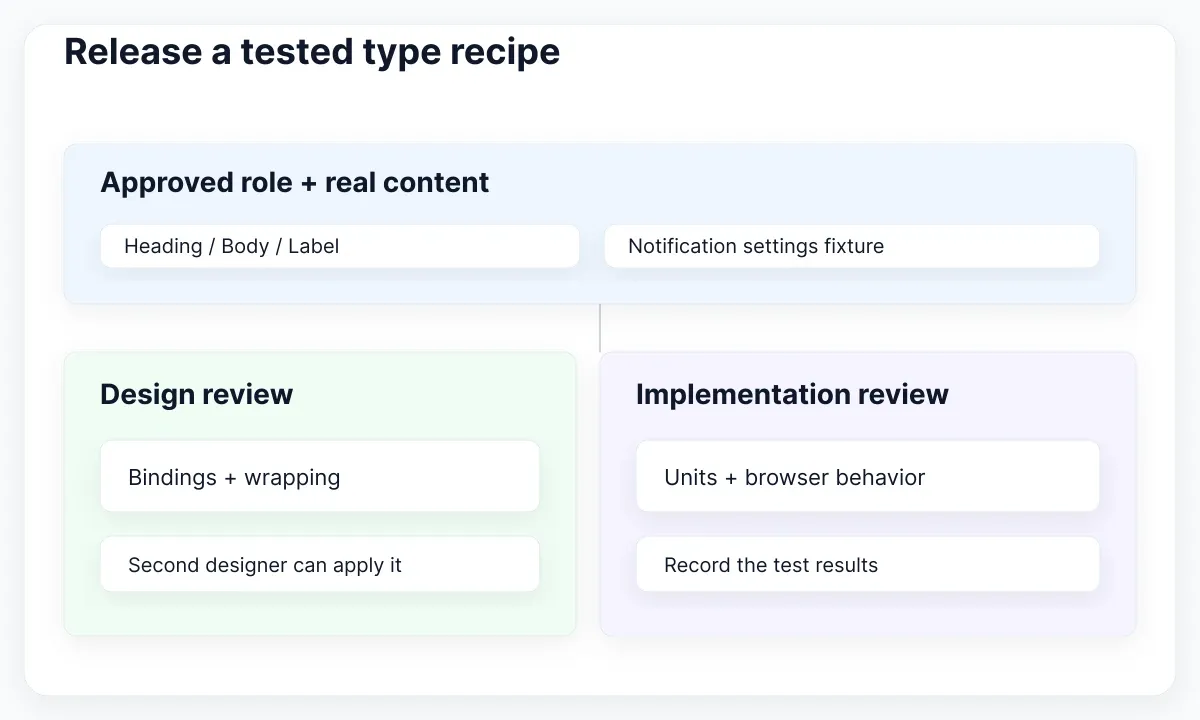
In an EmviUI working copy, try the roles in a card or modal that resembles your real task. Inspect existing styles before replacing them. Map the approved role to the component’s title, description and label, then repeat the long-copy exercise. EmviUI helps supply realistic interface context; your team still owns typography decisions, binding checks and implementation testing.
Keep the first change narrow enough to undo. Record the previous values and take a before-and-after specimen of the same content. If changing the family produces missing styles, stop the rollout and resolve the font issue instead of silently substituting another treatment. Compare the fixed specimen with the original so an intentional hierarchy change is not confused with a broken dependency.
Use the published missing-font diagnostic guide when access or font versions block the exercise. For handoff, write the role, the intended value and its implementation meaning, including units. A Figma number of 24 for line height needs an explicit interpretation in code; a matching name alone is not evidence of matching rendered typography.
Your release note should identify what changed, which roles consume it, which content fixtures passed and who will verify the browser result. Preserve an exception only when it has a reason, such as a specialist numeric display with different metrics. Revisit that reason later. The useful outcome is a small recipe the team can apply, test and revise with confidence.
Define an acceptance decision for the exercise: the three roles apply to new text, the expected consumers respond to controlled changes, long copy remains available, and implementation checks have named owners. If one condition fails, leave the recipe in review. A partially successful specimen is still useful evidence when the failure is reproducible. Save the problematic string and the exact role so the next revision starts with a concrete test rather than a general request to improve typography.
For maintenance, revisit the recipe when a new script, unusual content type or different product context appears. Do not immediately multiply modes or duplicate every style. First reproduce the new requirement beside the existing fixtures, identify which role cannot express it, and decide whether the exception belongs in content, layout or the type recipe. That decision keeps the shared library understandable as the interface grows.

Pablo Mayoral
Senior UX/UI & Web Designer with 10+ years of experience. Creator of EmviUI (10k+ components Figma design system), UImand, and Vitamin Bootstrap. Currently designing digital products at CQMRewards.