Difference Between Figma and Flutter: From Prototype to App
Separate a design prototype from a running application, then connect them through clear states, layout rules and acceptance evidence.
Figma Design helps specify and prototype interfaces; Flutter implements applications with widgets and runtime behavior. Use both when useful, and verify state, adaptive layout, validation and accessibility in the running application.
The difference between Figma and Flutter is the deliverable: Figma Design helps you design and prototype an interface, while Flutter is a framework for implementing applications. They can be used together. A convincing prototype demonstrates a proposed experience; a running app must also handle real input, state, layout and the behaviors its product requires.
This guide follows a fictional account-contact task from a design brief to a Flutter implementation trial. The workflow and acceptance examples are recommendations, not conversion benchmarks or claims that a design file automatically becomes a production application. Use the comparison to decide what to build next and what evidence will make that decision reviewable.
Choose the deliverable you need
Begin with the missing deliverable. If the team needs to explore hierarchy, compare layouts or discuss a proposed interaction, a design and prototype are useful. If the team needs an application that reads input and executes product behavior, it needs implementation. Treat those as separate milestones with separate evidence instead of comparing how polished two screenshots look.
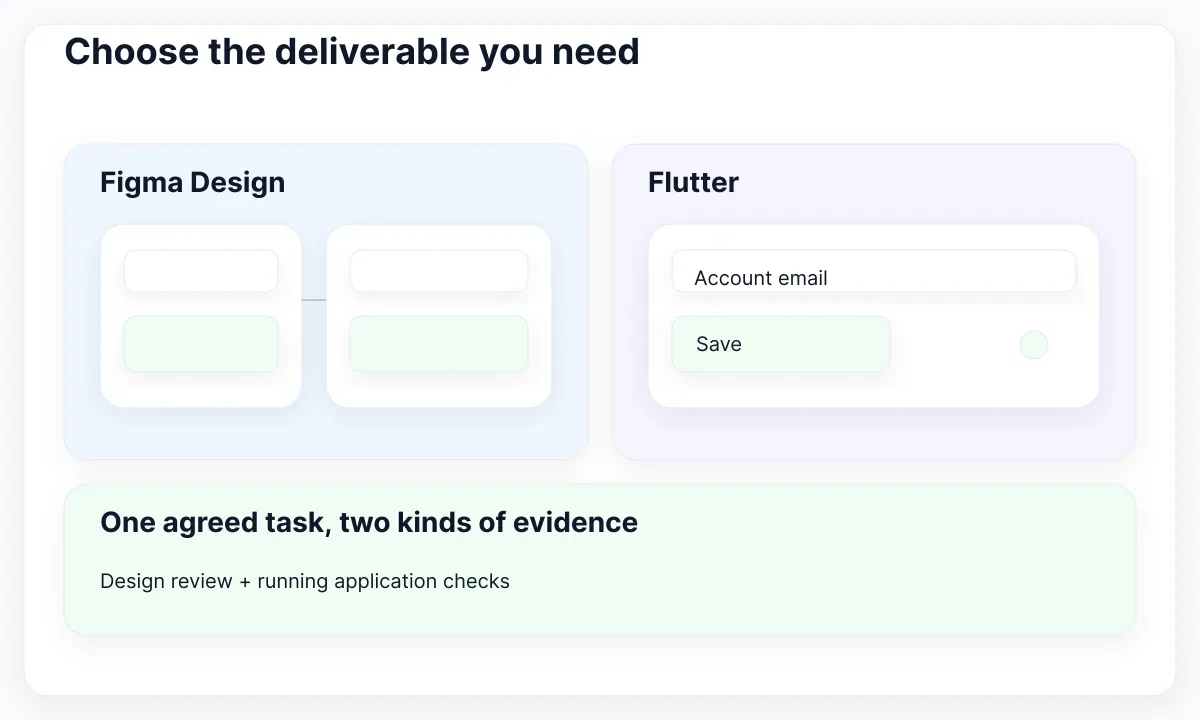
Figma supports prototype actions that change variable values, as documented in its prototyping guide. Flutter describes a running UI built from widgets, including the basic layout and interface widgets. In this article, “Figma” means Figma Design and its prototypes; it does not stand in for every other Figma product or every plugin that might generate code.
For our example, the design milestone is an account-contact screen with an email field, a notification choice and a save result. The implementation milestone is that same task running in a Flutter application with explicit state handling. Neither milestone is automatically proven by completing the other. Give each one an owner and a review environment.
Use this decision table as a starting brief. It is a suggested division of work rather than a restriction on which person can do which task. A designer may implement Flutter, and a developer may explore in Figma. The important distinction is the artifact being evaluated, not the job title of its author.
| Need | Deliverable | Review evidence |
|---|---|---|
| Explore the task | Figma design and prototype | Understandable hierarchy and sequence |
| Execute the task | Flutter application | Running controls and explicit state |
| Confirm the complete operation | Service-integrated application | Verified outcome under stated conditions |
Specify a small account task
Write one user outcome before drawing or coding: “I can update the email used for account notices and understand whether the change was saved.” This is deliberately smaller than redesigning account settings. A narrow task makes the difference between visual intent, simulated behavior and application behavior visible without introducing an entire product architecture.
List the expected moments: existing data, editing, invalid input, saving, success and a recoverable failure. Mark which moments the prototype will demonstrate. Then mark which cases the Flutter trial will actually execute. Do not allow a smooth happy-path demonstration to hide the missing retry path or the handling of a previously saved value.
Specify the content with realistic invented examples. Use an ordinary address, a malformed value and a long translated label. Name the save action consistently across the prototype and the implementation. If the text changes during the trial, update the brief so reviewers can tell whether they are seeing a different requirement or a broken implementation.
For the design side, the guide to Figma prototypes explains the role of connected interaction flows. For this exercise, attach a short acceptance note to each meaningful transition: what starts it, what changes on screen and what the person can do next. Those notes will travel with the task into development.
Separate simulated and real state
A prototype can demonstrate the intended save sequence with controlled values. A Flutter trial must represent the actual state that its code owns. The distinction matters when a request fails, a person returns to the screen or the saved value differs from the draft. Agree on those cases explicitly rather than judging both tools by the same tap animation.
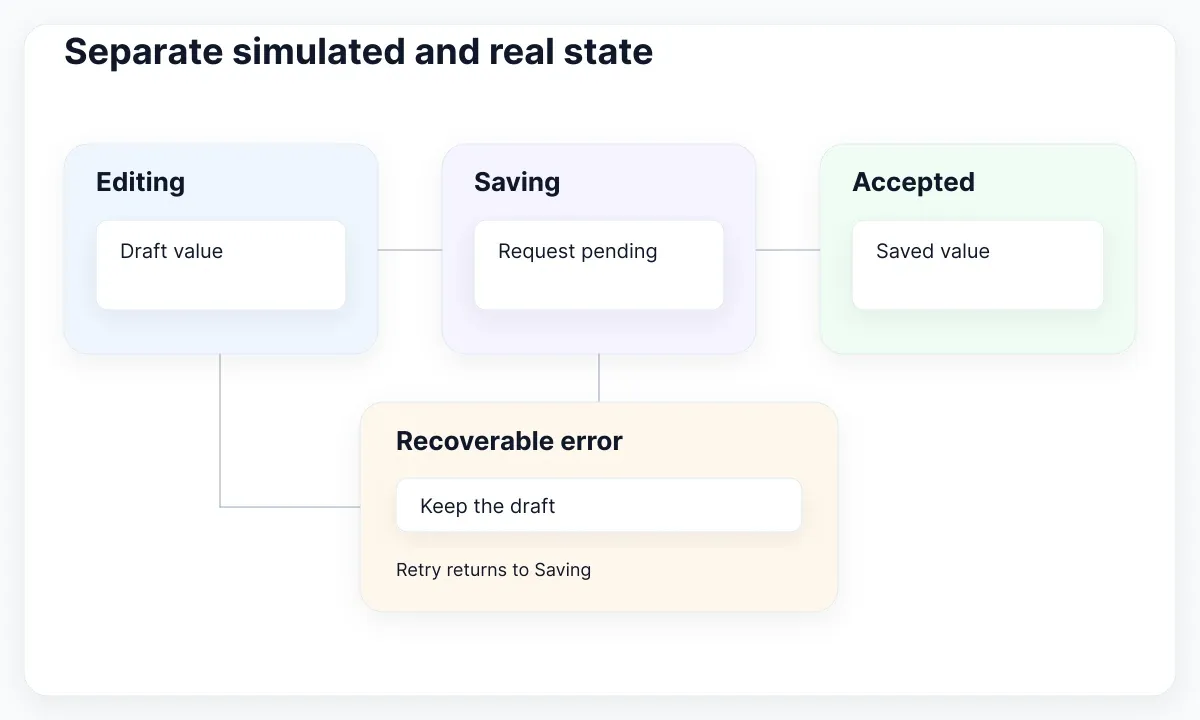
Flutter’s declarative state explanation describes the UI as a reflection of application state. For our proposed trial, keep an editing value, an accepted value and a request status. These are illustrative concepts, not a prescribed state-management package. The right implementation boundary depends on the application and should be decided with its developer.
Draw a transition ledger with columns for event, current state, next state and visible feedback. For example, Save from Editing moves to Saving; a failed request moves to Error while preserving the draft. The exercise should also say whether another submission is possible while a request is pending. Label those decisions as proposed product behavior.
Use a controlled fake service when the goal is to inspect the UI before integrating a real backend. Make that limitation visible in the trial report. A success response from a fake demonstrates one rendering path; it does not prove persistence, authorization or delivery of account notifications. Add separate evidence when the actual service becomes part of the work.
Translate layout rules rather than coordinates
Treat a Figma frame as a design specimen, not a list of absolute coordinates to copy into every Flutter window. Describe alignment, available space, wrapping and the relationship between fields and actions. A screen can look right at one size and still fail when text grows or its containing region becomes narrower.
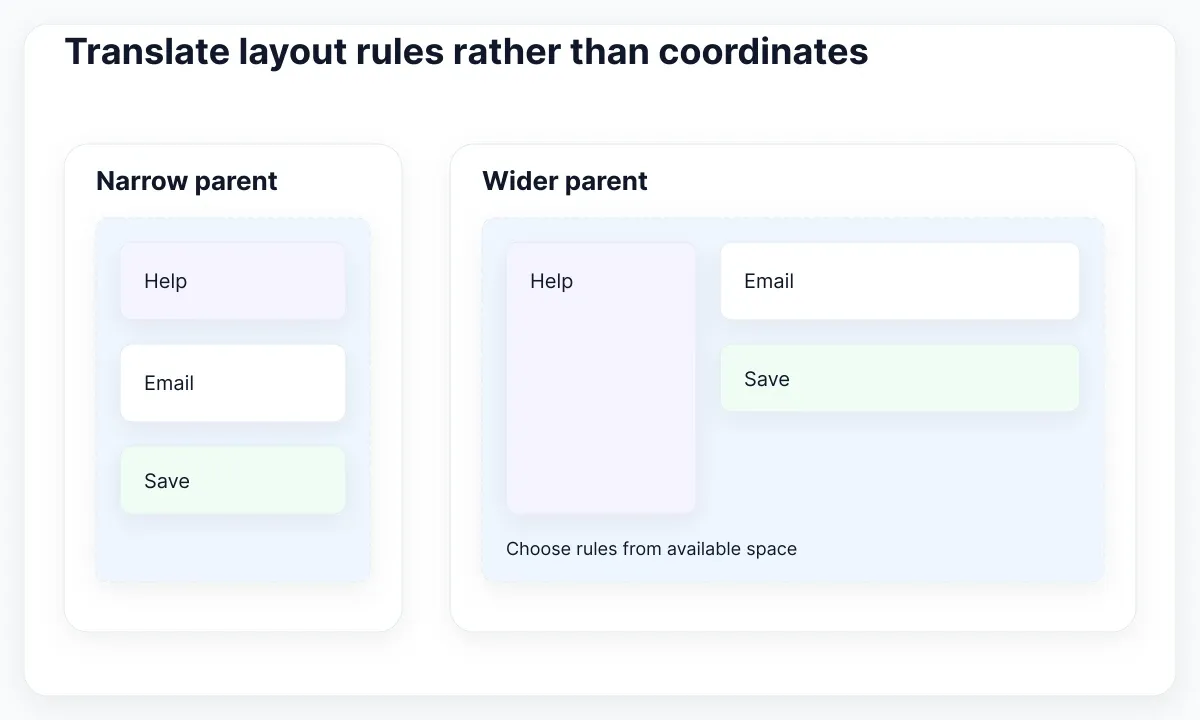
Flutter’s constraints guide explains how parent constraints, child sizes and positioning interact. In the account screen, identify which container limits the form width and which children may grow vertically. The diagrams use illustrative dimensions and arrangements; they are proposed fixtures for this task rather than a framework-wide breakpoint recommendation.
For adaptation, Flutter’s adaptive-app guide distinguishes app-window measurements from local parent constraints through MediaQuery.sizeOf and LayoutBuilder. Choose the relevant scope before deciding when a layout branches. An account panel embedded in a wide application can still be narrow, so the outer device name is insufficient to describe the space available to its form.
Review a narrow panel, a wider panel and a translated version of each. In the narrow fixture, place supporting explanation above the fields; in the wide fixture, try it beside them if the reading order remains understandable. Record why the change exists. The responsive Figma design guide can help express the visual side of these relationships.
Build validation and recovery deliberately
Specify what happens before a save, during it and after it fails. Local field validation and a failed save are different events. A malformed email may need correction before submission; a temporary service failure should not force the person to retype a valid draft. The exact rules belong in the acceptance brief and the implemented application.
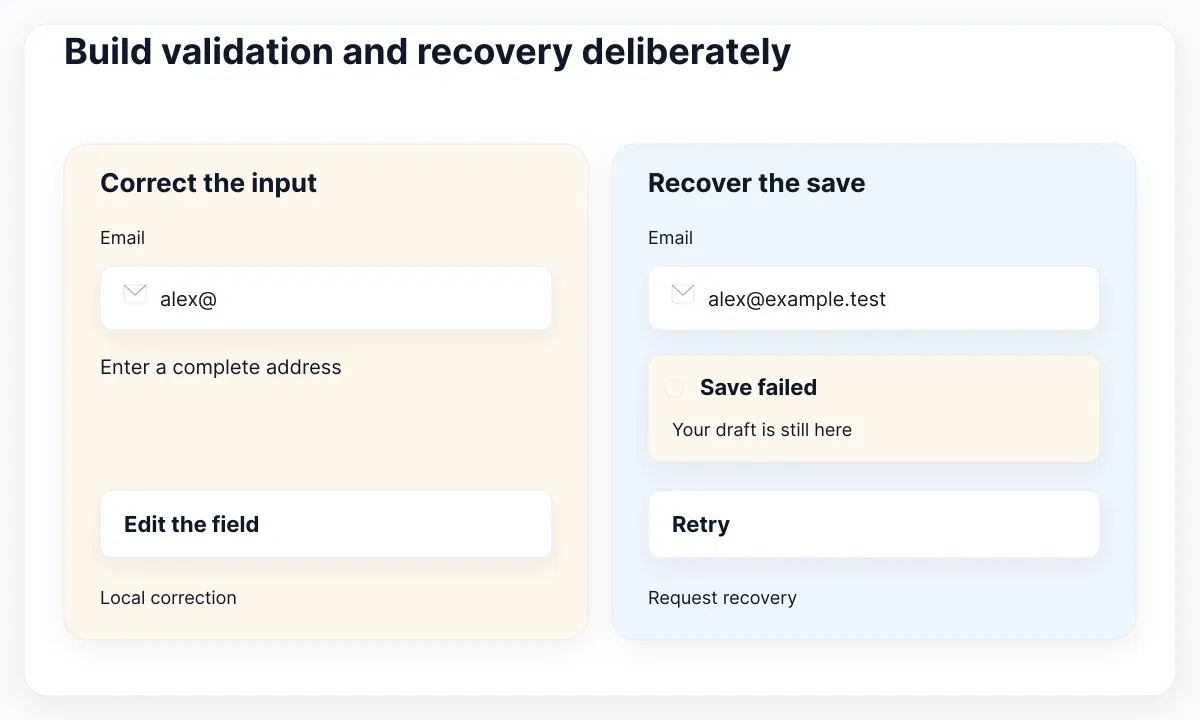
Flutter’s form-validation recipe demonstrates Form, TextFormField validators and validation through form state. Use that as a documented starting pattern, then supply the application’s actual rules. The example is not an email-verification service, nor does a field validator establish that a remote account update is authorized or successfully persisted.
For our trial, propose inline help that names the correction and a separate save-failure message with a retry action. Preserve the draft after the simulated failure. Decide whether the error disappears after editing or only after another check, and document the decision. Consistency between the message and the next available action is more useful than adding a generic red treatment.
Test the recovery path with a deterministic sequence: enter a valid draft, submit, force a failure, inspect the retained value and retry successfully. Keep the expected accepted value visible in the report. The sequence is a recommended exercise, not a benchmark. If the prototype only simulates part of it, state that boundary and verify the remaining behavior in Flutter.
Verify access in the running interface
A readable design is one input to an accessible experience. The running screen must also expose understandable controls, permit the intended navigation and remain usable when presentation settings change. Review the implemented account task with its actual content instead of assuming that a component name or a familiar visual pattern establishes accessibility.
Flutter’s accessibility guidance includes screen-reader testing, meaningful control descriptions and usability at large text and display scales. For the trial, check the email field’s announced name, the notification control’s meaning and the save result. Document what was tested and on which target; a short checklist is not a claim of complete accessibility conformance.
Build one deliberately difficult fixture. Use the longer Spanish label, enlarge text through the target’s settings and ensure that help and the primary action remain reachable. Then navigate the screen with an appropriate assistive technology. If the label is clipped or feedback is unclear, record the specific failure and whether it originates in content, layout or semantics.
Take the findings back to the Figma specification. A design annotation can describe intended labels, reading order and feedback, while the implementation report records what the running application exposes. Keep those documents connected through the named account task. That prevents a corrected screenshot from being mistaken for a verified interaction and gives both reviewers a concrete next action.
Use EmviUI as the visual starting point
EmviUI can help establish the visual language and screen composition before the Flutter trial. The specimen below is an EmviUI login screen from the local content pool. It provides a concrete reference for labels, fields, an action and a split layout; it is not a screenshot of a Flutter application or evidence of working authentication.
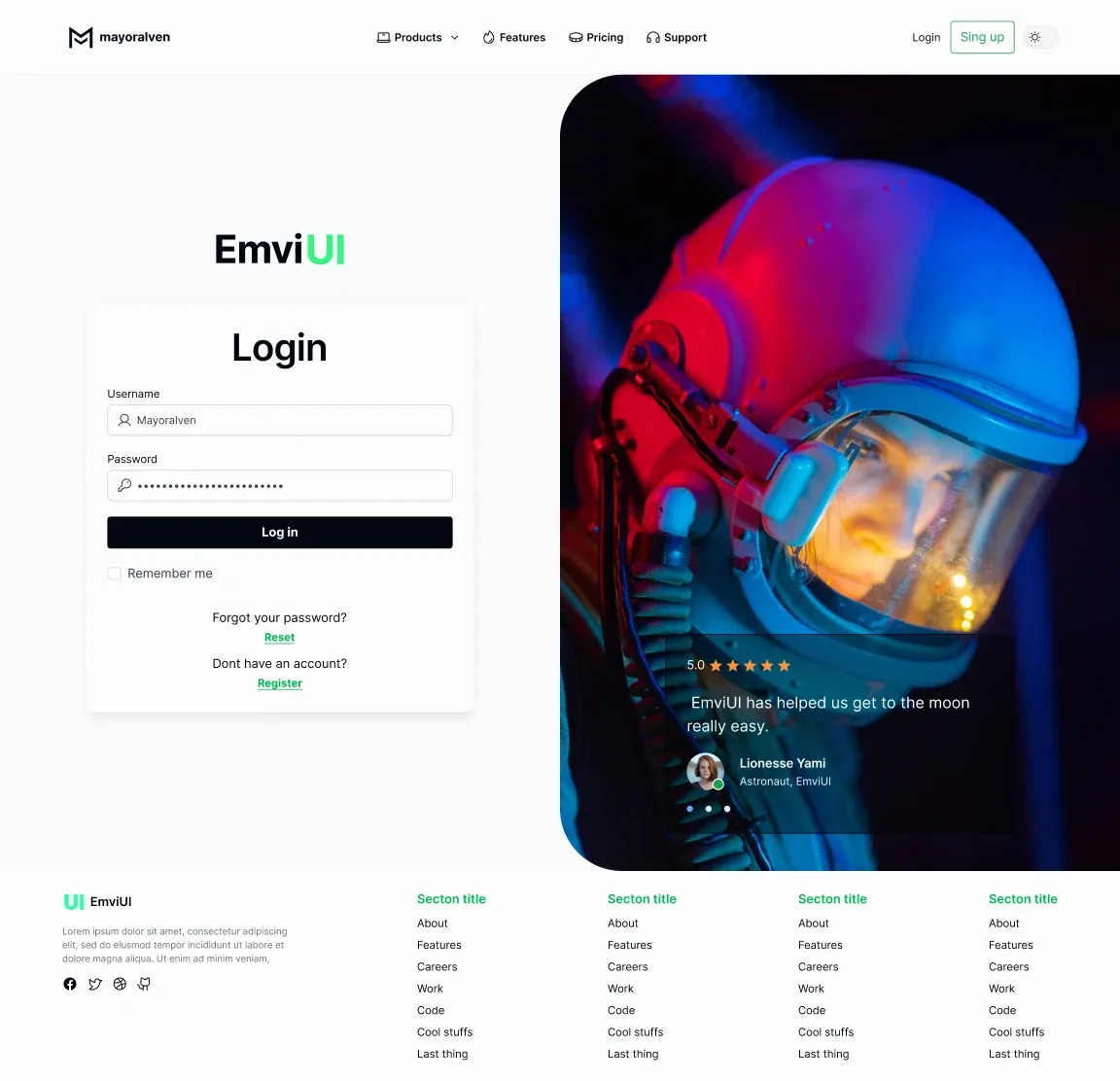
The EmviUI component catalogue provides Figma UI components. Select relevant controls as visual ingredients and adapt their language to the account-contact task. A login action and an account-update action may look related while requiring different feedback and product behavior. Reusing a visual starting point does not mean importing its entire interaction model unchanged.
Annotate which decisions are shared: field treatment, typography, spacing roles and action emphasis. Then describe the implementation separately in terms the Flutter team can review. Do not promise that the kit contains ready-to-run Dart widgets or a verified conversion workflow unless the specific deliverable is documented. This guide uses EmviUI for visual specification and Flutter for the application trial.
The UI kit versus design system guide helps decide which additional rules and maintenance responsibilities your team needs. Keep the account task small during this first pass. Once design and implementation agree on its states and layout, reuse those decisions deliberately instead of copying an unexplained collection of coordinates and styles.
Agree on evidence before calling it finished
Before the final review, decide which evidence answers which question. A prototype review can show whether the proposed sequence and wording make sense to participants. A running-widget check can show how the implemented controls render and respond. A service-integrated trial can show whether the complete account operation succeeds under the tested conditions.
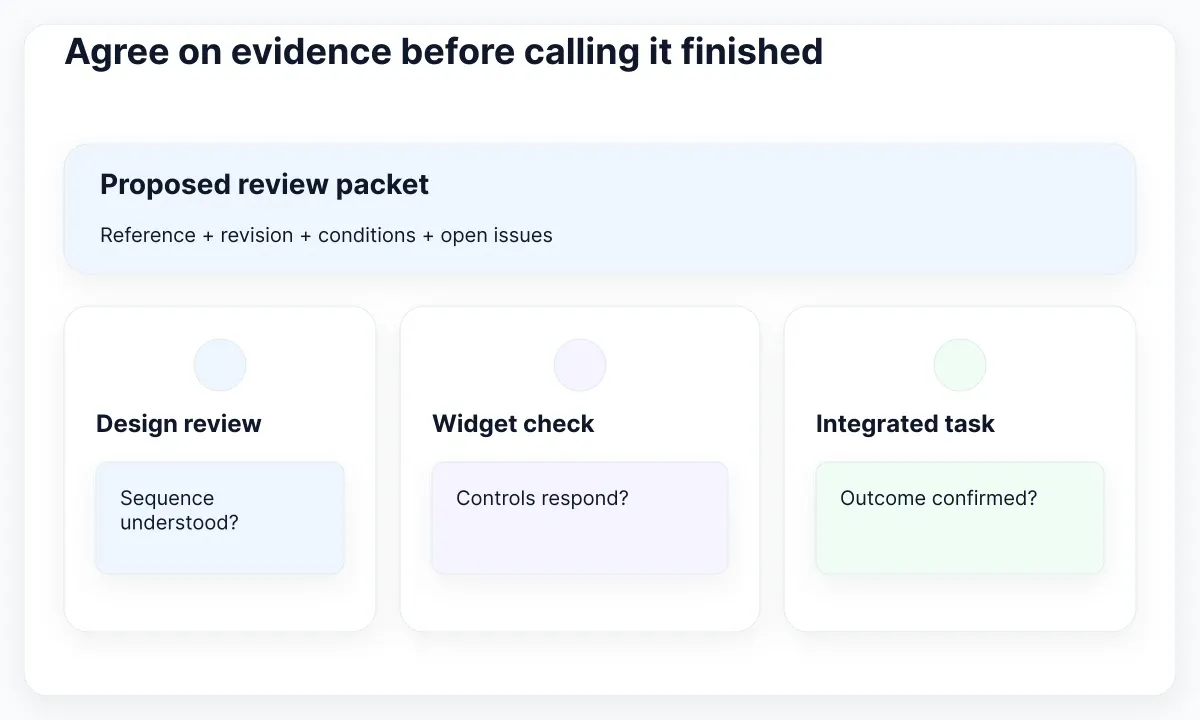
Flutter’s testing overview distinguishes unit, widget and integration tests. Match each check to the behavior you need to verify. For this trial, a validator rule, a visible error and the full save journey concern different boundaries. Avoid calling a screenshot comparison an end-to-end account test simply because the screen resembles the design closely.
Keep a compact evidence packet: the Figma reference, the implementation revision, the test conditions and any open discrepancies. Include the long-label and failure fixtures, not only the success image. If an issue is deferred, name the affected behavior and its owner. A clear limitation is actionable; an unexplained claim that the screen is “done” is difficult to review.
Choose the next tool from the remaining uncertainty. Return to Figma when the hierarchy or proposed flow needs exploration. Continue in Flutter when the unresolved question concerns runtime layout, state or interaction. Use both when design intent and implemented behavior diverge. That is the practical difference between Figma and Flutter: each provides evidence about a different part of getting an interface into use.

Pablo Mayoral
Senior UX/UI & Web Designer with 10+ years of experience. Creator of EmviUI (10k+ components Figma design system), UImand, and Vitamin Bootstrap. Currently designing digital products at CQMRewards.