How to Use Tailwind CSS in React Vite: Setup and CSS Checks
To use Tailwind CSS in React with Vite, add the Tailwind Vite plugin, import Tailwind in your CSS entry and load that stylesheet from the application. Verify a visible static utility first, then check component variants and the production build. Keep version-specific se
To use Tailwind CSS in React with Vite, add the Tailwind Vite plugin, import Tailwind in your CSS entry and load that stylesheet from the application. Verify a visible static utility first, then check component variants and the production build. Keep version-specific setup instructions together.
To use Tailwind CSS in React with Vite, add the Tailwind Vite plugin, import Tailwind in your CSS entry and load that stylesheet from the application. Verify a visible static utility first, then check component variants and the production build. Keep version-specific setup instructions together.
This walkthrough uses a fictional notification-preferences screen with a heading, a short description and a Save preferences button. The screen and acceptance cases are proposed examples. The task is to establish a dependable styling pipeline before adapting a full design or adding unrelated application behavior.
Trace the styling path
A React component reaching the browser is only one part of a styled interface. The project also needs a CSS entry, the build integration that processes Tailwind and source files in which the required utility names can be found. When the page looks unstyled, inspect that path in order instead of repeatedly changing the button markup.
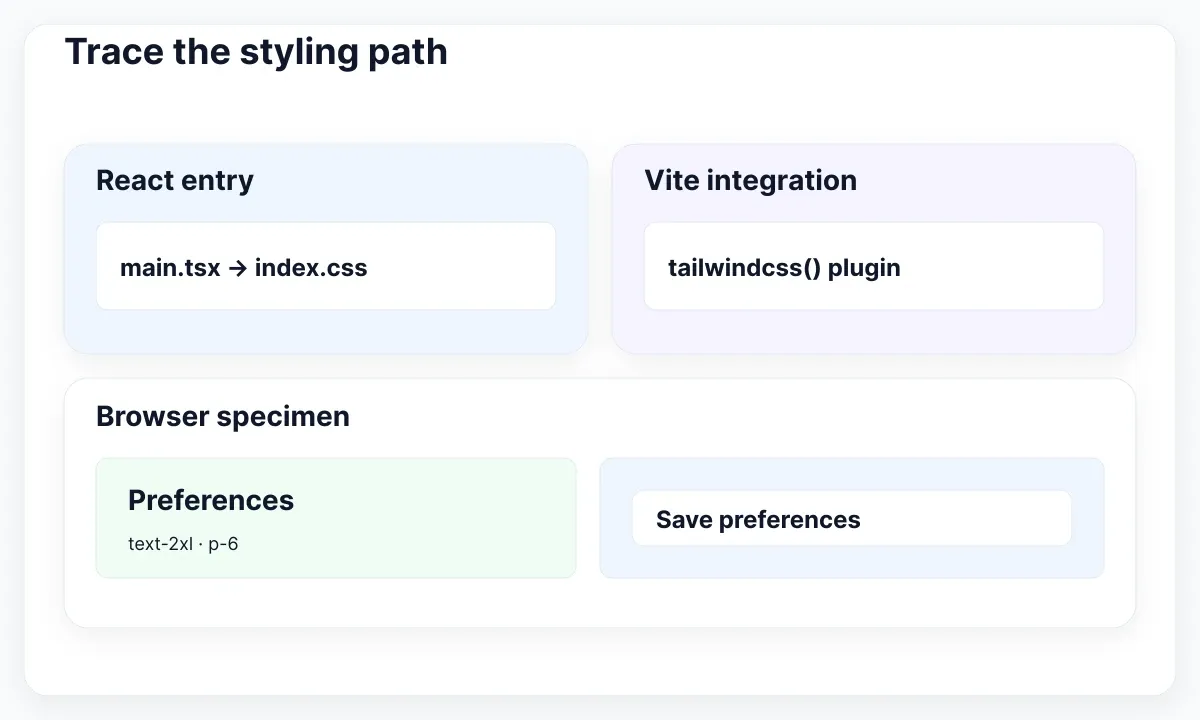
Start with the project that actually runs the page. Record its package-manager command, Vite configuration file, React entry and imported stylesheet. In a repository containing several applications, the package you edited may not be the one serving the browser tab. Confirm the visible page with a small text change before drawing conclusions about CSS.
Use the Vite getting-started guide for scaffolding and current runtime requirements if you need a new React project. Existing projects should preserve their working React integration. Make the Tailwind addition a small, reviewable change so a teammate can distinguish setup work from later visual adjustments.
Choose one obvious static specimen: a heading with text-2xl and a white card with p-6. Record the expected text size and padding, then inspect the rendered result. Those utilities are proposed diagnostic choices. A visible change and a matching browser rule provide better evidence than merely seeing a package name in the dependency file.
Connect the Vite plugin and stylesheet
The current Tailwind Vite installation guide uses tailwindcss and @tailwindcss/vite, adds the Tailwind plugin to Vite and imports Tailwind from CSS. Follow this route for the current v4 setup. The compact commands below describe a fresh integration; first inspect an existing project so you do not add a second competing setup.
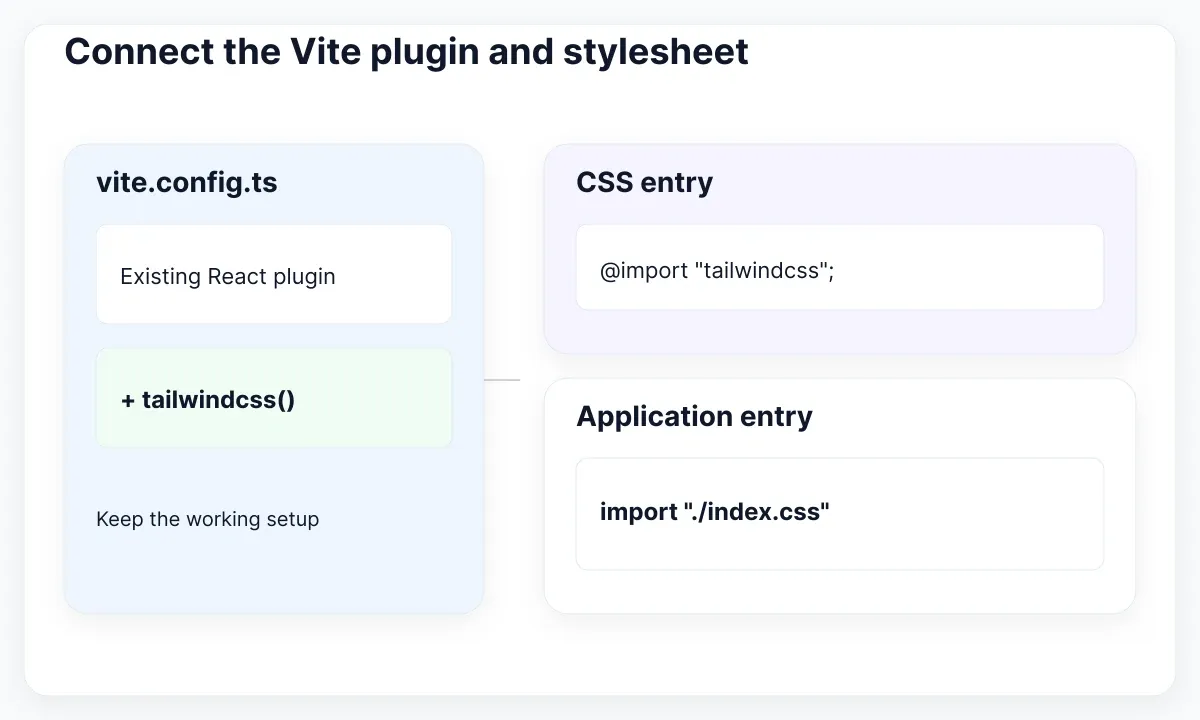
Install the two dependencies, import the Tailwind plugin in vite.config.ts and add tailwindcss() alongside the existing React plugin. Keep the existing plugin call and other working configuration. In the main stylesheet, add the Tailwind import, then confirm the React entry imports that exact stylesheet. The filenames in the example are conventions, not requirements.
For a new project, the relevant pieces might be vite.config.ts, src/index.css and src/main.tsx. If your entry imports src/app.css instead, editing an unused index.css will not change the page. Open the imported file from the entry point and follow the reference rather than assuming that a familiar filename is active.
The Tailwind upgrade guide documents changes from older integrations. Avoid mixing a v3 tutorial’s initialization and directives with the v4 Vite route. Record the installed major version in the setup note. If you are upgrading a mature application, review the migration separately instead of treating every existing style difference as a failed installation.
npm install tailwindcss @tailwindcss/vite

// vite.config.ts: retain your existing React plugin
import tailwindcss from "@tailwindcss/vite"
// Add tailwindcss() to the existing plugins array.

/* src/index.css */
@import "tailwindcss";

// src/main.tsx: use the actual CSS entry in your project
import "./index.css";
Keep complete classes in React variants
In JSX, apply the utilities through className. The React JSX guide explains this attribute spelling. Keep the first specimen explicit: a real button with a type, visible label and complete utility names. That makes the relationship between the selected element and its CSS easier to inspect than a large abstraction.
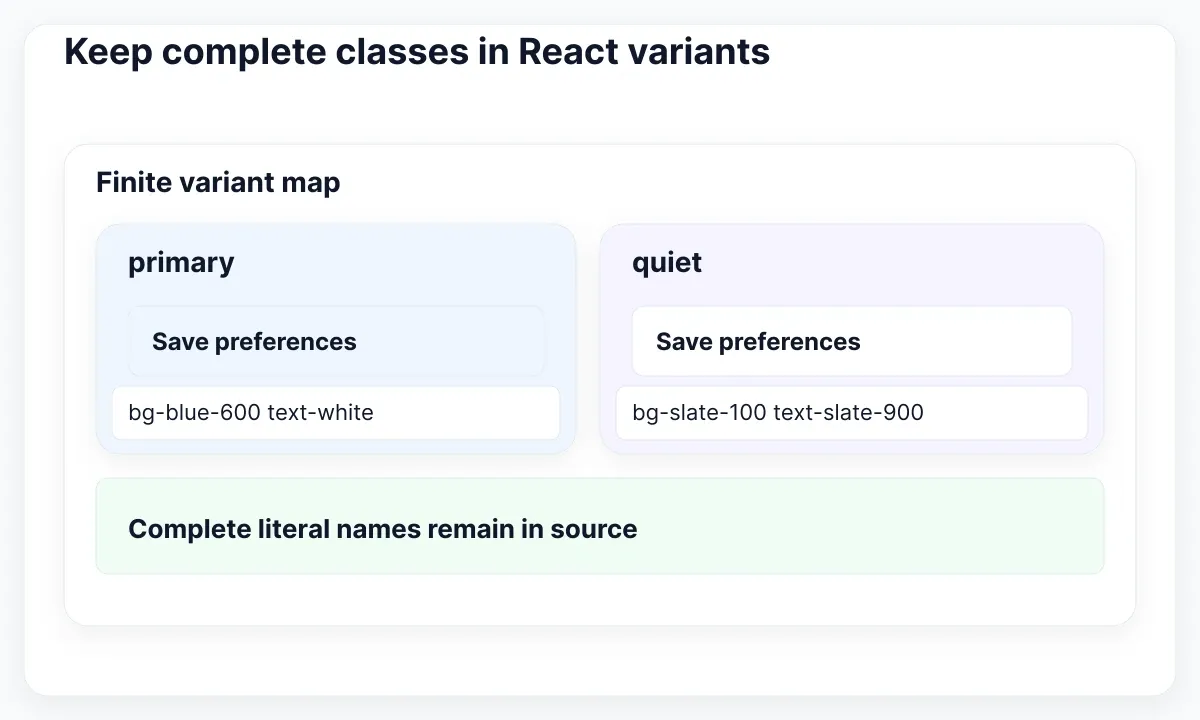
Next add two deliberate visual variants, such as primary and quiet. The Tailwind source-detection guide explains why class names must exist as complete strings in scanned source. Building a name from a partial prefix and a runtime color can leave Tailwind without a complete utility to generate. Use a map of complete class lists for finite variants.
For our proposed button, primary can select bg-blue-600 text-white and quiet can select bg-slate-100 text-slate-900. Test each branch. Both class lists can exist in the source even when only one branch is visible at a time. Keep the base spacing and radius in a shared literal string so a variant does not accidentally change the button’s dimensions.
The utility-class styling guide discusses composition and resolving style conflicts. When two background utilities reach the same element, inspect the computed rule rather than assuming the last word in className wins. Prefer one deliberate background choice per variant. Our advice is to keep this first component small until each variant has an observed result.
For the visual meaning of form states after setup, continue with the guide to Tailwind color classes and states. Here the acceptance question is narrower: were the complete intended classes detected, emitted and applied to the right element?
const appearance = {
  primary: "bg-blue-600 text-white",
  quiet: "bg-slate-100 text-slate-900",
};
// Use a validated variant key from your component API.
// Combine appearance[variant] with literal base classes.
Diagnose the first broken layer
Diagnose from an observation, not from “Tailwind is broken.” If the heading and card are both unstyled, first check whether the stylesheet is loaded and processed. If the card works but the quiet button does not, compare the missing variant’s literal class names and source location. These cases point to different parts of the same styling path.
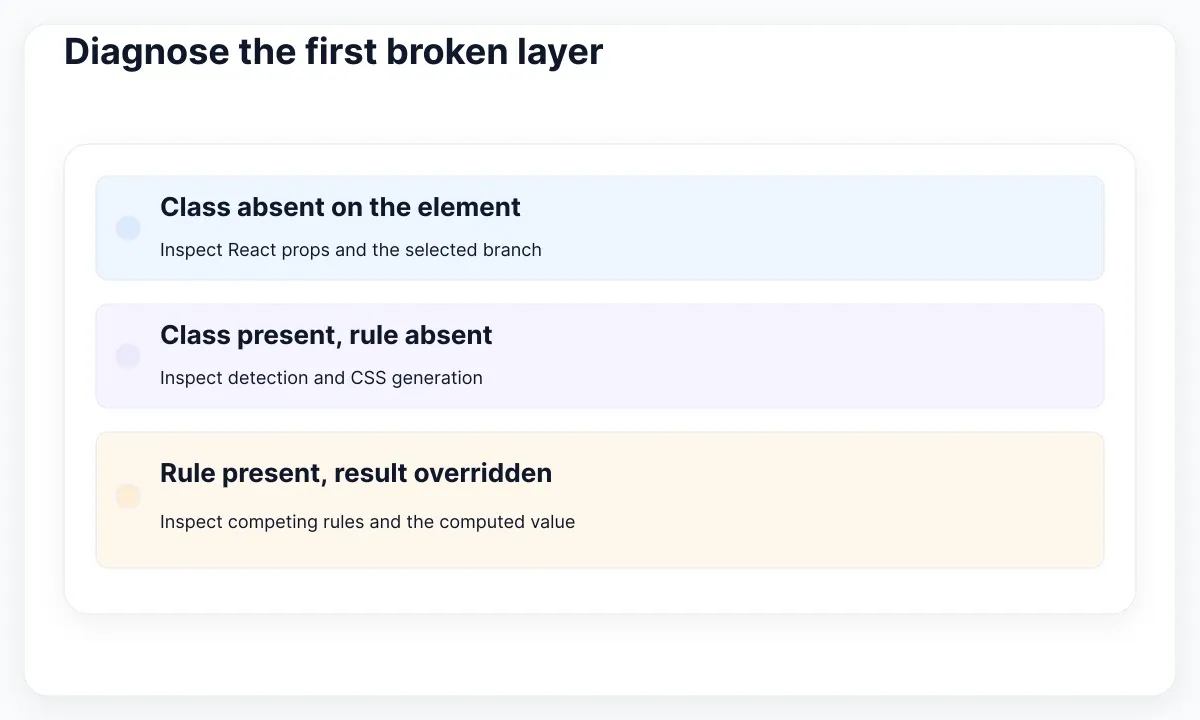
If the expected class is absent from the element, inspect the React branch and the props received by the component. If the class is present but no relevant rule exists, inspect source detection and generation. If the rule exists but is crossed out, inspect the competing style and the computed value. Change one cause at a time.
Shared component packages need special attention. The source-detection documentation describes excluded locations and explicit source registration. When a package’s utilities do not appear, identify where its class strings live and whether those files are included. Do not register the entire repository as a reflex; choose the specific source that the application genuinely uses.
Keep a short failure record containing the component, selected variant, expected class, observed rule and correction. For example: “Quiet variant rendered its class, but its shared-package source was not scanned.” Repeat that exact case after the correction. A useful repair explains why the missing styling returned, rather than merely leaving a page that happens to look right.
Verify the production build separately
The Vite production-build guide describes the production bundle and public base-path handling. Run the project’s build command and inspect the generated application through its local preview workflow. A working development tab does not establish that the generated CSS and asset paths will load from the intended deployment location.
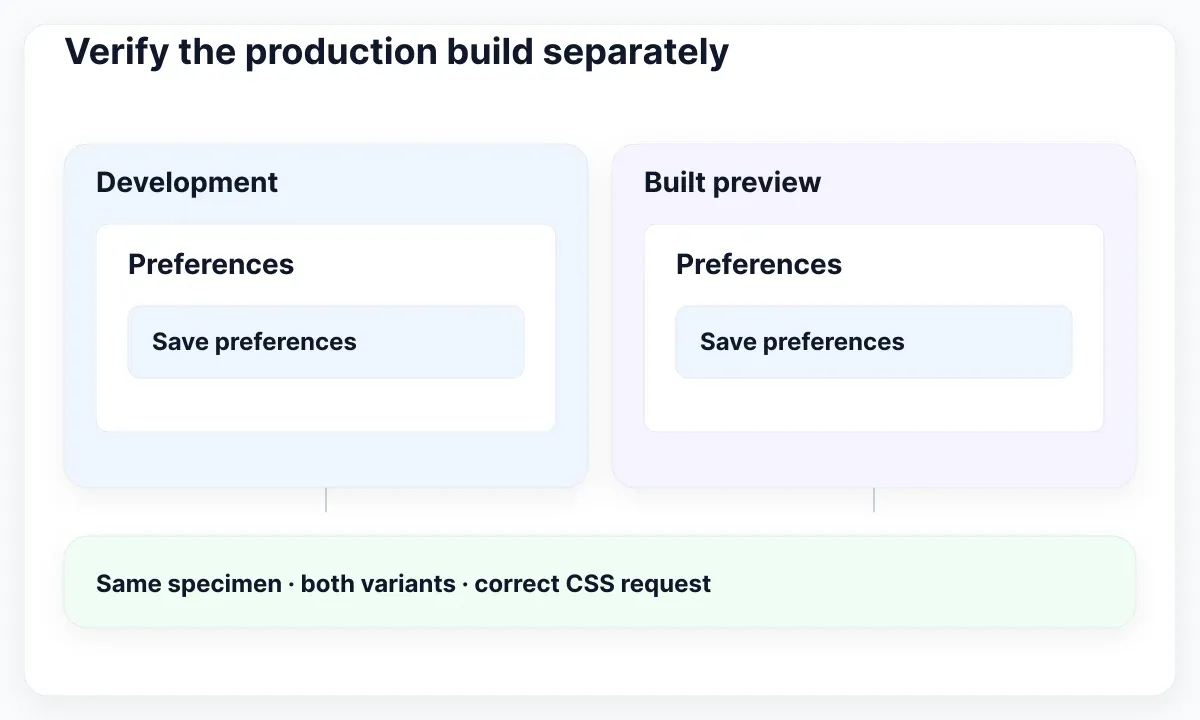
Reopen the same notification-preferences specimen from the built output. Check the static heading, card padding and both button variants. Inspect stylesheet requests and computed rules again. If the application will be served below a nested public path, verify that configuration against the deployment contract; a CSS request returning an HTML page is not a valid stylesheet response.
Record the commands actually used, the public path assumed and the cases checked. For a standard Vite template these are often npm run build and npm run preview, but read your package scripts before copying commands. Local preview is a verification aid; the production hosting configuration remains a separate part of delivery.
Use a small acceptance table so a second person can repeat the check. Require the same observations in development and built preview. If only the built version fails, preserve that difference in the issue. Reinstalling packages without identifying the failed request or missing rule can erase useful evidence and leave the real deployment problem unresolved.
| Case | Development observation | Built-preview observation |
|---|---|---|
| Static heading | text-2xl applied | Same rule applied |
| Primary and quiet | Both complete class lists work | Both variants still work |
| Stylesheet request | CSS loads successfully | Correct public path and CSS response |
Use an EmviUI specimen after the pipeline works
The real EmviUI button image below is useful for choosing a visual specimen to implement. The EmviUI site describes an editable Figma UI kit and design system based on Tailwind. Start with one button treatment from the design and identify its label, spacing, radius and intended state before adjusting the React component.
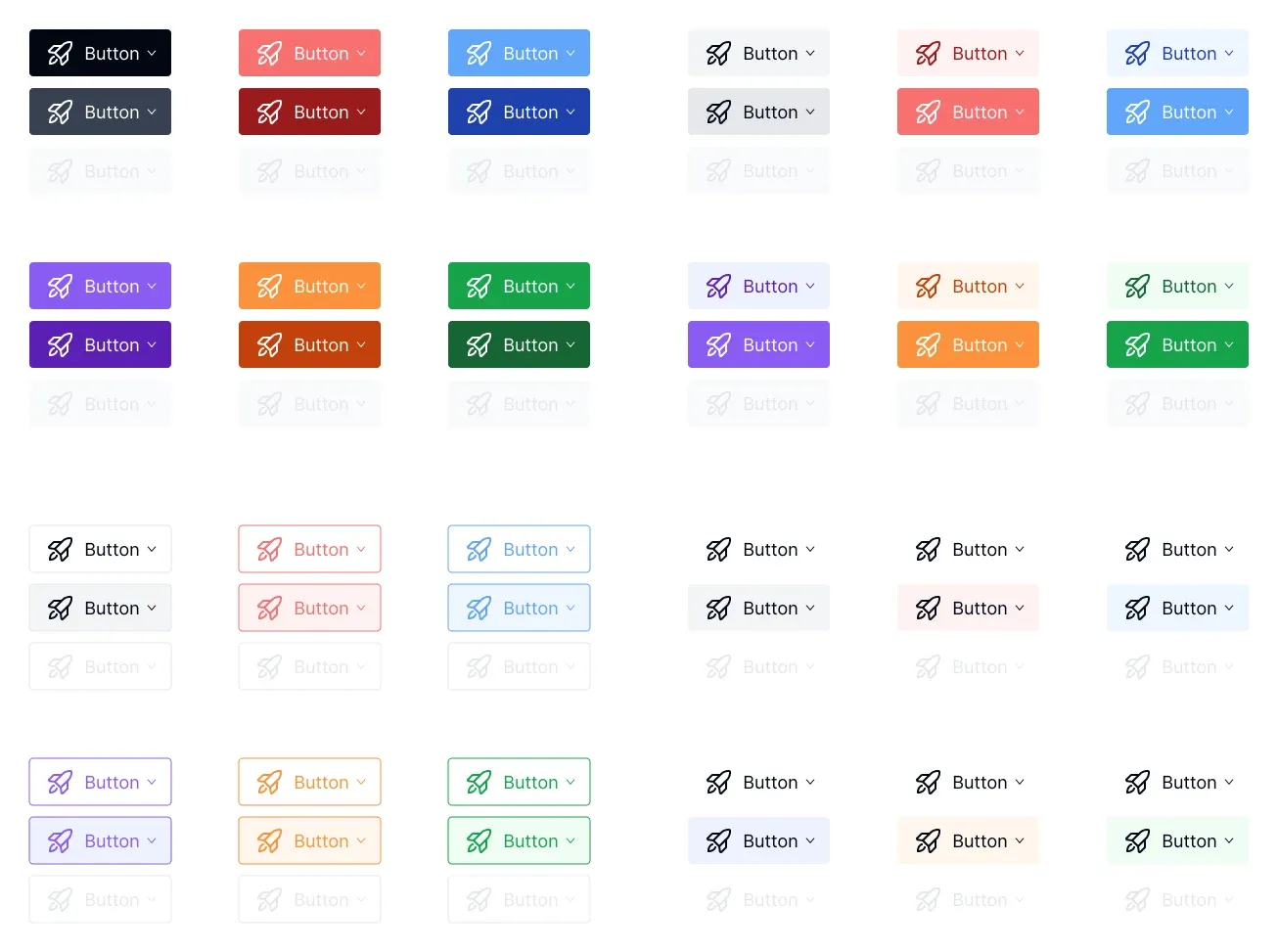
The image is a design specimen, not evidence that your Vite project contains a functioning button package. It does not demonstrate source scanning, CSS output or disabled behavior. Compare the implemented control with the chosen specimen while checking its real markup and computed styles. Keep screenshot similarity and functioning application behavior as separate observations.
For the fictional preferences screen, agree one primary action and one quiet secondary treatment. Have the designer confirm the chosen appearance and the developer confirm the implemented variant names. Reuse the acceptance table when the shared component moves to another folder or package, because that move can change the source-detection question.
When the setup is stable, the Figma-to-Tailwind workflow helps extend the design into a larger interface. For component-level behavior, use the React UI-kit acceptance guide. Establishing the pipeline first gives those later design and interaction checks a dependable starting point.
Leave a reproducible setup note
Finish with a short record of the dependency versions, active Vite file, imported CSS entry, source-registration exceptions and verification commands. Include the selected variants and the location of the tiny specimen. Another developer should be able to repeat the check without reconstructing your browser session or guessing which application you ran.
Keep that note near the project’s development instructions and update it when the build integration changes. This recommendation is deliberately small: one working specimen, a known CSS path and a checked production build. It gives the team a concrete reference when the next copied component looks unstyled, without turning installation troubleshooting into a redesign of the entire application.
Use the specimen for a controlled diagnostic exercise before handing the setup to another developer. In a temporary review change, remove only the stylesheet import from the React entry and observe what fails. The button’s class attribute can still be present while the intended rules are unavailable. Restore the import and confirm the same computed values return. Keep this exercise away from the accepted production branch.
Then select the quiet variant without editing its class list. If that branch behaves differently, compare the actual class attribute and matching CSS rule before changing dependencies. Write the distinction in the note: the first exercise tested stylesheet reachability; the second tested the variant path. A teammate can now explain two visibly similar failures using different observations. Stop the exercise after restoring the accepted specimen and rerunning its ordinary build checks.
When documenting a failure, include the active URL and the terminal command that served it. This small detail prevents a reviewer from comparing a stale development tab with a newly built preview and attributing the difference to the wrong change.

Pablo Mayoral
Senior UX/UI & Web Designer with 10+ years of experience. Creator of EmviUI (10k+ components Figma design system), UImand, and Vitamin Bootstrap. Currently designing digital products at CQMRewards.