Tailwind CSS Color Classes: Forms, Focus and Status
Tailwind CSS color classes set separate properties: text-* colors text, bg-* colors a surface and border-* colors its edge. Choose those values as a combination, add explicit interaction states, and test the rendered result. A shade number is neither a contrast score no
Tailwind CSS color classes set separate properties: text-* colors text, bg-* colors a surface and border-* colors its edge. Choose those values as a combination, add explicit interaction states, and test the rendered result. A shade number is neither a contrast score nor a guarantee that a control is understandable.
Tailwind CSS color classes set separate properties: text-* colors text, bg-* colors a surface and border-* colors its edge. Choose those values as a combination, add explicit interaction states, and test the rendered result. A shade number is neither a contrast score nor a guarantee that a control is understandable.
This practical guide uses a fictional workspace invitation form: an email field, a Send invitation button and feedback after submission. The proposed recipes and review samples are design recommendations. They show how to make deliberate color decisions without turning a palette into a claim of accessibility compliance.
Separate text, surface and boundary
Start with three questions: what must the reader read, which area contains it and which edge identifies the control? The text color reference, background color reference and border color reference document the corresponding utilities. Write each responsibility beside the form before choosing a hue.
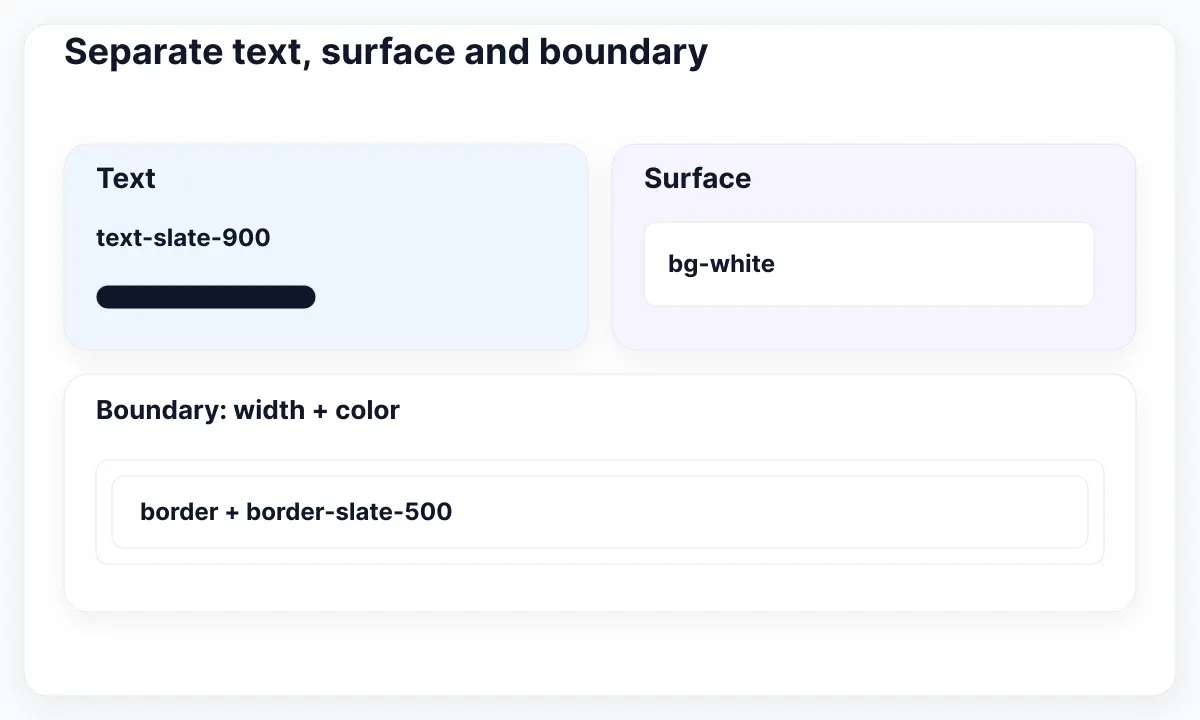
For an invitation panel, try a white surface, dark body text and a clearly defined email field. A possible starting class recipe is bg-white text-slate-900 on the panel, with border border-slate-500 on the input. Treat this as a candidate to inspect in your project, including its actual typography and surrounding page.
Use border to give the input a visible border width and border-slate-500 to choose its color. Keep those decisions distinct in review. If a field edge disappears, check the computed width and style as well as its color before changing the palette. A correct-looking color name cannot reveal an unrelated missing property.
A useful handoff note names the three owners: panel surface, field boundary and entered text. Include a short reason for each decision, such as “the field must remain identifiable on the white panel.” This is more actionable than asking someone to make the form darker.
Choose combinations instead of shade numbers
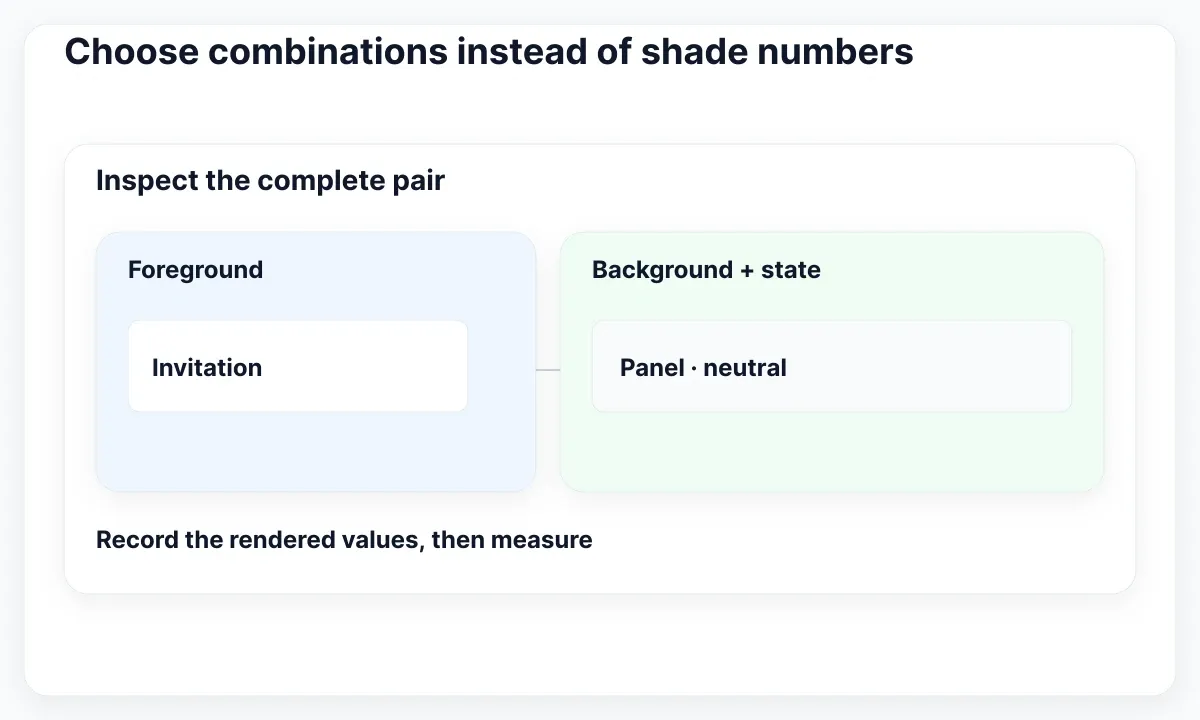
Compare complete specimens rather than isolated swatches. Put the real email value, helper sentence and action label on their actual backgrounds. The Tailwind color documentation provides a palette across color utilities; it does not certify every foreground and background pairing you can assemble from it.
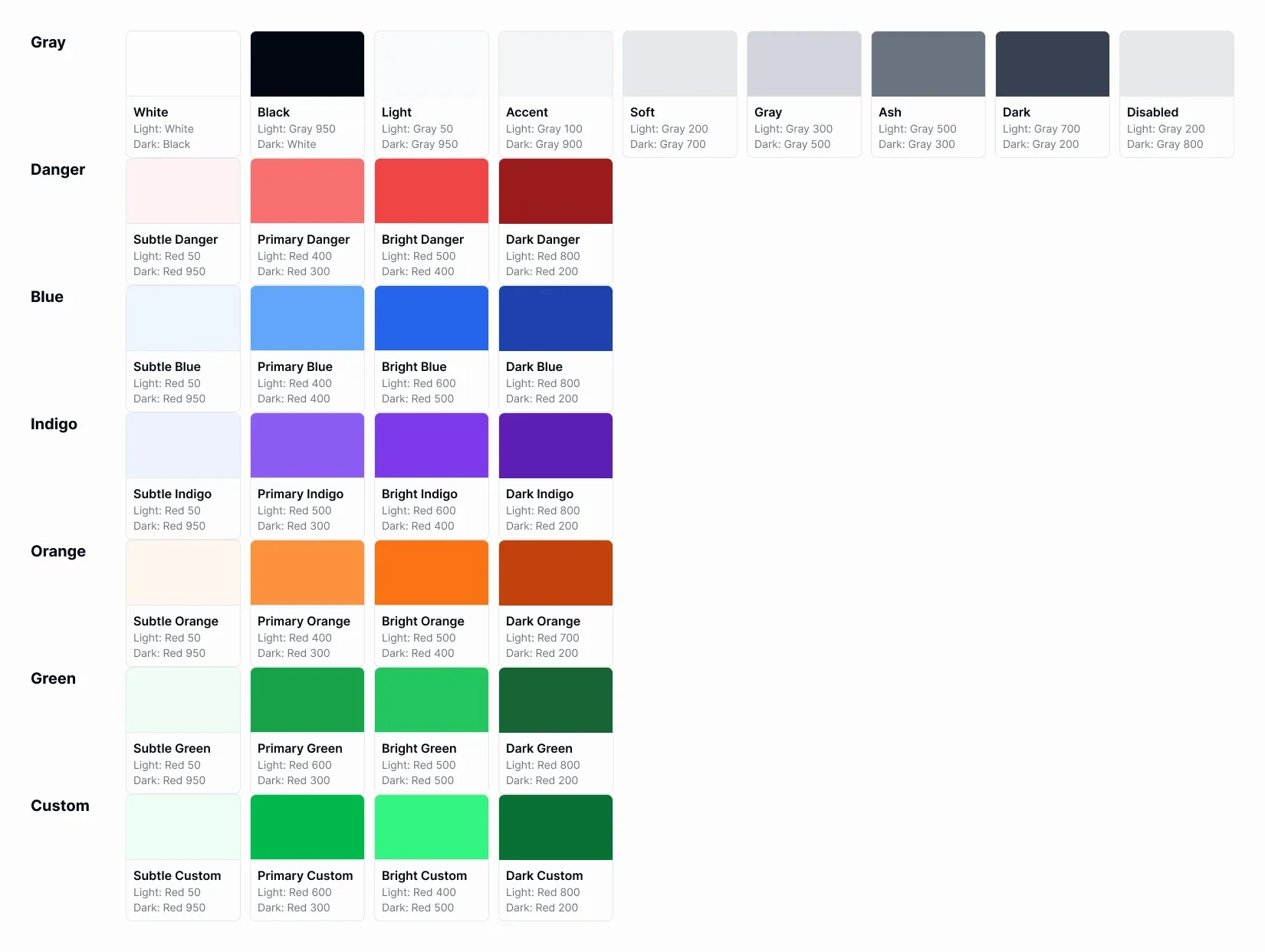
The EmviUI palette specimen illustrates named roles, but some reference labels are inconsistent, including red references beneath green swatches. Do not copy its labels as a code mapping. Inspect the selected values in your file. Prepare a review strip with three proposed uses: ordinary body text on the panel, the primary action label on its fill and an error sentence beside the field. Keep the type size and weight identical to the intended interface. A large presentation swatch can conceal a weakness that becomes obvious in a small helper line.
For each candidate, write down the foreground, the background and the state. Add the measured result only after testing the rendered pair. If a theme overrides a named color, that computed value is the one that matters. Two projects can use the same class name while producing different surfaces.
Avoid treating blue-600 and red-600 as equivalent visual evidence. Their labels identify entries, not a shared accessibility result. Our recommendation is to choose a small set of pairs for this form and retain their measurements with the design. Recheck them when a brand color, background or opacity changes.
If the team needs to name reusable decisions across many screens, continue with the guide to design tokens in web design. For this task, finish one readable form before expanding its color vocabulary into a library.
Keep focus separate from validation
Draw focus and error as independent pieces of information. Focus identifies where the person is interacting; validation identifies a problem with the supplied value. An invalid email field can still have keyboard focus. Your proposed design must show both at once without making one treatment erase the other.
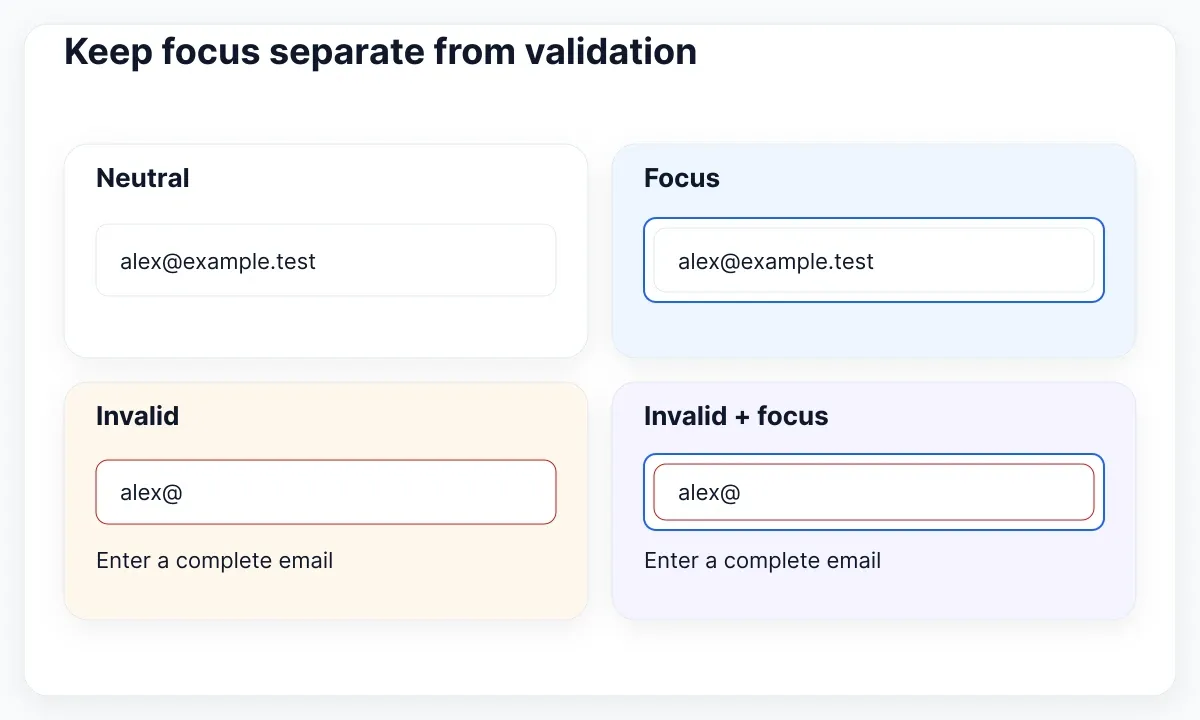
Use a dedicated focus indicator around the field and reserve the error edge and message for validation. For our review specimen, keep the text “Enter a complete email address” visible below the field. Add a separate outer focus outline when the field is active. Do not replace that message with a red glow.
The Tailwind state variants documentation explains conditional utilities such as hover: and focus-visible:. Apply them to the intended element and inspect the result with the keyboard. A hover treatment is a useful pointer cue, but it does not demonstrate the keyboard focus treatment or the validation behavior.
Create four snapshots: neutral, focused, invalid and invalid with focus. Give each snapshot the same dimensions and email sample so reviewers can compare the cues. In the fourth, confirm the error text remains readable and the focus indicator survives beside the red boundary.
Record behavior separately from styling. Decide when validation runs, how a failed submission preserves the entered address and what the next action should be. Color utilities do not validate an email or send an invitation. They provide the visual layer for behavior that the application still needs to implement and test.
For the design-file side of the same exercise, use Figma variants for UI states to organize the four specimens. Keep the distinction between a visual state and the runtime event that activates it.
Measure the pair that actually renders
Measure ordinary text against its actual background. WCAG Contrast Minimum sets a 4.5:1 threshold for ordinary text and 3:1 for qualifying large text, with defined exceptions. Keep a result such as “helper text on white” attached to that exact pair rather than to the whole palette.
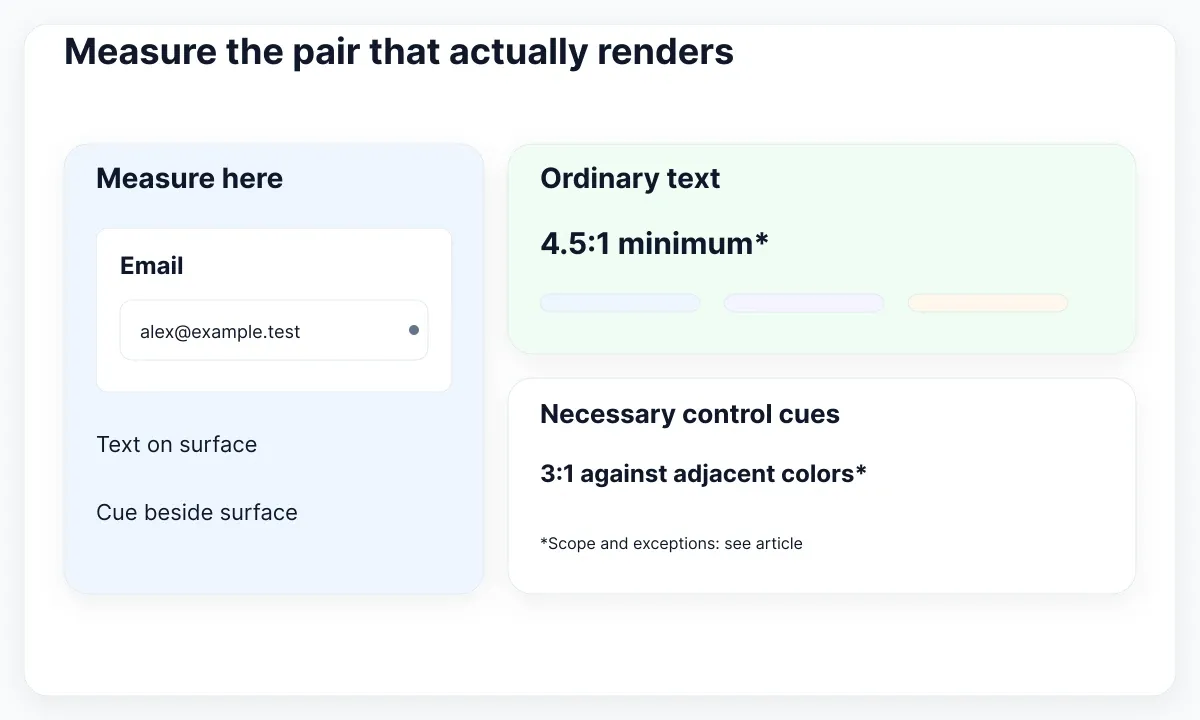
Separate the text check from the control identification check. WCAG Non-text Contrast addresses necessary visual information for identifying controls and states at 3:1 against adjacent colors, with exceptions. The relevant cue may be a boundary or another visual feature; it is not a blanket requirement for every decorative divider.
Our proposed review record has four columns: specimen, foreground cue, adjacent background and result. Use a second row when a cue touches a different surface. For example, review the input within the white panel and the same input within a tinted notification area rather than assuming the first result transfers.
Inspect translucent fills on the surface that will actually sit beneath them. A bg-blue-500/10 candidate has a different job from a solid primary-action fill. Test its visible result after composition. Also inspect parent opacity, overlays and inherited text colors when a specimen differs from the intended design.
Do not infer a pass from the diagrams in this article. They explain the review process and are not a measurement certificate for your application. Save the tested values, the state and the date so a later color change has a clear set of checks to repeat.
Make status understandable without color
Write status first, then use color to reinforce it. For our invitation form, “Invitation sent to alex@example.test” carries a different meaning from “Invitation could not be sent; try again.” A green or red mark alone leaves the person to infer both the outcome and the available recovery.
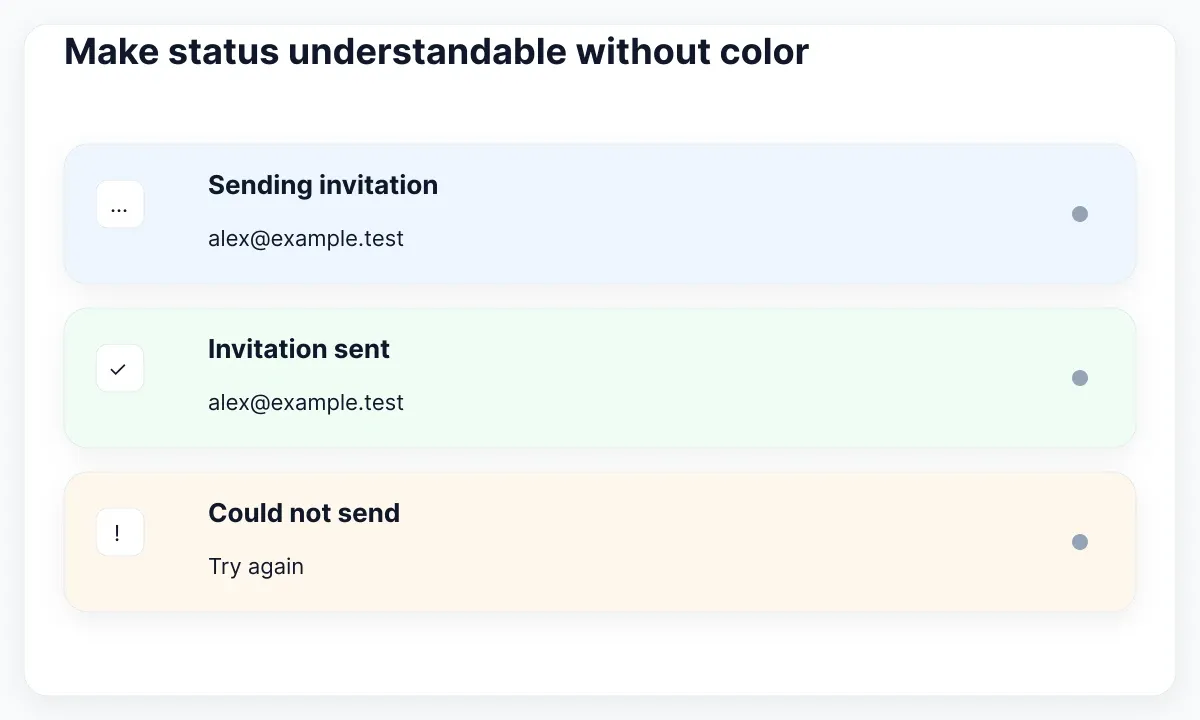
The WCAG Use of Color explanation requires another visual means when color conveys meaning. Our proposed feedback pattern combines a readable status sentence with a distinct icon and an action where appropriate. Keep the words useful when viewed without their colored container.
Compare three messages in the review: a pending invitation, a sent invitation and a failed request. Use the same recipient in every specimen. Pending might say “Sending invitation”; sent confirms the destination; failure says whether the user can retry. These are proposed product messages, not evidence that any request has completed.
Preserve the distinction between a warning and a blocking error. If the workspace has already invited this address, explain what the person can do next rather than showing the same red field treatment as a malformed email. Clear language reduces the number of color distinctions the reader must memorize.
For a table of invitations, keep an explicit status label in every row. A small colored dot can supplement that label. Test the longest translated status in the real column width and confirm that its message remains visible when the layout changes. Color review and content review belong in the same task.
Review an EmviUI field specimen
The EmviUI product site offers an editable Figma UI kit and design system. The real EmviUI input specimen below is useful for comparing neutral, muted and red error treatments. It is a design asset, not a screenshot of our running Tailwind form or proof of its contrast results.
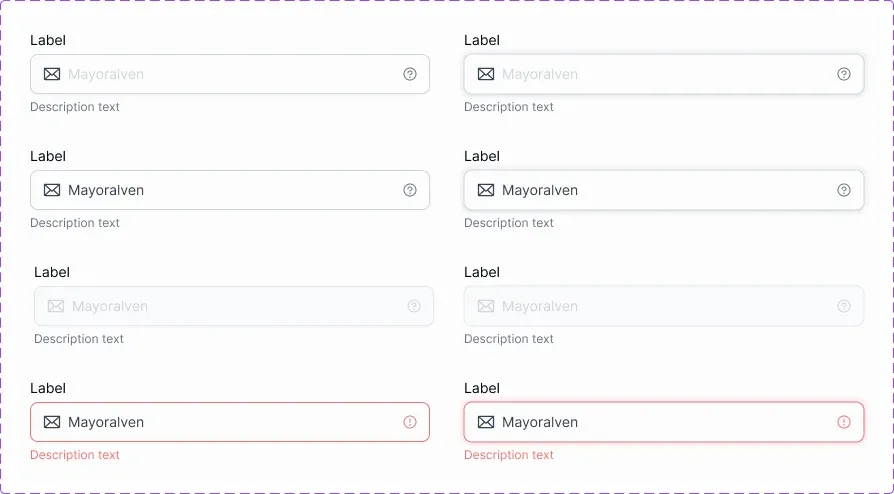
Use this specimen as a starting discussion: which text is entered content, which is helper text and what changes when the field needs attention? The lower examples use a red edge, an alert icon and red supporting text. Replace generic supporting copy with an instruction specific to the invitation task.
Then add the missing evidence for your implementation. Inspect the selected colors, agree on a focus indicator, measure the combinations and test the form in the browser. A kit can accelerate visual consistency while the team remains responsible for application behavior and the actual page context.
We inspected the pool image named accessibility-web-colors as well. Its percentage grid does not establish WCAG ratios for these candidate controls, so it is excluded from this article. The input specimen helps explain a visible design choice without making unsupported measurement claims.
For deciding how much styling logic to keep in utilities or component rules, read Tailwind CSS versus CSS for interface styles. Keep a single owner for the field recipe so a local change does not accidentally conflict with another rule.
Keep one concrete regression case in the handoff: an invitation to alex@example.test fails while the email field still has focus. The expected screen preserves the address, explains that sending failed and keeps the focus cue visible. Ask a second reviewer to repeat that case from the saved notes. If they need to guess which surface or state was tested, make the acceptance record more specific before approving the recipe.
Run a repeatable color review
Before release, build a short acceptance sheet around the invitation task. Record the real page background, the theme, the field state and the expected message. Include ordinary input, keyboard focus, an invalid address, a failed request and a successful result. Use the same examples after every palette change.
First, read the form without relying on its hue. Identify the field, the action and the status from their labels and structure. Next, move through the controls with the keyboard and observe the focus indicator. Then measure the relevant text and non-text pairs in their rendered states.
Finally, compare the original and translated labels at the actual page width. A longer error sentence should not hide the action or force an important word outside its container. Keep a record of the expected message and the observed failure so the fix can be verified.
- Capture the computed colors and relevant adjacent surface for each specimen.
- Record measured ratios and which requirement each check addresses.
- Check invalid plus focus together, then test the recovery action.
- Repeat the task on the complete page after any theme or opacity change.

Pablo Mayoral
Senior UX/UI & Web Designer with 10+ years of experience. Creator of EmviUI (10k+ components Figma design system), UImand, and Vitamin Bootstrap. Currently designing digital products at CQMRewards.