Figma Variable Mode Not Working: Trace Bindings and Inheritance
Diagnose one stubborn property through its binding, effective collection mode, value and library revision, then test the same repair in a consumer.

Inspect the failed property’s binding, trace the effective collection mode through its ancestors, compare values and aliases, and check the published library revision. Verify a fresh control and a real consumer before closing the repair.
For a Figma variable mode not working, inspect the property that stays unchanged, confirm its variable binding, and trace the effective mode through its parent layers. Then compare the selected mode’s value with the expected result. A mode label is useful evidence, but it cannot prove that every visible part of a component consumes the intended variable.
This guide diagnoses one stubborn settings card: its surface changes while the action and spacing do not. The fictional card, variable names and test sequence are editorial examples. Use a duplicate or a small specimen so you can isolate the cause without rewriting a shared library. The goal is a repair you can explain through a property, a collection, a value and a reproducible result.
Record the failed property
Start with an observation narrow enough to test: “The card surface responds to our theme switch, but the Save button fill remains unchanged.” Record the exact layer and property, current collection, expected mode and visible result. Avoid a report that simply says the whole theme is broken.
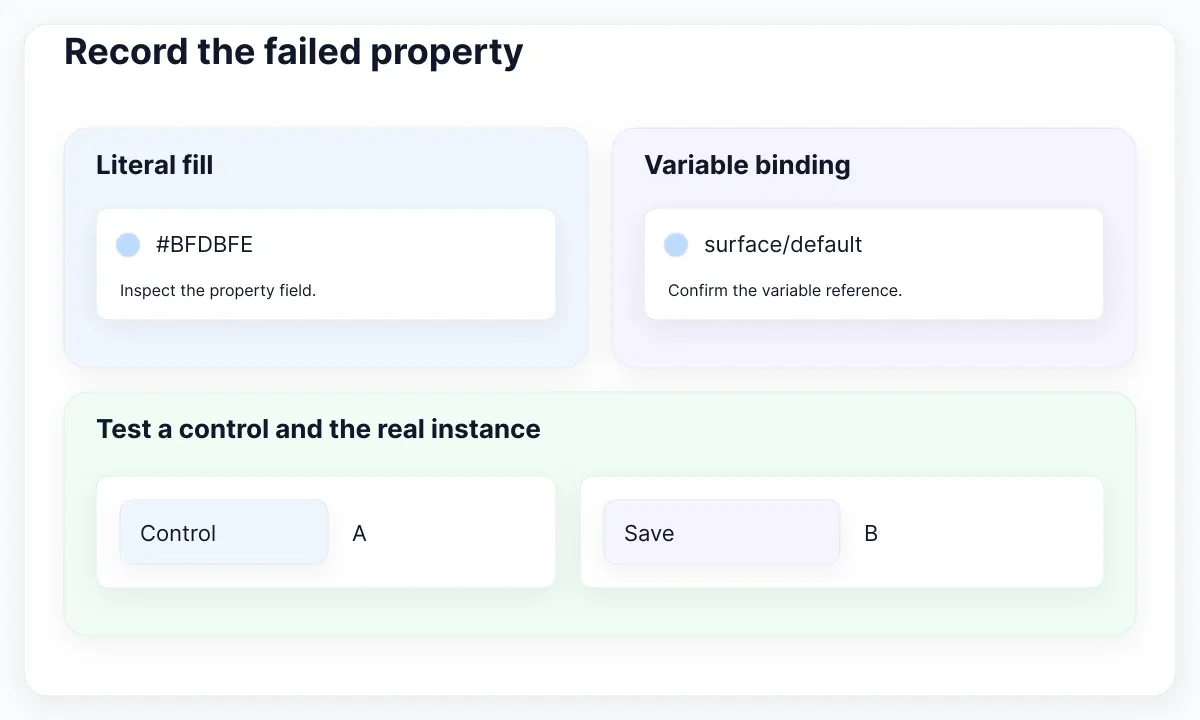
Create a short case sheet before editing. Include a link to the affected frame, a screenshot of the actual property panel, the expected appearance and whether the problem occurs in the source library, a consuming file or only the prototype. Ask the reporter to identify the last action that changed the result. This is a proposed diagnostic record, not a required Figma template.
For our card, write three rows: surface fill, button fill and horizontal padding. Give each row its own expected outcome. Do not assume that spacing should change merely because color changes. A theme and a density choice are separate product decisions; first establish what the team intended.
Use a fresh rectangle alongside the card as a control specimen. The exercise becomes useful when you can say which property fails in which context. Keep the original instance available for comparison and make one change per test. A result that cannot be repeated is not yet a dependable library repair.
| Example property | Expected connection | Acceptance observation |
|---|---|---|
| Card surface fill | surface/default in the intended theme collection | Matches the recorded surface value for each context |
| Save button fill | The approved action variable | Follows the intended context or a documented exception |
| Horizontal padding | space/card, if the design requires a binding | Remains 24 when both test values are intentionally equal |
Verify the binding before the mode
Inspect the actual fill, stroke, text or numeric field. Figma’s variable application documentation lists supported properties and warns that dragging on-canvas padding or gap controls can detach number bindings. Check the field rather than inferring a binding from a familiar color or spacing value.
In our proposed experiment, bind the control rectangle to the same surface variable as the card. Switch the intended collection between its two test contexts. If the rectangle changes and the button does not, narrow the investigation to the button’s property and ancestry. If neither changes, investigate the shared variable and mode selection before altering the component.
For a developer-assisted inspection, Figma documents bound variables and compatible property types. A node’s binding records a variable reference; matching the current literal value is not equivalent evidence. Ask the developer for the relevant property binding, not an unrestricted dump of the file. Keep this an optional inspection step, since ordinary designers can begin in the property panel.
If a reusable style is involved, inspect the property inside that treatment. Our guide to variables and styles in Figma explains that relationship. Repair the intended connection at the appropriate level, then test another consumer before extending the change. Replacing a shared treatment just to fix one screenshot can create additional work elsewhere.
Trace the effective mode through the layers
Trace the selected layer upward through its real parents. Figma’s mode guide explains Auto inheritance and the default-mode fallback when no ancestor specifies a mode. A child with a deliberate mode needs separate attention; an apparent visual grouping is not enough to identify the relevant parent.
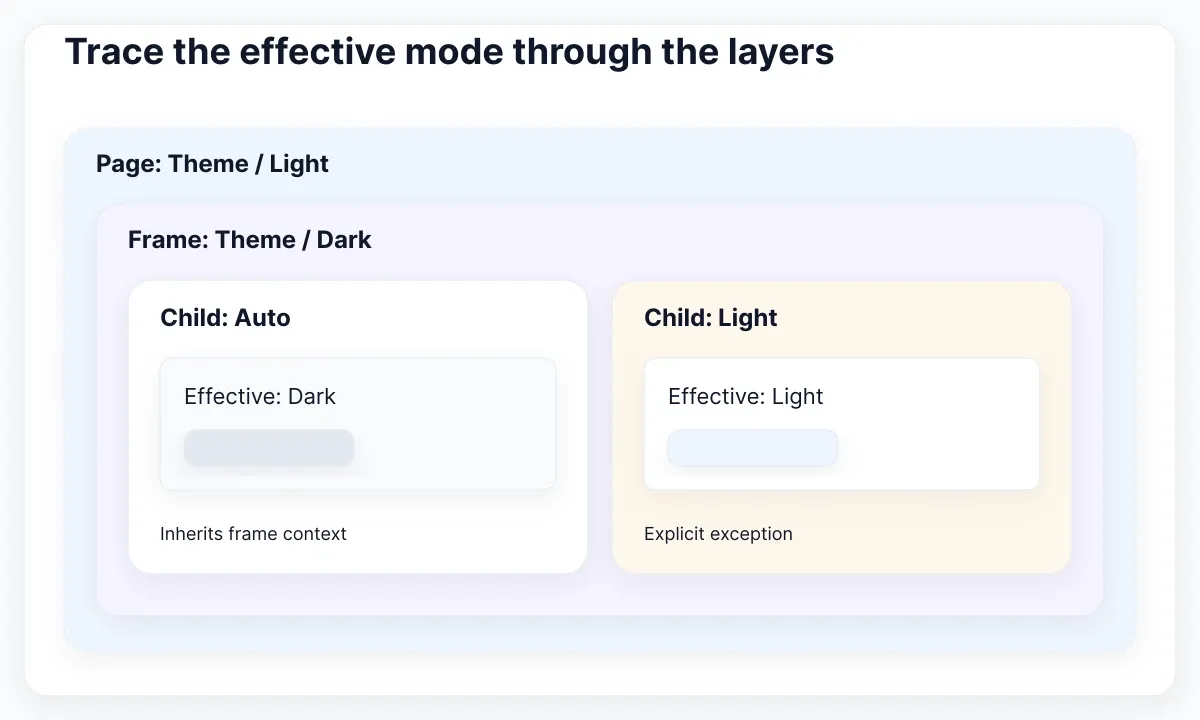
Draw the actual path for our example: page, settings frame, card instance, button and fill layer. Beside each entry, record the relevant collection and whether the mode is inherited or explicit. Do this for one failing property first. Expanding the whole library into a diagram makes the initial diagnosis harder to review.
The Plugin API’s resolvedVariableModes reference distinguishes modes set on a node from the effective collection modes that include ancestor settings. A developer can compare those records when the panel leaves uncertainty. The useful question is which collection mode reaches this layer, not how many mode tags appear elsewhere in the file.
For the specimen, test one intentional exception alongside an inheriting sibling. Record whether the exception is a product requirement, such as a contrasting promotional area, or an accidental setting. Restore inheritance only where the design calls for it. An exception that looks inconsistent in isolation can still be correct within the complete interface.
Inspect values and aliases separately
Open the exact variable and compare the values used by the two test contexts. Figma’s variable management guide documents same-type aliases and property scopes. An alias is a reference worth following; a scope controls where the variable is offered, rather than describing the whole theme’s behavior.
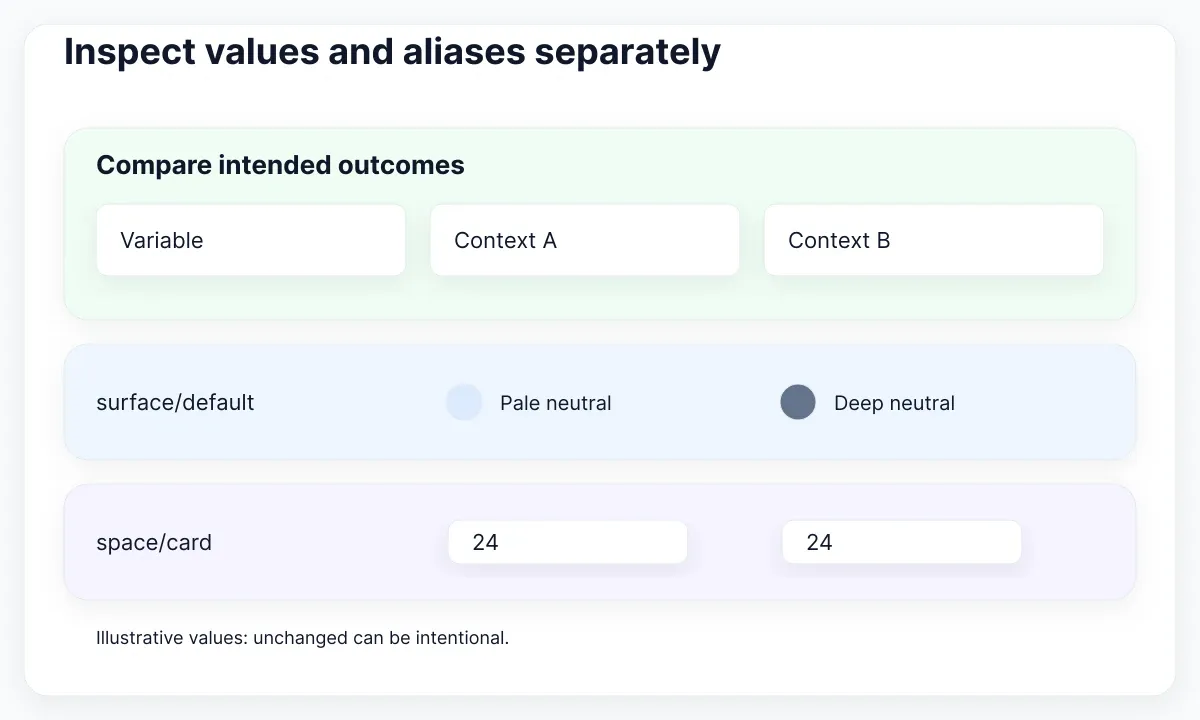
Write a small expected-value table for the settings card. For example, surface/default may reference a pale neutral in one context and a deeper neutral in another, while space/card remains 24 in both. These are illustrative decisions, not recommended universal values. An unchanged padding result is correct if both definitions intentionally agree.
Follow one failing alias chain at a time and record the collection at every step. Similar names are a reason to inspect carefully, not evidence that two references are interchangeable. Compare the final value with the case sheet before changing an upstream primitive that may have many consumers.
Use a temporary, clearly named diagnostic variable in the duplicate if the visual difference is too subtle to judge. Choose visibly distinct test values, verify the connection, and remove the diagnostic substitution after the experiment. The test proves the path you exercised; it does not prove the whole design system is correct. Repeat the check on the original intended value before accepting the repair.
Check the library boundary
Compare the same property in the library source and a consuming file. Figma’s library publishing documentation says source changes must be published before consumers can review and accept updates. A working source specimen therefore does not establish that another file has received the same revision.
Record the source file, the intended published change and the consuming file used for the check. Look for a naming collision or an old local test asset before blaming mode resolution. Our proposed worksheet has separate boxes for “works in source” and “works in consumer”; neither should be filled from memory.
Review the update with the library owner. Describe the intended change in plain terms, such as restoring the button fill binding, and identify a screen that should remain visually unchanged. Accept the relevant update in a test consumer and replay the original case. Avoid publishing a collection of unrelated cleanup changes during a focused investigation.
Once the consumer passes, record what was repaired and what was only inspected. If this reveals recurring release problems, use the separate token pipeline and release workflow to decide ownership. The current repair should stay small enough that a teammate can review its impact without reconstructing every library decision.
Separate prototype actions from canvas setup
If the design works on the canvas but fails in playback, inspect the interaction separately. Figma documents Set variable mode for prototypes as a page-level action; objects with explicit modes retain their own context. Confirm the action’s collection and mode before rebuilding a toggle.
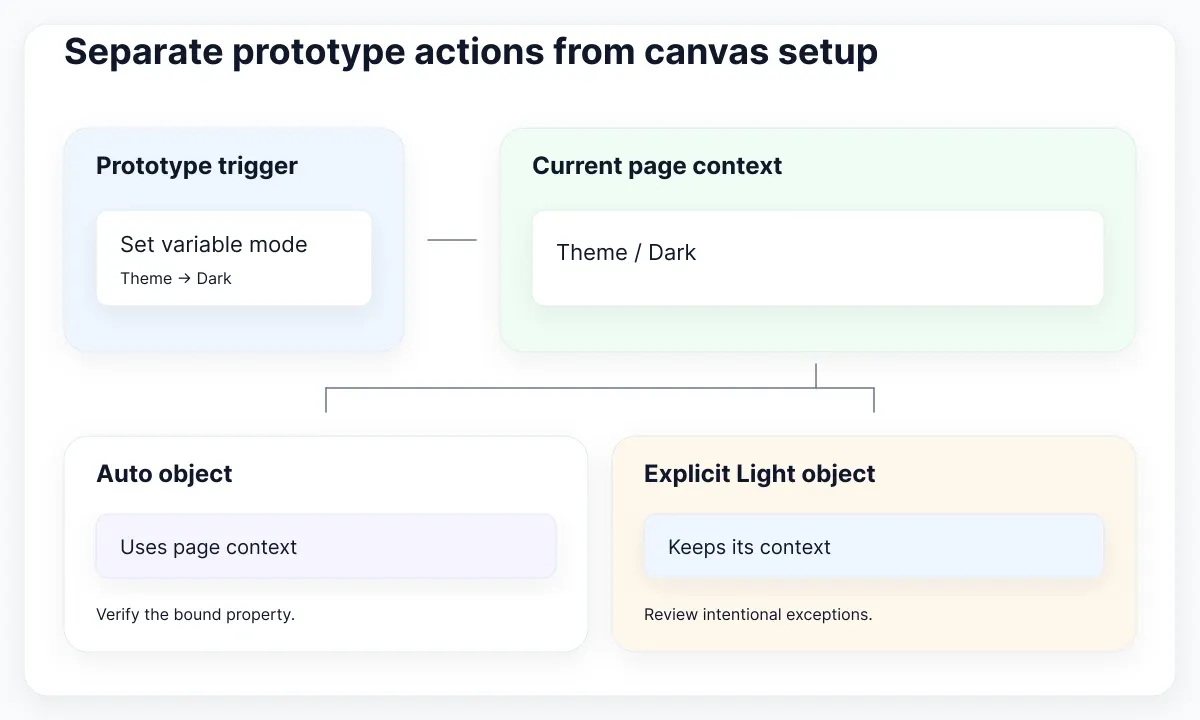
Prepare a minimal flow with one trigger and one observable result. Start playback from the same entry point for each trial, execute the same action, and record the resulting surface and button appearance. A moving switch thumb is not sufficient acceptance evidence; the properties behind the intended experience must also respond.
Keep an intentionally fixed-context component in the experiment if the product needs one. Mark it as an exception in the test notes so another reviewer does not “repair” it later. Compare the behavior with the case sheet, then repeat with the real screen. This prevents a successful toy interaction from concealing a failing nested consumer.
If an action is supposed to choose a component state, review the team’s variant and state model as a separate concern. Specify whether the task is changing a value context or selecting a component configuration. Clear intent makes the repair easier to test and the handoff easier to explain.
Build a small regression specimen
Choose a small set of controls whose appearance makes regressions easy to notice. The EmviUI component catalogue includes foundations and buttons you can use as visual references. The button specimen below helps identify separate fill, label and icon checks; it does not demonstrate its underlying variable bindings.
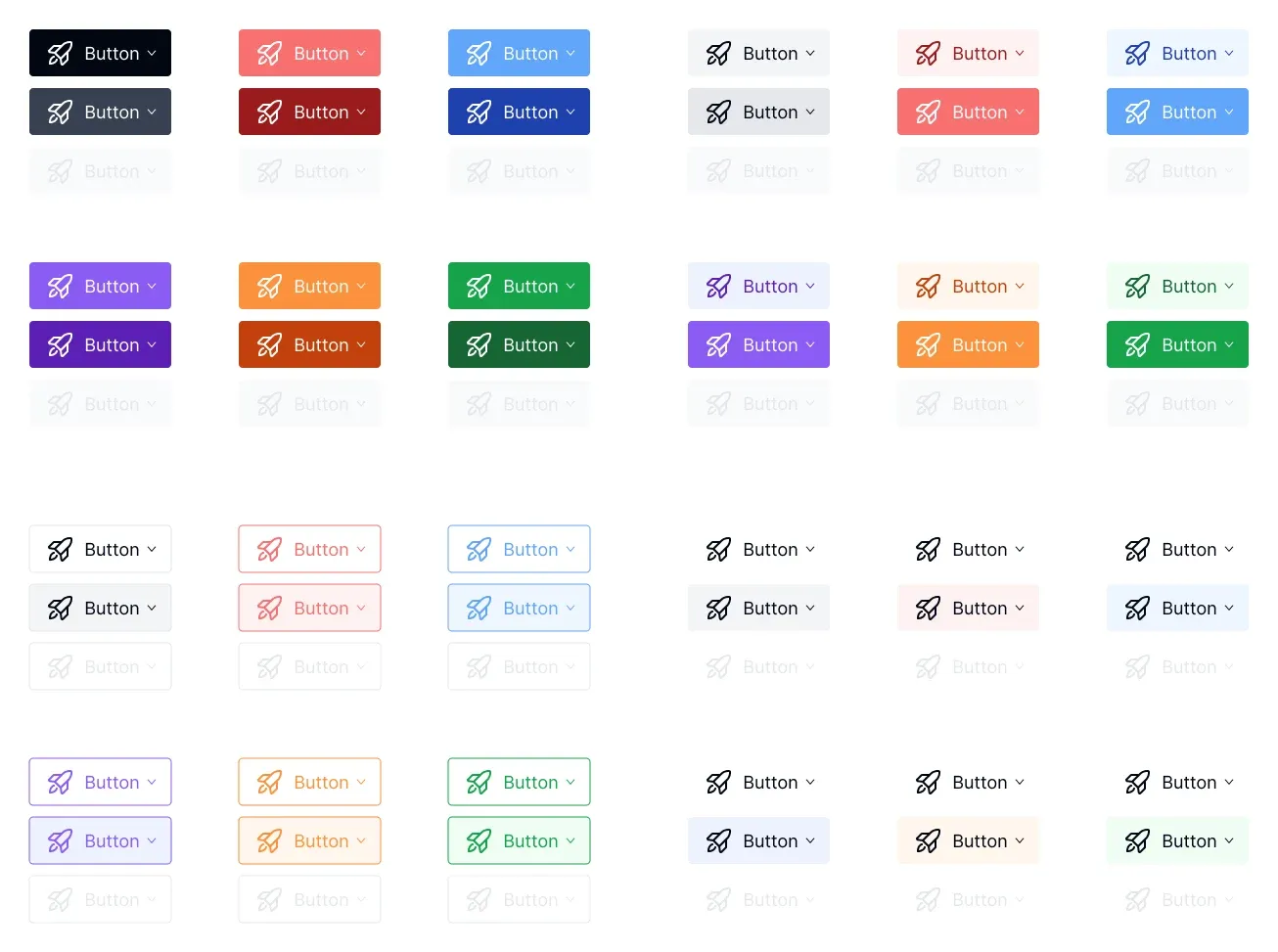
Take one primary action, one subtle action and one disabled-looking reference from your working design. For each, record the expected surface, text and icon outcome in the two contexts. Keep state changes separate from theme changes. In the screenshot, visible treatments are reference material, not proof of hover behavior, mode support or accessibility conformance.
EmviUI can help you start with recognizable interface anatomy while you construct this test. Inspect the actual file you use and connect the intended properties to your own approved decisions. Do not assume that every downloaded asset already matches your collection names or release process. Your acceptance specimen is the evidence for that integration.
Finish with three checks: a fresh control, the repaired instance and another real consumer. Record any intentional differences. If only the first passes, the investigation remains open. If all pass, keep a compact reference frame and a short explanation of the failure so the same exception or detached binding can be recognized later.
Hand off a repair that can be repeated
Deliver the smallest explanation that lets a teammate reproduce the failure and the repair. Include the layer path, property, variable identity, relevant collection mode, source revision and before-and-after result. Link to the test frame and state which consumer was checked. A screenshot alone loses much of the diagnostic context.
Separate established facts from unresolved observations. If the control specimen works but an existing instance remains inconsistent, preserve that instance and report the difference rather than claiming a platform bug. If source and consumer disagree after a documented update, give the owner the exact reproduction steps and observed revision.
For our settings card, success means the surface, action and spacing each match their recorded expectation, the intended exception remains deliberate, and the consuming screen passes the same test. Keep the repair note with the library change. The next designer should be able to explain why the result is correct without repeating the entire investigation.
Agree on a recovery point before sharing the update. Keep the previous approved specimen and describe which change would be reversed if another consumer fails. Invite a teammate to repeat the test from the written steps without coaching. Their observations can expose an unstated assumption, such as selecting a different frame or using an older library. Add that missing detail to the repair note before treating the case as closed.

Pablo Mayoral
Senior UX/UI & Web Designer with 10+ years of experience. Creator of EmviUI (10k+ components Figma design system), UImand, and Vitamin Bootstrap. Currently designing digital products at CQMRewards.