Best Practice: Migrating a Large Figma Design System to Penpot
Move a representative library and its consumers first, then verify variants, fonts, sizing and access before expanding the migration.
Preserve a named Figma baseline, migrate a representative library and consuming screen, test variant overrides, typography, resize rules and participant access, then assign destination ownership after the pilot passes.
The best practice for migrating a large Figma design system to Penpot is to validate a small, representative library and its consuming screens before moving the rest. Preserve a named Figma baseline, test component behavior and layout rules in Penpot, recreate access deliberately, and switch ownership only after the pilot passes. An imported file opening successfully is the beginning of validation.
This guide proposes a migration pilot for a fictional account-settings product. It includes a shared button, a profile card, a settings form and two languages. The sample sizes and acceptance rules below are recommendations, not measured migration results or promises that every Figma feature transfers.
Map the migration unit
Choose a library together with a screen that consumes it. A dependency map makes missing assets and duplicate local components visible before anyone starts repairing the imported canvas.
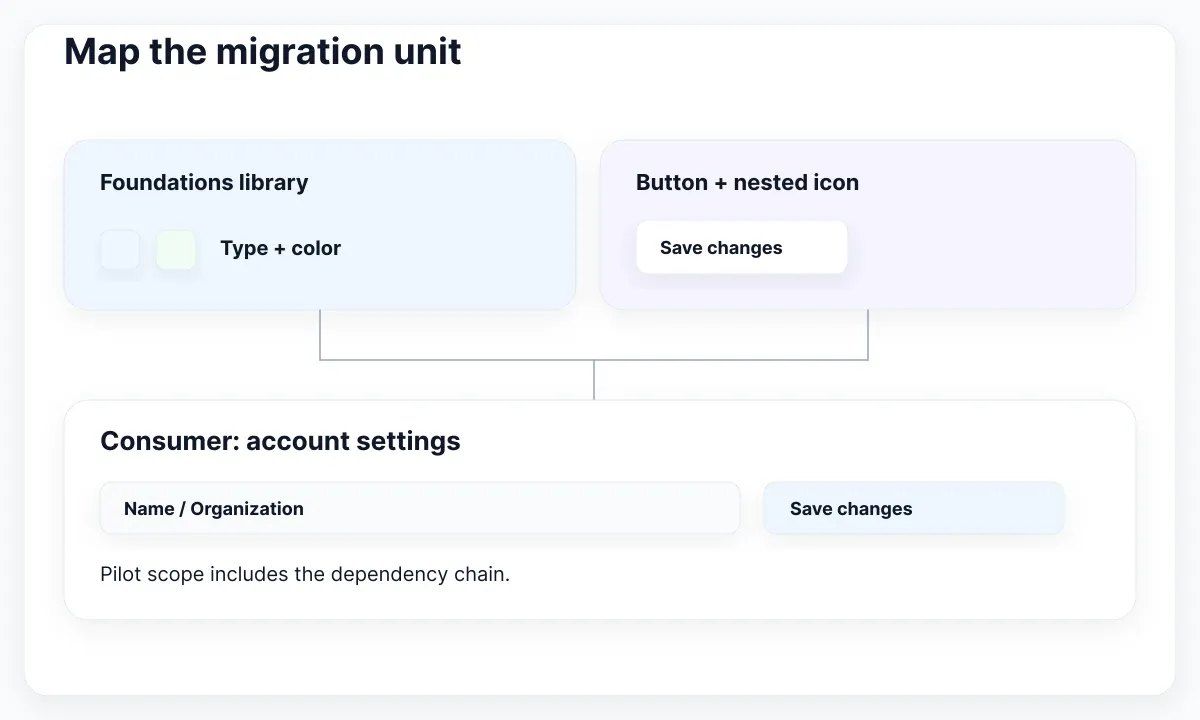
Create an inventory with five columns: source file, dependency, owner, destination and acceptance evidence. For the pilot, list the foundations library, button set, profile card, account screen and prototype entry point. Record which of these are shared and which exist only inside a product file. Include a nested icon: a component that looks independent may still depend on another library.
Capture the current Figma state using your team's existing history and backup process. Name the baseline and record the export date. Keep a plain-language migration log beside it. A useful entry says that the imported profile card lost its minimum width; an unhelpful entry says that the file looks slightly different.
Penpot's official migration guide recommends an audit and a representative pilot. It describes the exporter as a one-off migration route rather than continuous synchronization. Plan a period with one authoritative editing location for each component family; otherwise fixes in two tools become competing decisions.
Start with a deliberately mixed sample: one simple control, one nested component and one screen with realistic content. Avoid both extremes: a decorative icon reveals little about system behavior, while the largest dashboard makes failures difficult to isolate. The pilot should expose the work that later migrations will repeat.
Run a traceable export trial
Use the current export and import route described in the official migration guide, starting from a copy of the pilot scope. Keep the exported artifact, its source reference and the destination file together in your migration log. The team should be able to identify exactly which input produced a problematic result.
Before the trial, write down the exporter and destination versions visible to your team and the chosen library handling. After importing, check the file structure before making corrections. Record the initial result separately from the repaired result. Otherwise, a pilot that required hours of cleanup can later be mistaken for a flawless automatic conversion.
Use a simple issue record: source reference, destination layer, reproduction steps, expected result, observed result and repair owner. Include a small visual reference only when it clarifies the discrepancy. Re-run the relevant acceptance case after every structural repair, because renaming or regrouping layers may affect more than their appearance. If you retry the import, give the new destination a distinct name so reviewers cannot confuse a fresh conversion with an already corrected file.
Test variant behavior after import
A variant check should exercise a change, not merely count imported thumbnails. Place a copy of the migrated button, edit its label, switch its state and check that the intended content survives.
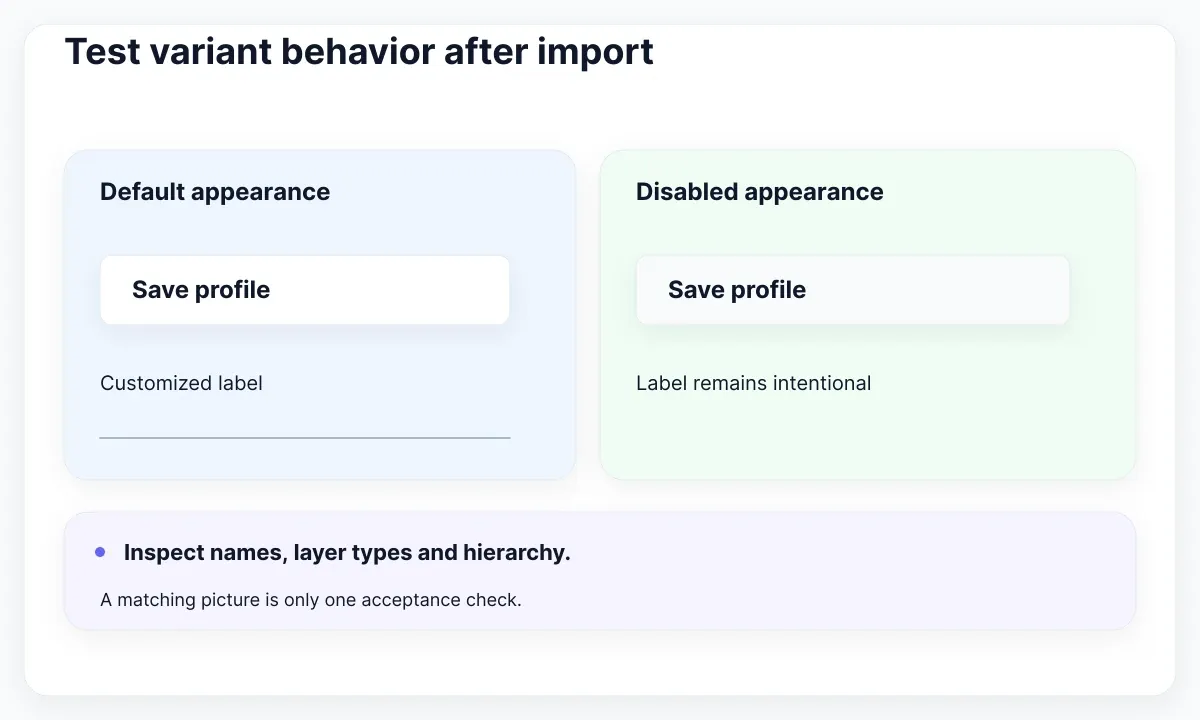
Use a compact acceptance matrix. For example, test primary and secondary emphasis with default and disabled appearance, then add a long label and a nested icon. These are proposed cases for the pilot, not a claim that every component needs that exact variant structure. Capture the result in the same file so reviewers can reproduce it.
Penpot documents how variant overrides stay connected through matching layer names, types and hierarchy levels. If a label resets unexpectedly, inspect that structure before recreating every variant. Check one failing pair against one working pair. A renamed or differently nested text layer can explain a behavioral difference that a screenshot cannot reveal.
Record whether the failure belongs to conversion, source inconsistency or an intentional difference in the destination model. Keep those cases separate in the repair log: they need different owners. A component with ambiguous source states should be clarified before the same ambiguity is copied across the destination library.
Next, edit the destination main component and inspect its consumer. Confirm that a deliberate shared change propagates where expected and that a local label remains intentional. The migration acceptance question is whether designers can continue maintaining the component, rather than whether the first exported picture resembles the old one. For background on the source model, revisit components, instances and libraries in Figma.
Verify typography with real content
Test font availability and text layout before adjusting card dimensions. The EmviUI specimen below shows a type scale and weights; use it as a checklist for the text roles you actually migrate, not as a Penpot screenshot or proof of successful conversion.
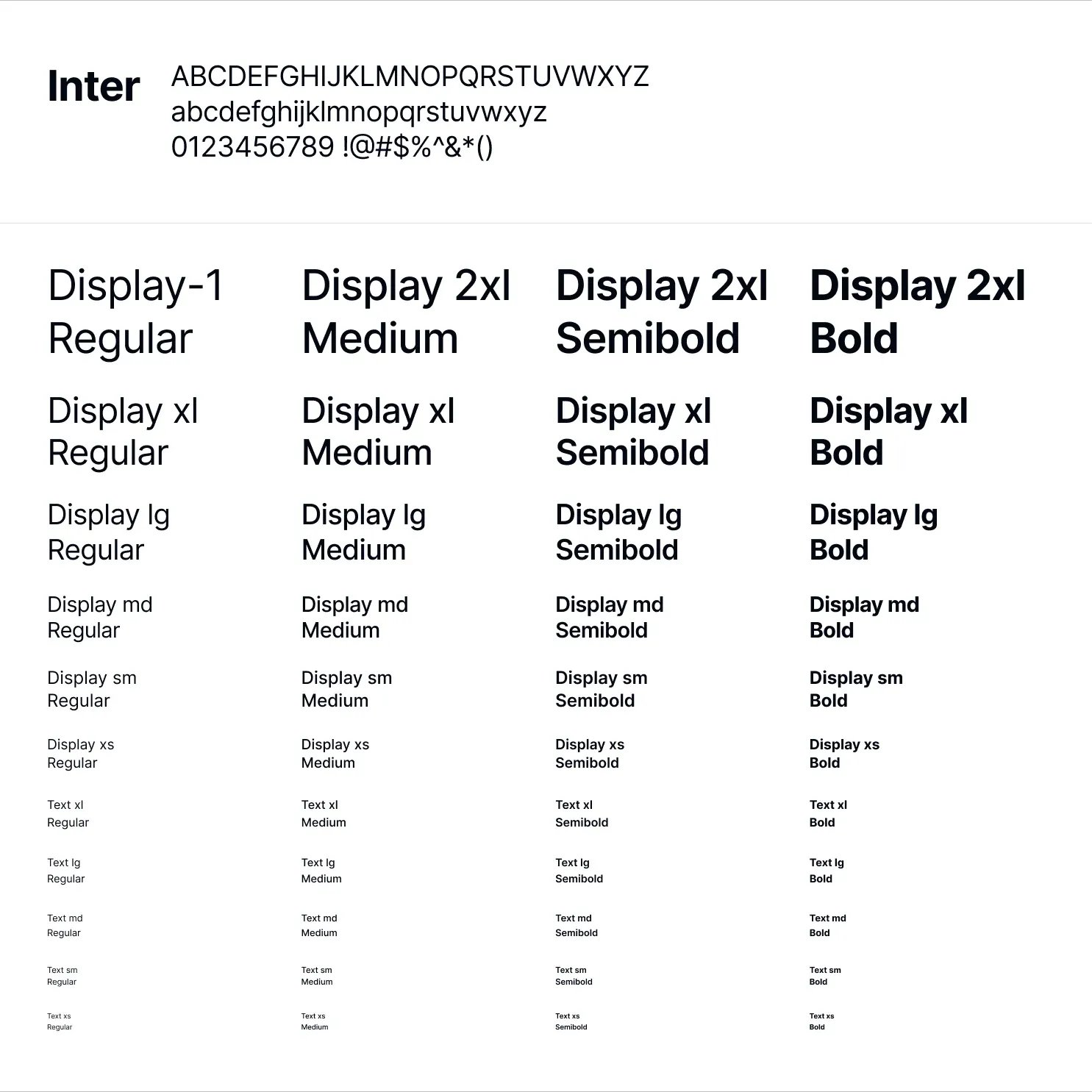
Penpot's text and typography documentation explains that locally held custom fonts must be uploaded to the destination team before use. Check your font license and the actual family and weight files needed for the pilot. An available family name alone does not establish that every intended weight is present.
Build a small specimen page with a heading, body paragraph, input label, helper message and button. Use real English and Spanish strings, numerals and punctuation. Compare line breaks, line height, alignment and clipping at identical widths. Keep a screenshot of the source beside an editable destination specimen; the screenshot is a reference, not the replacement design.
Our proposed settings screen uses “Account preferences” and “Preferencias de la cuenta.” Give both strings the same content area and inspect the resulting height. If one wraps, decide whether that is correct content-driven behavior or a regression from the agreed layout. Do not force identical line counts by reducing the Spanish text until it becomes unreadable.
The EmviUI component catalogue can supply a bounded Figma design specimen for this exercise when your team already uses the kit. Select a familiar control and preserve its original reference. EmviUI helps define what the intended UI looks like; this article does not establish a native Penpot edition, automatic conversion support or a successful migration of its complete library.
Resize rules, not just screenshots
Inspect a wide and narrow destination board, then change the content inside each. Matching one exported size does not demonstrate that a migrated layout responds correctly.
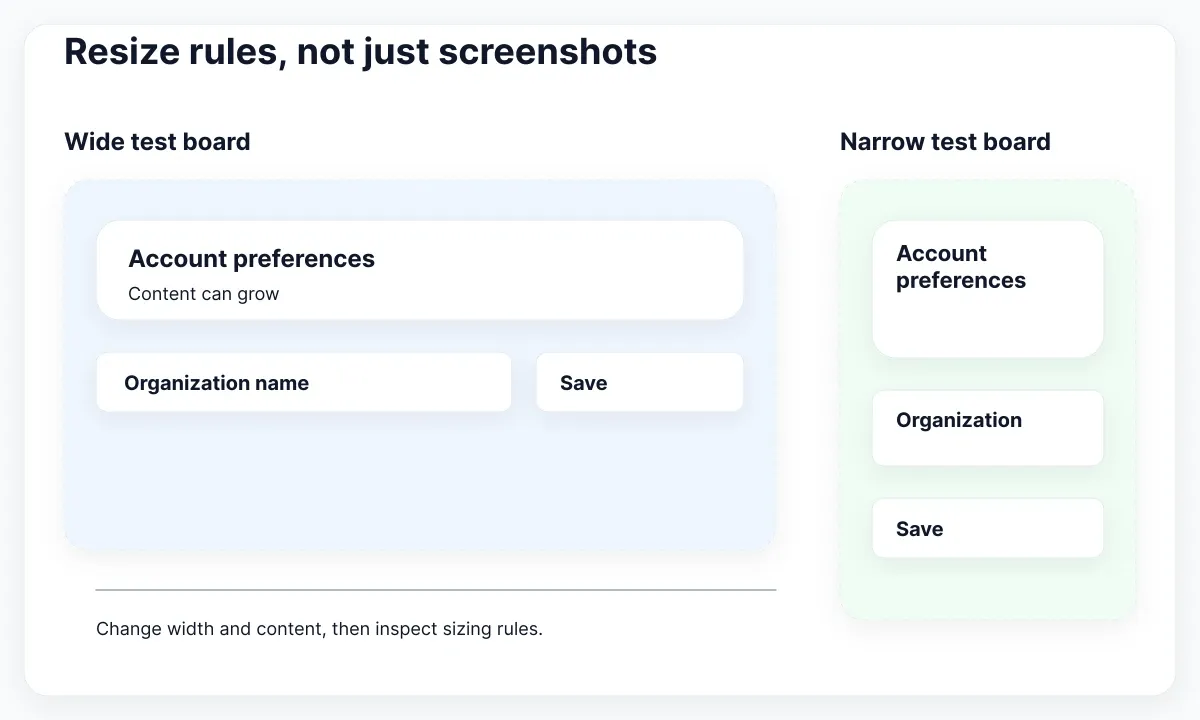
Penpot Flex and Grid layouts provide container and child sizing controls. For the pilot, explicitly inspect direction, gap, padding, alignment and fixed versus content-based sizing. Map the intended behavior rather than assuming that similarly named settings produce identical results in every nested case.
Use proposed test widths such as 360, 768 and 1280 pixels, selected for your product's supported layouts. These are test inputs, not Penpot breakpoints or universal device categories. At each width, lengthen the profile name, add a second helper line and remove the optional icon. Check where content wraps, where controls stretch and whether the container grows.
A useful failure report includes the board width, changed string, affected layer and expected behavior. For example: at the narrow width, a long organization name should wrap inside the card while preserving the action below it. That description lets another designer repair the sizing rule and repeat the check without guessing what “responsive” means.
Keep the browser implementation in the review when it exists. Design-tool resizing is evidence about the design model; it does not independently verify CSS, keyboard behavior or the deployed product. Our responsive Figma-to-Tailwind workflow explains that later handoff step. Record any differences that the implementation team must approve rather than hiding them with a manually positioned layer.
Rebuild access and library connections
Treat destination access as its own acceptance task. Invite the pilot participants with deliberate roles, then verify editing and inspection from their actual accounts.
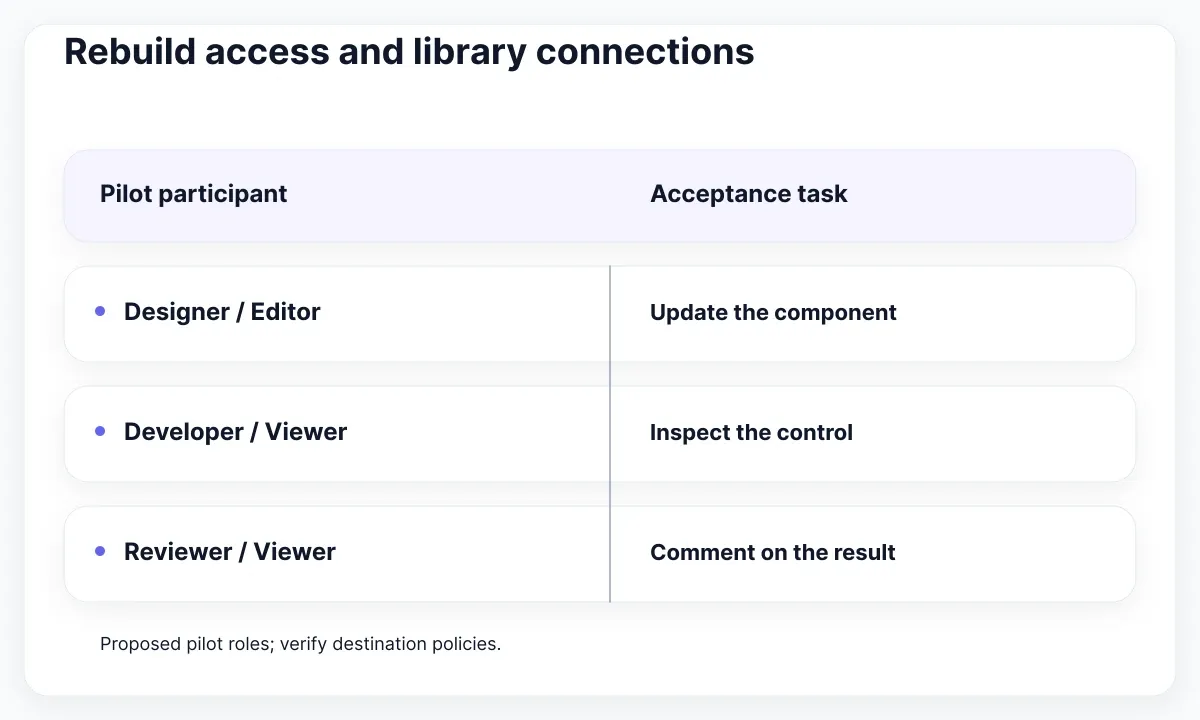
The Penpot team-role documentation distinguishes viewers, editors, admins and the owner. For this pilot, the designer needs to edit, the developer needs to inspect and the reviewer needs to comment. Map those jobs to the destination team's available roles and any organization policies. Do not assume that source invitations or role names establish destination access.
Create an access checklist that names a person and a concrete task. Ask the developer to open the shared review location, inspect a control and find its specification. Ask the designer to update the pilot component. Record the result with the account role used. A successful check from the owner's account proves little about anyone else's experience.
Validate library linkage separately. Penpot shared-library documentation explains how files connect to libraries in the same team. In the pilot consumer, locate the shared component and test an update. If an imported copy has become a local asset, document that and decide whether to reconnect or rebuild it before scaling the import.
Check tokens as another distinct dependency. Penpot documents token management and import in its design-system guide. Compare a small selection of named values and references with the baseline, including a second theme when your system uses one. Record the intended value and the observed destination result; visual similarity alone cannot confirm that a token remains reusable.
Approve a controlled cutover
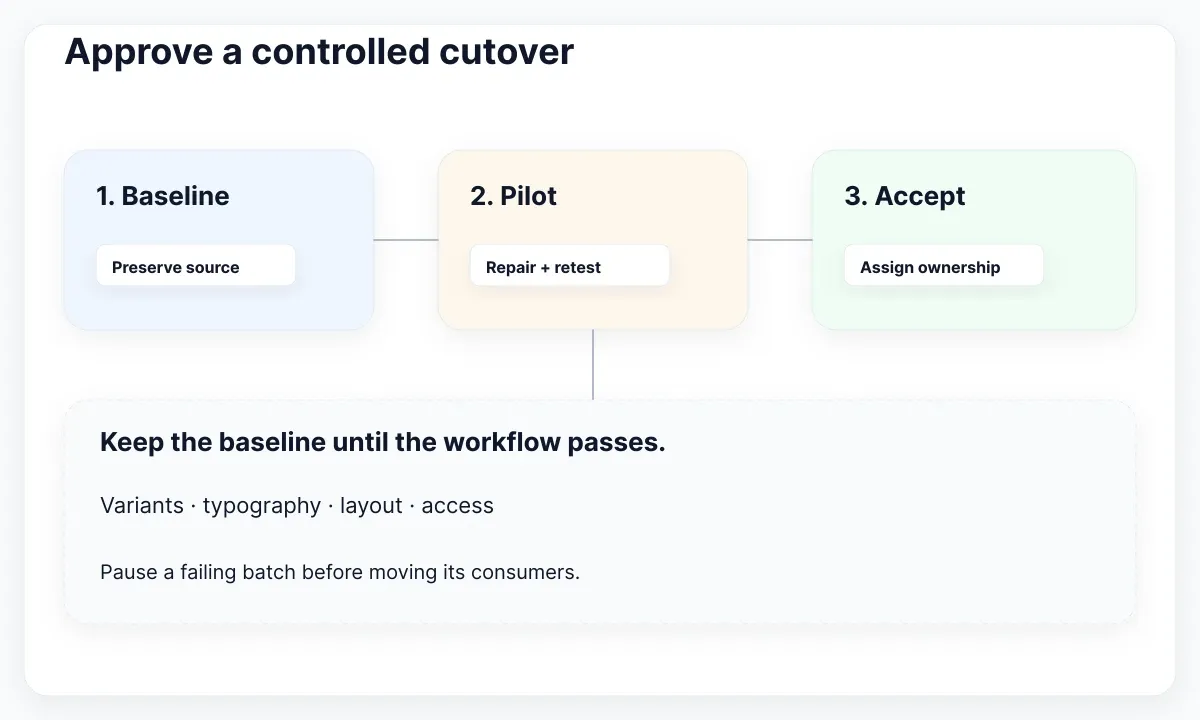
Expand the migration only when the pilot has evidence for visual fidelity, editable behavior and participant access. A small release record makes that decision reviewable.
| Pilot check | Evidence to retain |
|---|---|
| Variant label | Edited copy before and after switching state |
| Text layout | Both languages at the agreed widths |
| Shared update | Main component change visible in its consumer |
| Participant access | Named account, role and completed task |
Set your acceptance rules before reviewing the result. Our proposed release requires the label override test, all agreed resize cases, the typography specimen and the participant checks to pass. A missing logo asset might be a straightforward repair; a broken shared-component update path should block the next batch. Assign an owner and a reproducible case to every unresolved issue.
Include the prototype journey in that review. Follow the account screen's entry point, action and return path. Penpot's prototyping documentation describes its interaction model; inspect the destination flow directly instead of assuming that a matching collection of boards preserves the source interactions. Annotate any deliberately deferred behavior so reviewers know its status.
Move the next batch by dependency order: approved shared assets first, their consumers afterward. Announce which tool owns each migrated family and where new changes belong. Maintain a short exception list for work still authored in Figma. A dual-tool period is manageable when each asset has one owner and a clear destination for edits.
Agree a rollback trigger and preserve the reference baseline until the team accepts the new workflow. If a required consumer cannot be maintained, pause that batch and keep the earlier source authoritative while the issue is investigated. This is an operational recommendation for the migration, not a promise that an exporter can reverse every transformation.
Finish by measuring the pilot's actual repair work: recurring layout fixes, component reconnections, font preparation and review time. Use those observations to size the remaining batches. For the ownership model after migration, read component-library responsibility boundaries. The useful outcome is a system the team can keep editing, reviewing and delivering after the import day.

Pablo Mayoral
Senior UX/UI & Web Designer with 10+ years of experience. Creator of EmviUI (10k+ components Figma design system), UImand, and Vitamin Bootstrap. Currently designing digital products at CQMRewards.