Tailwind CSS Flex: Responsive Search, Actions and Overflow
Use Tailwind CSS flex to arrange interface controls along one main axis, then define what grows, what stays content-sized and what happens when space runs out. For a responsive search toolbar, start with a stacked layout, let the search field absorb available width and

Use Tailwind CSS flex to arrange interface controls along one main axis, then define what grows, what stays content-sized and what happens when space runs out. For a responsive search toolbar, start with a stacked layout, let the search field absorb available width and allow the action group to wrap. Test long labels before choosing a breakpoint.
Use Tailwind CSS flex to arrange interface controls along one main axis, then define what grows, what stays content-sized and what happens when space runs out. For a responsive search toolbar, start with a stacked layout, let the search field absorb available width and allow the action group to wrap. Test long labels before choosing a breakpoint.
This guide builds a fictional project-list toolbar with a search field, a Filters button and a New project action. The specimen, layout rules and acceptance checklist are proposed design recommendations. They make the tradeoffs visible without implying that a particular class combination guarantees accessibility or suits every product.
Define the toolbar contract
Give each part one responsibility before assigning widths. Search accepts a query, Filters opens the available refinements, and New project begins a separate task. Keep that reading sequence in the document. On narrow screens, our proposed arrangement places search above the two actions so the input remains usable without compressing the buttons.
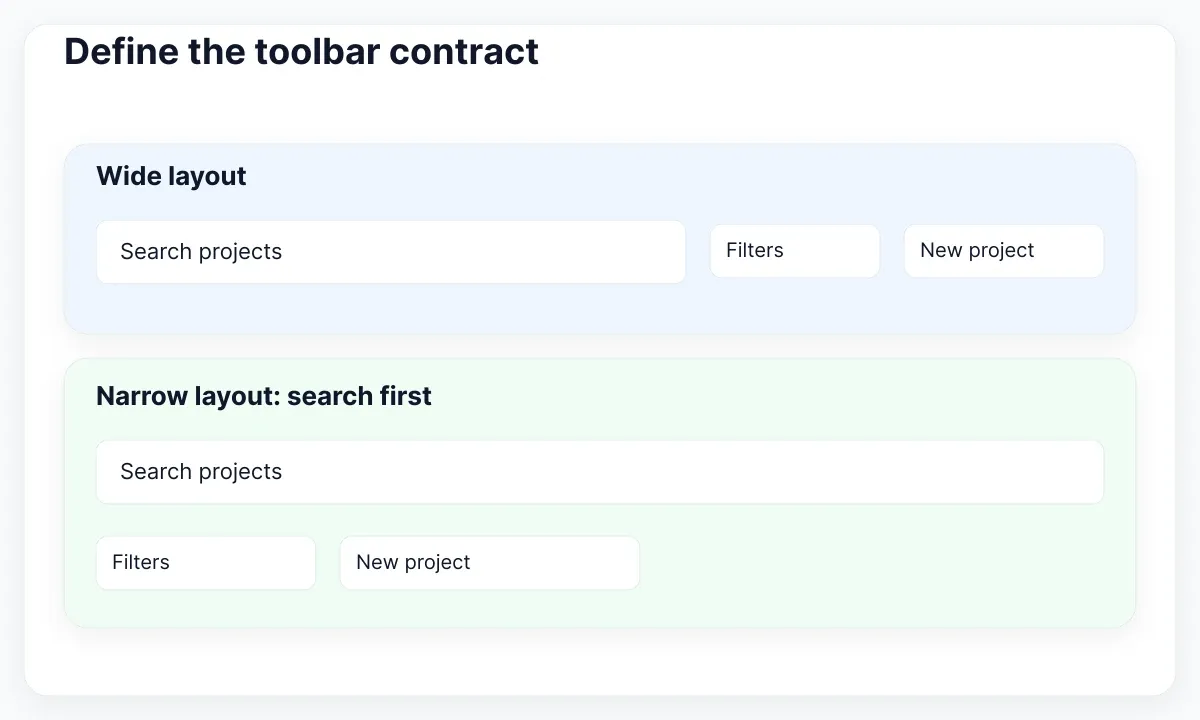
Write the expected behavior beside the design: search fills its row; actions remain readable; the whole toolbar may become taller; no essential control disappears. Use realistic labels such as “New project from template” during review. A layout that works only with “Add” has not demonstrated that it can support the actual task.
Make the search region and actions group separate children of the outer flex container. Then give the action group its own flex layout. This lets the two buttons negotiate space together while the search field has an independent sizing rule. The Tailwind flex reference documents the child sizing utilities; the recommendations here choose a specific contract for this toolbar.
Do not apply a toolbar ARIA role just because the controls look like a toolbar. Our example uses a search form and ordinary buttons. If the product needs a composite widget with specialized arrow-key behavior, specify and implement that interaction separately. Visual grouping alone is insufficient reason to change the keyboard model.
For the specimen review, create three content cases: a short query, a query containing a project name and a query containing a long identifier. Add the same two actions to each. Keep the surrounding page width identical when comparing them. This isolates content pressure from unrelated layout changes. If only the identifier case fails, investigate its sizing path before redesigning the complete page or introducing a different navigation pattern.
Separate parent layout from item sizing
The parent controls direction, alignment and gaps; individual children control how they consume space. In our example, the small-screen parent is a column. At an appropriate wider breakpoint it becomes a row. The search region receives flex-1 at that wider size, while the actions group remains content-sized.
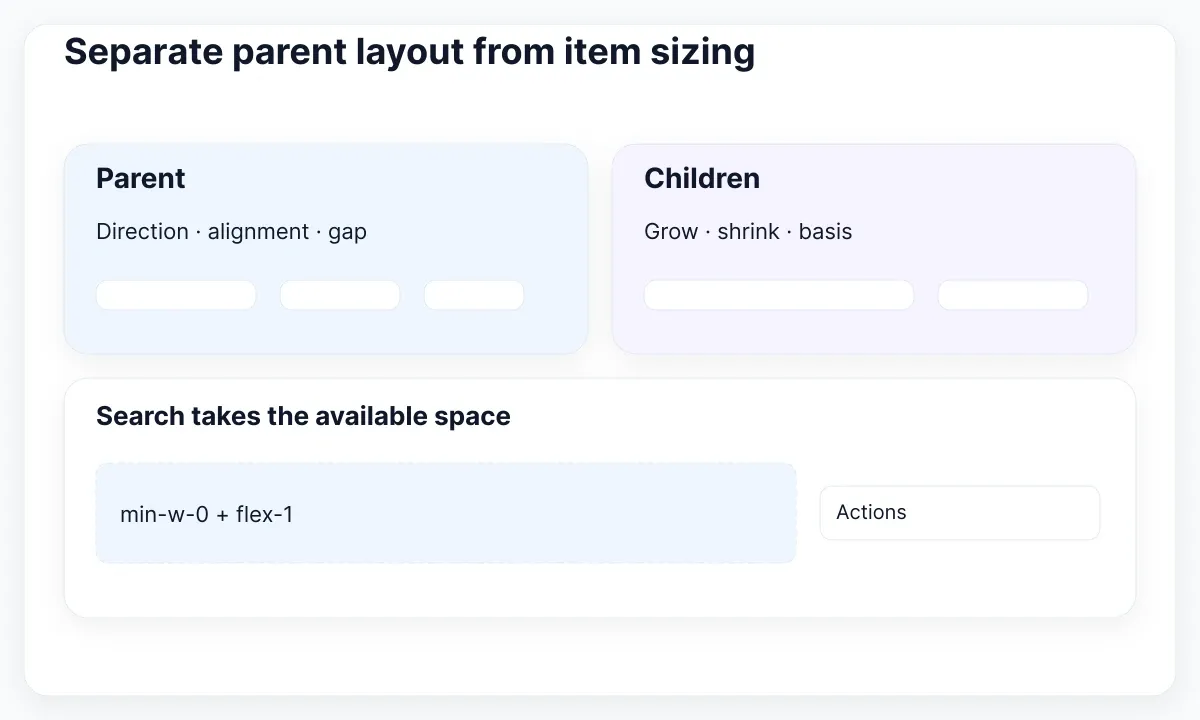
A useful first version is an outer class list of “flex flex-col gap-3 sm:flex-row sm:items-end”. Give the search form “min-w-0 sm:flex-1” and the actions wrapper “flex flex-wrap gap-3”. These are starting choices, not universal component defaults. A sidebar or translated interface may need a later transition.
Inside the search form, use a visible label and an input with “w-full min-w-0”. Keep the submit behavior explicit: decide whether Enter submits a form or whether the application updates results as the query changes. Flexbox does not implement searching, result announcements or request management. Design these states before treating the screen as finished.
The responsive design documentation explains that unprefixed utilities form the base and breakpoint variants apply at their minimum width and above. Therefore sm:flex-row does not mean “a small phone layout.” Check the project’s configured breakpoints, rather than assuming the defaults survived theme customization.
For a broader comparison of styling responsibilities, read Tailwind CSS versus direct CSS. Keep this toolbar’s sizing rules close to the component so a later contributor can find the reason for each utility.
A compact implementation record can list the parent and each immediate child in a table in your handoff notes. Include the intended direction, permitted height growth and the reason for each size constraint. Also record which classes belong to the wider layout. This prevents a later refactor from copying flex-1 onto an unrelated nested button just because that utility appears elsewhere in the same component.
Resolve the minimum-width trap
When a flex item refuses to become narrower, inspect its minimum size and its descendants before adding another breakpoint. A long project identifier inside a nested region can create a content-based limit. In a row, that limit can push the neighboring actions beyond the container even when the parent has a sensible width.
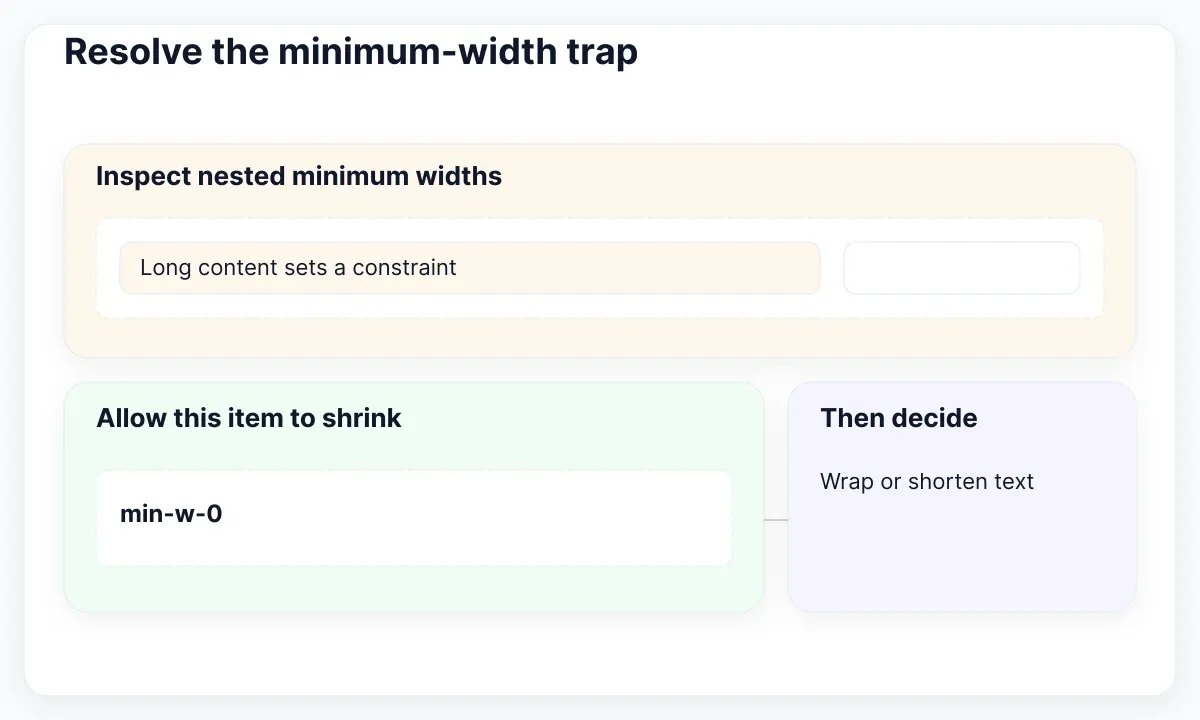
The CSS Flexbox specification defines an automatic minimum size for flex items under the relevant conditions. The Tailwind minimum-width utilities let you set an explicit constraint. In our proposed layout, min-w-0 allows the search region to shrink below its automatic content minimum; it does not decide how every descendant renders.
Inspect from the overflowing element outward. First check a fixed-width input, then its wrapper, then the outer flex item. Remove accidental minimum widths or constrain them deliberately. If two nested flex items both impose a minimum, changing only the inner text element may leave the outer failure untouched.
Choose a separate text policy. A project description can wrap; a short action label may remain on one line if its group can move down. A long machine identifier may need an intentional break opportunity or a separate copyable detail view. Do not truncate information the reader needs to distinguish two projects.
Use browser developer tools to toggle one property at a time and record the smallest reproducible failure. Compare the computed minimum width, actual width and overflowing child. “Added min-w-0 everywhere” is a weaker maintenance explanation than “the search flex item may shrink; its input fills the resulting width.”
Use two nearly identical test records to check the text policy: one project named “Planning” and another with a lengthy customer-specific reference. Ask a reviewer to identify the correct record without opening it. If your truncation policy makes that impossible, the problem is the information design as well as the width. Preserve enough distinguishing context before optimizing the visual density of the row.
Choose wrapping before clipping
Our action group uses flex-wrap so a button can move to another line when its neighbors no longer fit. Its height is allowed to increase. Keep the group aligned with the search region, and inspect the gap between rows as carefully as the horizontal spacing.
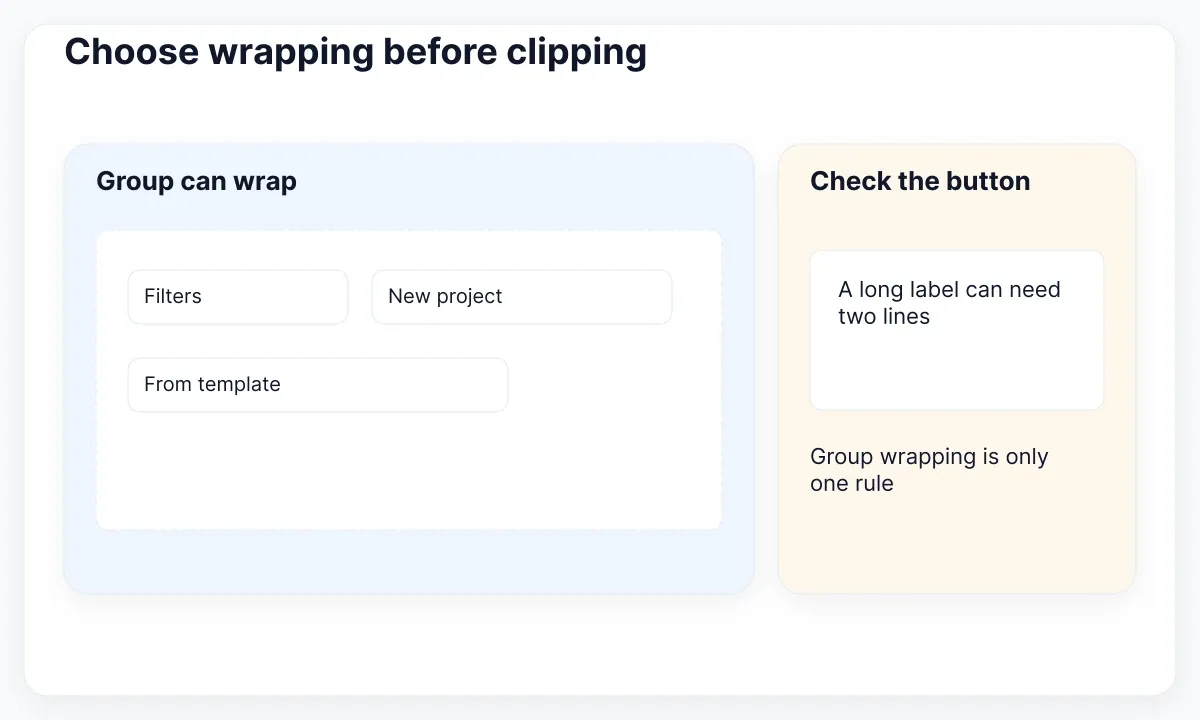
The flex-wrap documentation distinguishes wrapping from keeping every item on one line. The overflow reference separately describes clipping and scrolling. Hiding overflow changes what is visible; it does not make a missing action available to someone who needs it. Use clipping only when the content policy actually permits it.
Test an unusually long filter label and a narrow translated action. If one button alone is wider than the available row, wrapping the group cannot solve that button’s internal layout. Let its label wrap, shorten it without losing meaning, or choose a deliberate full-width presentation. Confirm the focus indicator remains visible.
Horizontal scrolling can be appropriate for a deliberately designed region, but it creates another navigation decision. For this short search-and-actions pattern, our recommendation is vertical growth. Avoid turning the whole page into a horizontally scrolling canvas just to preserve a screenshot’s alignment.
When the surrounding page needs an aligned card collection, use the separate responsive Tailwind Grid guide. That is a different layout job: the toolbar negotiates one line of controls, while the card collection may need coordinated tracks across rows.
Remember the surrounding surface when allowing vertical growth. A sticky header with a fixed height may still clip the now-correct toolbar, and a parent with an old height constraint can obscure the second action row. Inspect those ancestors after the local layout passes. The acceptance rule concerns the controls the reader can actually use on the complete page, not simply the dimensions of an isolated component preview.
Test the same task at narrow widths
Build a small acceptance matrix around the actual toolbar task. Start at 320 CSS pixels, then examine a medium width, a wide page and the widths immediately around the chosen transition. These are proposed review samples; the exact breakpoint should follow where your content remains usable.
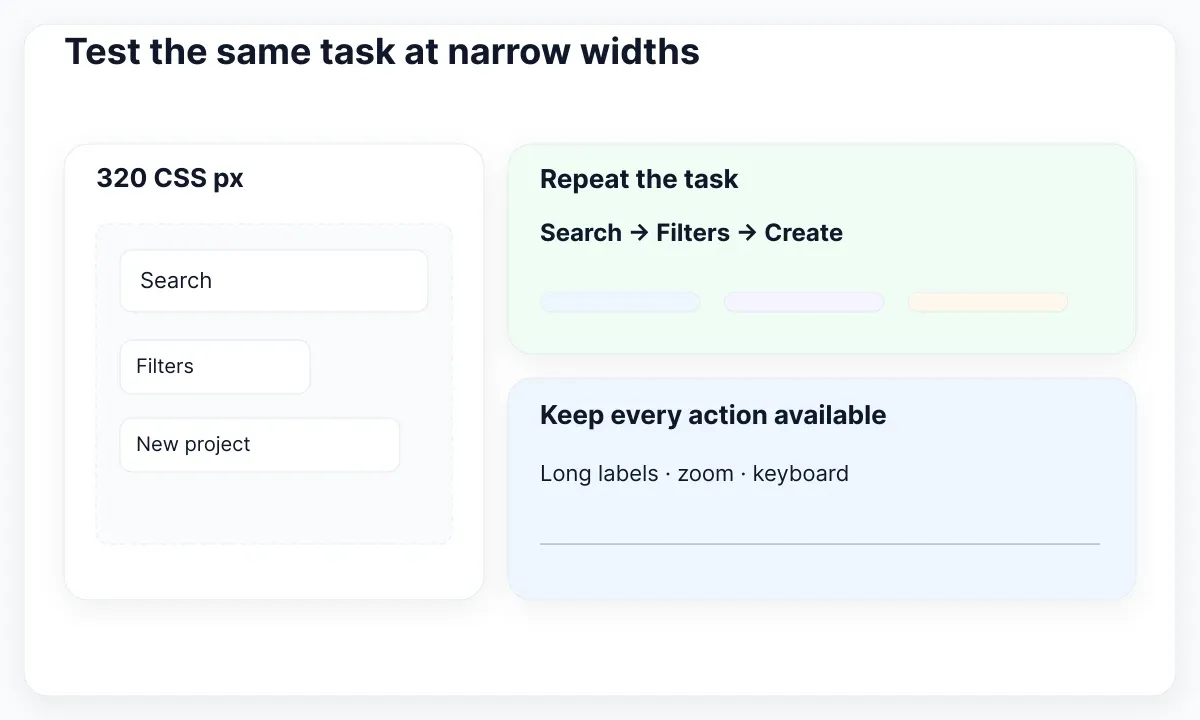
The W3C explanation of Reflow describes presenting vertically scrolling content at an equivalent width of 320 CSS pixels without losing information or functionality, subject to its exceptions. Do not treat one passing toolbar as proof of whole-page conformance. Inspect the results list, overlays, navigation and focus behavior as well.
Run the same sequence each time: focus search, enter a long query, reach Filters, close its panel and activate New project. Repeat with the longer Spanish labels. Verify that the document order still matches the meaningful visual sequence. Avoid using reverse direction merely to make a screenshot look balanced.
Check browser zoom and increased text size, then return focus to every control. Look for cut-off borders, a button pushed outside its parent and a search label detached from its field. Test empty, loading and failed results without changing the toolbar’s basic navigation order. The controls should stay identifiable while the data changes.
Record a failure with the viewport, text sample and expected result: “At 360 CSS pixels, New project from template is partly hidden; it should move below Filters or wrap internally.” This gives a developer a reproducible acceptance condition instead of an aesthetic instruction such as “make mobile better.”
- Start with the search input empty and reach every action using the keyboard. Record whether the focus indicator is fully visible.
- Enter the longest realistic query and repeat the same path. Confirm that the field, label and neighboring buttons remain inside the page.
- Replace the short action with New project from template. Observe both the group wrapping and the label inside the button.
- Open the actual page with its sidebar, result list and header. Verify that no ancestor clips the second row when the toolbar becomes taller.
Use EmviUI as a visual starting point
The EmviUI product site presents an editable Figma UI kit and design system. Use its control specimens to establish a consistent visual language before implementing this toolbar. The image below is an EmviUI button-group specimen; it is not a screenshot of the running Tailwind example or evidence that its responsive behavior is already implemented.
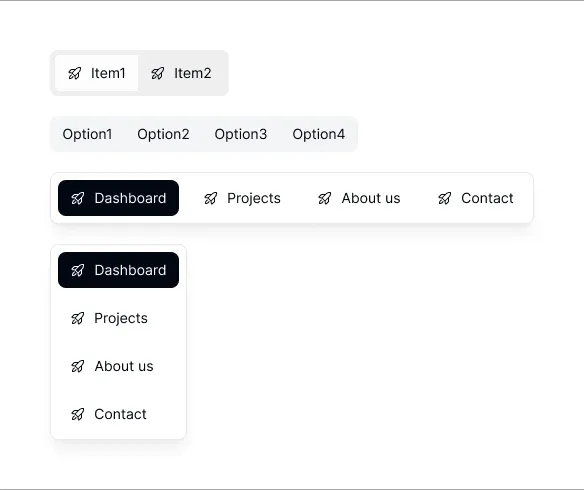
Select the button treatment that fits the task hierarchy, replace the specimen labels with the real actions and draw both the narrow and wide arrangements. Keep the search label visible. Put a note beside the component describing which region grows and whether labels may wrap, so the implementation is not inferred solely from pixel positions.
EmviUI can provide the design starting point; your application still needs native controls, search behavior, focus handling and browser validation. For the distinction between reusable visual assets and an operating system of design decisions, see UI kit versus design system.
Hand off one compact record: the base layout, the wider transition, the search sizing rule, the action wrapping rule and the longest approved label. Attach the narrow-screen failure samples you fixed. Re-run those samples whenever a translation, label, icon or surrounding sidebar changes the space budget. A responsive contract is most useful when the next person can repeat its checks.

Pablo Mayoral
Senior UX/UI & Web Designer with 10+ years of experience. Creator of EmviUI (10k+ components Figma design system), UImand, and Vitamin Bootstrap. Currently designing digital products at CQMRewards.