Component Overview
Use list patterns to organize related records, navigation options and repeated content. Keep the relevant state and next action clear so the component is easy to scan. Align labels and visual priority with the screen around it.
Organizing Information
Align repeated items around their primary label, supporting details and action, using separators only when they aid scanning. Keep labels concise and use spacing or icon cues to reinforce the message without relying on color alone.
Types and Variants
Emvi UI includes flexible list patterns:
- Simple List: text-only rows for minimal contexts.
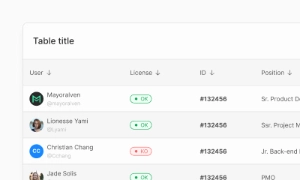
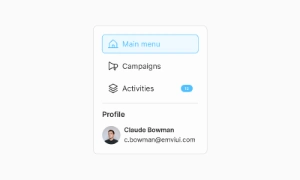
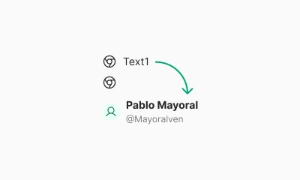
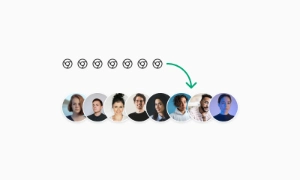
- Media List: avatar/thumbnail + title + secondary text.
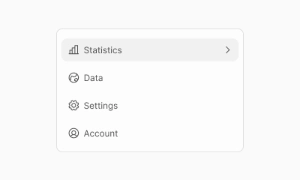
- Icon List: leading icons for quick recognition (e.g., settings).
- Navigation List: rows with chevrons, selection indicators, or badges.
- Dense/Compact: reduced paddings for data-heavy views.
- Divided/Grouped: section headers with sticky or static grouping.
Variants are theme-aware (light/dark) and driven by tokens like list.item.gap,
list.item.padding, list.divider, and list.state.selected.
Sizes, Spacing, and Scale
List items ship in SM, MD, and LG:
- SM: dense tables, utility panels, secondary menus.
- MD: default for settings, content directories, and feeds.
- LG: touch-first, media-heavy rows, or emphasis on readability.
Vertical rhythm is set with consistent item height, internal gaps (8–12px), and divider placement. Maintain
touch targets ≥44×44px and align icon/media slots on a shared baseline for visual stability across items and
breakpoints.
States and Behavior
Core states: default, hover, focus-visible, pressed/active, selected, disabled. Optional: unread/new (accent
bar or dot), error/warning (left accent), and loading skeletons for perceived performance. Lists can be
static or interactive: make the entire row clickable (preferred) or expose explicit affordances (checkboxes,
switches, overflow menus) based on task priority and density constraints.
Integration & Usage
Compose lists with semantic containers (<ul>/<ol>) and items
(<li>). For interactive rows, use anchor/buttons with proper roles. Tailwind utilities
(e.g., flex, items-center, gap-3, py-2,
px-3) establish alignment and spacing. Keep content slots (leading, content, trailing)
consistent: icon/avatar → title/meta → actions/badges. Use dividers or inset separators when grouping or
emphasizing hierarchy.
Accessibility
Use semantic lists for static content and buttons/links for actionable rows. Ensure focus-visible rings on
interactive items, keyboard navigation (Up/Down; Enter/Space to activate), and ARIA states for selection
(aria-selected) or current page (aria-current). Provide text alternatives for
icons/avatars, and preserve contrast on hover/selected backgrounds and dividers across themes. Avoid using
only color to indicate selection—include shape or icon indication where relevant.
Figma & Tailwind Integration
Figma: component with variants for size (SM/MD/LG), states, leading media (none/icon/avatar/thumbnail),
content density (single/dual line), and trailing elements (badge/chevron/switch/none). Auto Layout
guarantees consistent gaps and padding. Tailwind: build rows with flex layouts, tokenized
paddings, and state classes (hover:bg-*, focus-visible:ring-2,
aria-selected:bg-*). Tokens unify spacing and typography with other components for predictable
theming and responsiveness.
Best Implementation Practices
- Keep rows scannable: one strong primary text, optional secondary line, and concise meta.
- Prefer row-level click targets; avoid scattered, tiny hit-areas.
- Use consistent media ratios (e.g., 40×40 avatars) and align to a common baseline.
- Control density with SM/MD/LG and avoid mixing densities in one list.
- Employ skeletons or progressive loading for long feeds.
- Communicate selection with both color and iconography; persist focus-visible styling for keyboard
users.
Presenting Related Items
Lists are perfect for presenting related items in a clear and concise manner. They group similar items
together, making it simple for users to compare and contrast information. For instance, a list of features
on a product page allows users to quickly see what a product offers without sifting through paragraphs of
text.
Improving Readability
Lists improve readability by creating a clean and organized layout. Bullet points or numbered lists provide
visual separation between items, which enhances the overall user experience. This format is especially
useful for highlighting key points, ensuring that important information stands out and is easily digestible.
Our UI kit includes customizable list components that can be tailored to suit any design, ensuring clarity
and coherence in presenting information.
 Included in free version





 Premium